What Is Church Data Security?
Church data security is the practice of protecting the personal, financial, and familial information your congregation entrusts to you. It splits cleanly in half: a technical half that your giving platform handles automatically—encryption, authentication, audit logging—and an operational half that only you can handle—deciding who can see what and removing access when someone stops serving.
Most of what protects your congregation’s information is already running on OnlineGiving.org, and nobody at your church had to configure any of it. Two-factor authentication is enforced on every admin login, card numbers are never stored, administrative access is restricted by network and geography, and meaningful changes are written to an audit record. That is the technical half, and for the giving platform it is finished.
What remains is genuinely small. Both operational tasks are done with dropdown menus and a one-page checklist, and neither requires an IT hire, a consultant, or a budget line. A church of sixty people can be in good shape by the end of the week, and a church of two thousand is doing the same two things at a larger scale. Churches hold exactly the kind of information attackers target, and congregations trust you to guard it. Proverbs teaches that “The prudent sees danger and hides himself, but the simple go on and suffer for it” (Proverbs 22:3, ESV). Security is not paranoia. It is loving your neighbor in a digital age. This guide shows you what data you actually hold, what your platform already handles, how to assign least-privilege access, the offboarding step most churches skip, and an implementation checklist you can start this week.
Key Takeaways
Your platform already handles the technical half. Two-factor authentication, card tokenization, geographic access restrictions, and audit logging are enforced on OnlineGiving.org without any configuration on your part.
Your two jobs are access and offboarding. Decide who can see what using role-based permissions, and revoke access within twenty-four hours when someone stops serving.
Least privilege is your strongest control. Give communications staff form and text marketing roles rather than full administrative access, and scope volunteers to their own phone lists.
Report recipients and alerts are hidden access lists. Scheduled report emails and event trigger notifications carry giving data outside your users screen—review them when people rotate off.
Most church incidents are operational, not cryptographic. Convenience exports, stale volunteer logins, and missing offboarding cause more harm than hackers.
Three hours this week closes more real risk than any tool you could buy. Audit roles, enable two-factor authentication outside your giving platform, and name a breach response lead.
Table of Contents
- Know What You Actually Hold
- What Your Platform Handles (So You Do Not Have To)
- The Control That Matters Most: Who Can See What
- Offboarding Is a Security Control
- Do Not Forget Where the Reports and Alerts Go
- Why Those Two Jobs Carry So Much Weight
- Passwords, Devices, and Backups
- Evaluating a Vendor
- When Something Goes Wrong
- Train Your People
- Your Implementation Checklist
Know What You Actually Hold
Start with a list, because the list is what makes the two jobs easy to finish. It usually takes one sitting, and most of it you can write from memory.
You likely have contact and demographic records including family relationships and attendance. Financial and giving records. Children and youth records with allergies and custody arrangements—the highest sensitivity tier you hold. Pastoral and counseling notes. Staff files including background check results. And operational credentials: admin passwords, API keys, OAuth connections to your ChMS and accounting software. Compromise there exposes everything else.
Map where each category lives. Giving platform, church management system, email, text marketing lists, form submissions, shared Drive folders, staff laptops, filing cabinets.
One category almost every church misses: conversation transcripts. If you run the Church AI Agent on your website or text-message chatbots, those conversations are stored and readable by administrators. People tell a chat window things they would not put on a form—a marriage in trouble, a job loss behind a benevolence question, a health situation behind a prayer request. Whatever they typed is retained with their name attached when they were signed in.
Two things follow. Add transcripts to your inventory rather than discovering them during an incident. And check who can read them: Church AI Agent conversations sit with your Donation Administrators, while text chatbot conversations sit with Text Marketing Administrators. That is a wider audience than most pastors assume, and it is worth a deliberate decision rather than a default.
At a small church the inventory fits on one page: giving platform, email, Facebook admin, one shared Drive folder, the pastor’s phone contacts. As you grow, it lengthens—check-in kiosks, volunteer scheduling, an online store, analytics. Keep it current the same way you keep it short: add a line the day you add a tool, and re-read the whole page once a year. The gate at the moment a new system appears is what keeps the list honest, and it beats a recurring calendar reminder every time.
What Your Platform Handles (So You Do Not Have To)
Know the split and you get to delete several items from any security checklist you have been handed. On OnlineGiving.org, these are handled at the platform level and are not configurable tasks on your to-do list:
Two-factor authentication is already enforced on every admin login. A verification code is emailed at sign-in and expires in ten minutes. There is no setting to turn on—it is on. Recognized devices can be trusted for thirty days when the account password is strong enough, up to ten devices per person, and a familiar office network with a history of admin sign-ins can skip the code on the same condition. That is why password strength is scored and enforced rather than merely suggested—a weak password always draws the emailed code.
Card numbers are never stored. Payments are tokenized through a PCI-compliant gateway. A breach of your admin account does not expose card data, because the card data is not there.
Administrative access is geographically and network restricted. Connections through VPNs and anonymizing proxies are blocked for admin sessions, along with addresses carrying a high risk score, and admin access is restricted to U.S. addresses by default. Churches with staff who genuinely administer from outside the country can have that adjusted on request. Bot detection and honeypot traps run on the login page.
Changes are logged. Transaction edits, refunds and voids, user role and password changes, subscription edits and cancellations, and payment method changes all write an audit record capturing who changed what, the before and after values, and the originating context.
Two practical implications. First, cross “enable 2FA on the giving platform” off your security checklist—it is done, and leaving it on the list creates false work. Second, staff logging in for the first time need access to their church email to receive the code, which matters on day one of a new hire.
2FA still deserves your attention everywhere else. Church email, cloud storage, website hosting, domain registrar, and social media accounts are where you must turn it on yourself, and where most churches have not. Use an authenticator app rather than SMS where the option exists.
The Control That Matters Most: Who Can See What
Least privilege—every person accesses only the data their role requires—is the single most effective security control available to a church without an IT department. It is also one of the fastest to put in place, because it is a set of dropdown selections rather than a project.
Not every pastor needs donor-level giving detail. Not every admin needs counseling notes. Your volunteer coordinator does not need export access to the member database.
This is enforceable, not aspirational. OnlineGiving.org uses role-based access, and the roles are genuinely separated:
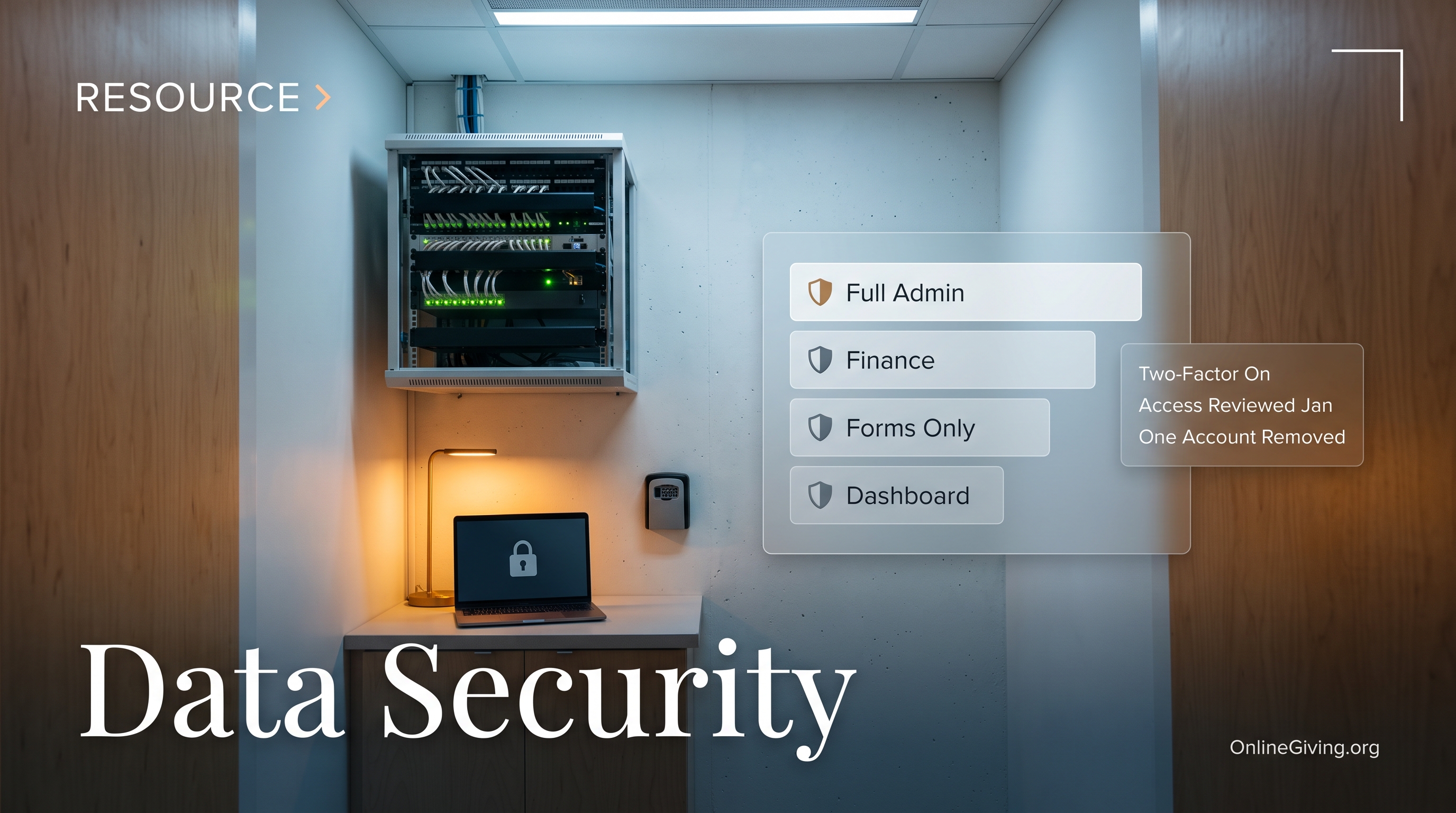
Donation Administrator is the full-access role covering donors, transactions, funds, batches, statements, and settings. Give it sparingly.
Custom Form Administrator manages forms, submissions, and form reports—without access to giving data.
Text Message Marketing Administrator manages lists, campaigns, and chatbots—also without giving data.
Payments Administrator covers checkouts, products, and payment reports, separate from tax-deductible giving.
View Donation Dashboard shows aggregate metrics with donor records not clickable—the right role for an elder who needs trend visibility, not a donor list.
Native Mobile Application Administrator covers app content, push notifications, and sermon media.
A communications hire should get the form and text marketing roles. Not full administrative access. That one decision means a compromised communications account cannot expose a single donor giving record.
Text marketing goes one step further: you can assign a volunteer to manage specific phone lists only. A youth leader can text the youth parent list without touching any other list or any donor data.
Write down who holds which role, then revisit the list quarterly. Fifteen minutes at a time, and it closes more real risk than any amount of password policy.
Offboarding Is a Security Control
This is the second of your two jobs, and it is a one-page document that you write once and then simply run.
When someone leaves—staff or volunteer—revoke access within twenty-four hours. Build a written offboarding checklist covering the giving platform, ChMS, email, shared drives, social media, website admin, and any lists they managed, and attach it to the checklist you already run for keys and credit cards. Because it is attached to a departure rather than to a calendar, it never becomes a recurring chore and it never gets skipped.
Two related disciplines. Individual credentials only—shared logins destroy audit trails, so if two people need access, create two accounts. And note the OAuth connections: when your bookkeeper connects QuickBooks or your admin authorizes the Planning Center integration, that connection carries their authorization. Document who authorized each one, because when they leave you need to know what to re-establish.
Do Not Forget Where the Reports and Alerts Go
Two things escape the usual access review because they are not logins, and both carry real giving data.
Scheduled report emails can be addressed to people who have no account at all, which is a genuinely good feature — a treasurer or board chair should not need an administrator login to read a monthly summary — but it means the recipient list is a second access list, and it is not visible on your users screen. When someone rotates off the board or leaves staff, take them off the report recipients the same week you would have removed a login. Nobody notices this on their own, because the report keeps arriving and looks completely normal at the receiving end.
Alert notifications have the reverse failure. An event trigger that emails a staff member’s personal address stops reaching anyone the moment that mailbox closes, and it fails silently — no error, no bounce anyone reads, just an alert that no longer arrives. Point alerts at a group address your church controls rather than an individual, and the problem disappears permanently. Church Giving Alerts and Scheduled Reports covers both, and Church Staff Onboarding covers the offboarding checklist these belong on.
Why Those Two Jobs Carry So Much Weight
Access and offboarding get top billing because the incidents churches actually experience are operational rather than cryptographic. Three patterns account for most of them, and you have now read the fix for each.
The convenience export. A volunteer coordinator needs to text her team, so she exports the full member directory to a CSV and emails it to her personal Gmail. Nobody did anything malicious—but that contact information now sits in a consumer email account, outside any system the church controls, permanently. The fix is a sanctioned alternative: give her a text list she is authorized to manage, and the secure path becomes the easy path.
The volunteer who left two years ago. A children’s ministry volunteer stopped serving in 2024. Nobody ran an offboarding checklist, so her login still works, and she has no idea she still has access. The fix is the checklist, and it is one page.
The breach notification. A church discovers unauthorized access to a system holding donor records for roughly five hundred households, and every one of those families has to be contacted. Legal counsel, notification letters, and eroded trust follow. Insurance carriers ask what controls were in place, and premiums reflect the answer—which is a fair reason to be able to point at a role table and a dated offboarding list.
The pattern in all three: the failure was not cryptographic. It was operational, which is precisely why an ordinary Tuesday afternoon is enough to close it.
Passwords, Devices, and Backups
A team password manager settles this whole category in one evening, and weak or reused passwords remain the most common entry point anywhere, so it is an evening well spent. Require long passphrases—fourteen characters or more—rather than short passwords with arbitrary symbols. Provide the manager so credentials never live in Notes apps, sticky notes, or email drafts. Each system gets distinct credentials.
Devices are three settings, applied once. Set them to auto-lock after five minutes, enable full-disk encryption, and require passcodes on phones that access church accounts. Give children’s ministry tablets and check-in kiosks the same three settings you give the finance computer, since a kiosk left sitting in an admin view is an open door in a room full of strangers.
Follow the 3-2-1 rule for backups: three copies of critical data, on two media types, one offsite. Automate where possible, and actually restore a file monthly. Untested backups are wishful thinking. Confirm your vendors maintain disaster recovery, and keep your own copy alongside theirs—exports from most platforms come module by module rather than as one bulk download, so plan the archive as a short routine with named files rather than a single button.
Evaluating a Vendor
Before trusting anyone with congregation data, ask: Do they publish a security page? Is data encrypted in transit and at rest? What is their breach notification timeline? Can you enforce role-based access? Is card data tokenized or stored? Where is data hosted?
Fewer vendors means fewer answers to verify and fewer admin panels to lock down. When giving, forms, text marketing, and the Church AI Agent live in one platform, you evaluate one security posture and manage one set of accounts—instead of four vendors, four policies, and four separate offboarding checklists to run every time someone leaves.
When Something Goes Wrong
Designate a breach response lead before you need one.
Contain by isolating affected systems and changing credentials—without deleting evidence. Assess what was accessed, when, and by whom; the change history on transaction and user records helps reconstruct the timeline. Notify leadership and legal counsel. Communicate honestly with affected members, avoiding both minimizing and speculating past confirmed facts. Remediate and review within thirty days.
Keep contact information for your insurance carrier, legal counsel, and vendor security teams in a document that does not require one person’s laptop to open.
Train Your People
Fifteen minutes in a staff meeting covers what actually matters here: recognizing phishing, proper handling of sensitive data, reporting suspicious activity without fear of blame, and secure use of personal devices.
Spend most of that time on one behavior, said directly: exporting the directory to personal email is the most common data loss event at churches, and it happens because someone is trying to be helpful. Give people a sanctioned alternative—a text list they are authorized to manage—so the secure path is also the easy path, and the behavior takes care of itself.
At a small church, fifteen minutes in a quarterly staff meeting suffices. As you add staff, build it into onboarding.
Your Implementation Checklist
None of this requires an IT hire, a consultant, or a budget line, and the platform has already done the encryption, the enforced two-factor authentication, and the audit logging. The first week is roughly three hours of unglamorous administrative work that closes more real risk than any tool you could buy. If you are choosing platforms rather than securing the ones you have, pair this with Evaluating and Selecting Church Software, and see The Complete Guide to Church Operations for how this fits alongside your other systems.
This week
List every admin account on your giving platform and church management system, with the role attached. Schedule this with whoever holds the top-level administrator role, since on most platforms only that role can view and change role assignments. Write each account into a simple table—system, person, role, whether they are still serving—and remove anyone who is not. Forty-five minutes, and it reliably surfaces at least one account belonging to someone who left over a year ago.
Downgrade every over-privileged account you just found. Someone who manages forms and texting should hold the Custom Form Administrator and Text Message Marketing Administrator roles and nothing else—neither one exposes a single giving record. An elder who needs trend visibility gets the dashboard-only role rather than full access. Do the downgrades in the same session as the audit, because a list of intended changes is not a control.
Turn on two-factor authentication everywhere your giving platform does not do it for you. Church email, cloud storage, website hosting, domain registrar, and every social account. Use an authenticator app rather than SMS where the option exists. Explicitly do not put “enable 2FA on the giving platform” on this list—it is already enforced on every admin login with an emailed verification code, and leaving it on your checklist manufactures false progress. Budget an hour and do them all in one sitting.
Name a breach response lead and write down three phone numbers. Your insurance carrier, your legal counsel, and vendor support. Put them in a document that does not require one person’s laptop to open—a printed page in the office safe is genuinely acceptable. The person named should know they are named. This takes twenty minutes and it is the difference between a coordinated first hour and four people guessing.
This month
Inventory every place member data lives, including the places you would rather not look. Giving platform, church management system, email, text lists, form submissions, shared drives, staff laptops, filing cabinets, and the spreadsheets somebody exported for convenience. Add one category most churches miss entirely: chat transcripts. Church AI Agent conversations are readable by your Donation Administrators and text chatbot conversations by your Text Marketing Administrators, and people type things into a chat window they would never write on a form. Then delete the exports nobody needs anymore, which is usually most of them.
Write the offboarding checklist and put one name on it as owner. One page listing every system to revoke: giving platform, church management system, email, shared drives, social accounts, website admin, and any text lists they managed. The standard is twenty-four hours from last day, not next month and not the next staff meeting. Attach it to your existing checklist for keys and credit cards so it actually gets run rather than remembered.
Document who authorized each integration, because it will not be in your password manager. When your bookkeeper connected accounting or an admin authorized your church management system, no password was created—an authorization was granted under that person’s account. Record which services are connected, who clicked Connect by name, whether they used a church-owned or personal account, and the date. Add “confirm every integration is still syncing” to the offboarding checklist. Church Technology Documentation covers the full table.
Stand up a team password manager and end shared logins. Church-owned, vaults organized by function so finance credentials do not sit in front of production volunteers, and at least two leaders holding vault access. Require passphrases of fourteen characters or more. If two people need access to a system, create two accounts—a shared login destroys the audit trail on every change either of them makes.
This quarter
Review the role table you built and correct the drift. Fifteen minutes, once a quarter. New hires accumulate access nobody removes, and roles granted for a one-time project outlive the project. Two things worth checking specifically: that nobody holds full administrative access who does not genuinely need donor-level detail, and that any volunteer managing texting is scoped to their own phone lists rather than all of them.
Restore an actual file from your backup and confirm it opens. Three copies, two media types, one offsite, and one restore test you personally performed. Untested backups are wishful thinking. While you are there, write down which exports make up your archive and where the files are saved, because exports typically come out module by module—donors, transactions, funds, batches, submissions, lists—rather than as one download, so a real backup is a routine rather than a button.
Spend fifteen minutes on training in a staff meeting. Cover recognizing phishing, reporting something suspicious without fear of blame, and the one behavior that causes most church data loss: exporting the directory to personal email because it was faster. Say that directly and then give people the sanctioned alternative—a text list they are authorized to manage—so the secure path is also the easy one.
Keep it alive
Add a line to the data inventory the day you add a tool, and re-read the whole page once a year. Make it part of adopting anything new—what it holds, who administers it, who can export from it—so the list stays current without anyone maintaining it on a schedule. The annual read is thirty minutes and mostly confirms what you already know. A gate at the moment a system appears is worth more than four calendar reminders.
Know where change history actually lives before you need to reconstruct a timeline. There is no single audit-log screen to open—history is embedded where the change happened, on transactions, recurring schedules and user activity, and session activity covers a rolling thirty-day range. Find each one on a normal Tuesday and note the paths in your incident document, because thirty days is not a long window if you discover a problem late.
Rotate shared credentials annually and re-check device settings at the same time. Auto-lock after five minutes, full-disk encryption on every laptop that touches church data, passcodes on phones with church accounts, and the same standard applied to children’s ministry tablets and check-in kiosks that you apply to the finance computer. A kiosk left sitting in an admin view is an open door in a room full of strangers.