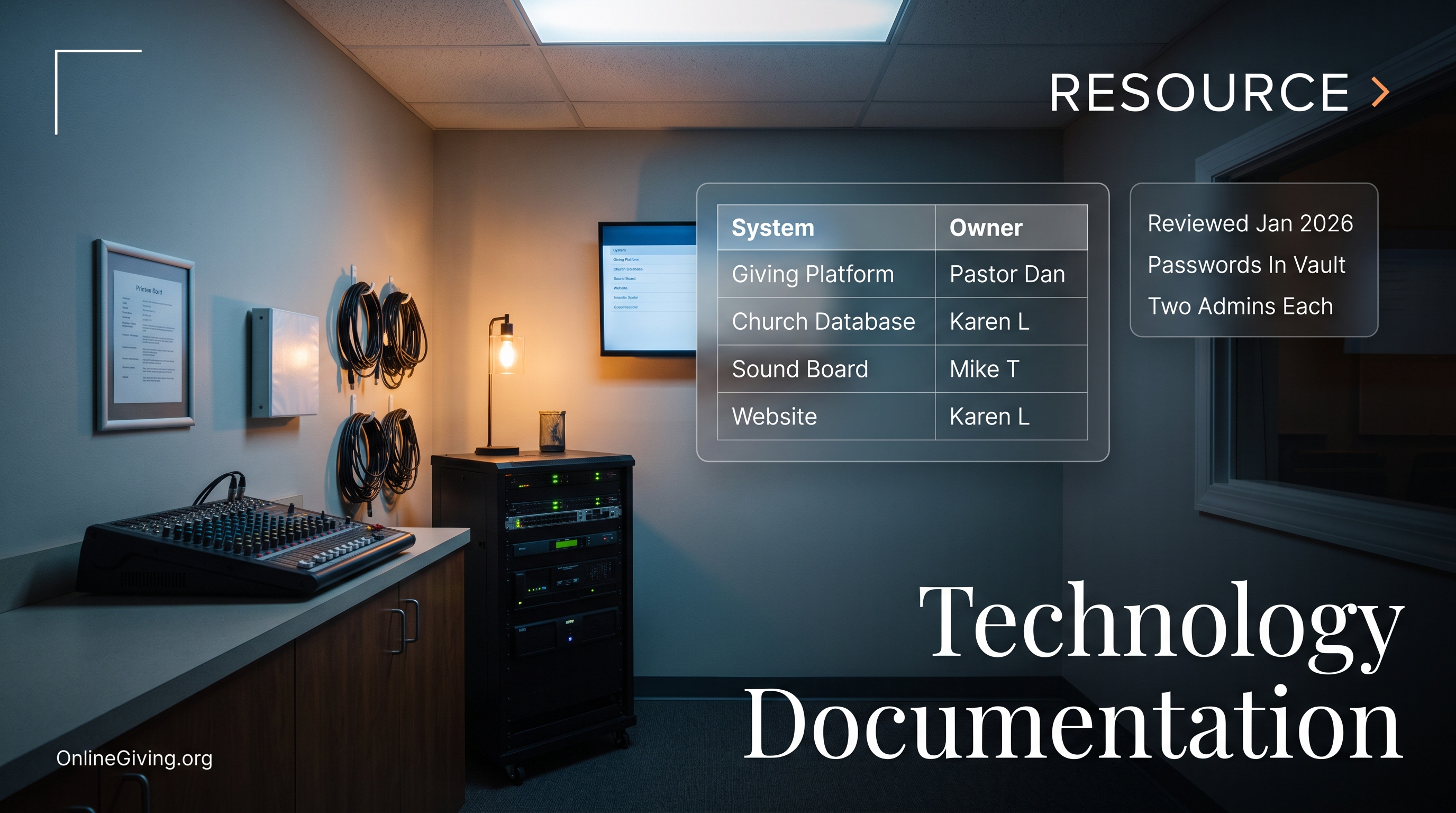
What Is Church Technology Documentation?
Church technology documentation is the written record of every system your church runs on—what it does, who can access it, how the pieces connect, and how to operate them when the usual person is unavailable. A church’s technology can be completely inheritable, and the work to get there is smaller than it sounds. One spreadsheet listing everything that has a login. One church-owned password vault that at least two leaders can open. One list of who authorized which integration. One page per critical system describing how to run it. When those exist, the answer to “what happens if the person who knows this is unavailable?” is simply that somebody else opens the document.
Most churches are further along than they assume. The credentials exist. The systems work. Somebody already knows all of it and has for years. Documentation is not building anything new—it is moving knowledge from one head into a place the next person can reach, which is a copying job rather than an engineering job. A volunteer with a laptop and a free Saturday can do the first eighty percent of it. Documentation is also what turns one person’s years of faithful dedication into something the church itself owns. That is worth saying to the expert who keeps everything running: writing it down is not a comment on whether they are staying. It is how their work outlasts their tenure.
This guide shows why one afternoon of documentation pays for itself, walks through the four core documents every church needs, covers the configuration layer most teams skip, and gives you an implementation checklist you can start this week.
Key Takeaways
Four documents make technology inheritable. An inventory, a password vault, an integration authorization list, and one-page runbooks per critical system turn a scramble into a Tuesday handoff.
Documentation is copying, not engineering. Most churches already have working systems—the job is moving knowledge from one head into a place the next person can reach.
Integrations will not show up in your password manager. OAuth connections and API tokens require a separate list of who authorized what, with which account, and when it was last verified.
Configuration is the expensive gap. Admin roles, fund-to-account mapping, text keywords, and chat assistant content are the settings nobody else can see the logic of until someone leaves.
The hit-by-a-bus test exposes single points of failure. Hand the runbook to a backup and have them complete the three most common tasks while the primary admin sits silent.
Transition handoff happens in the first week of notice. Inventory, vault access, runbooks, and a recorded walkthrough—not a last-day scramble for credentials.
Table of Contents
- Why One Afternoon of Documentation Pays for Itself
- Start With an Inventory of Everything That Has a Login
- Where the Keys Live (and Who Else Has Them)
- The Connections That Are Not in Your Password Manager
- Configuration Is Documentation Too
- Runbooks: One Page Per Critical System
- What to Have Posted in the Tech Booth
- The Hit-by-a-Bus Test
- Documentation During Leadership Transitions
- Your Implementation Checklist
Why One Afternoon of Documentation Pays for Itself
The payoff shows up at transitions, and every church has them. A long-serving office manager gives notice. A founding pastor retires after twelve years. An AV volunteer moves out of state. With the four documents in place, each of those is a handoff on a Tuesday: the incoming person opens the inventory, gets vault access, reads the runbook, and keeps Sunday running.
Do it on a calm week, because documentation loses to visible ministry needs right up until the moment it is urgent, and urgency arrives all at once. The bill for skipping it is never a budget line until you pay it:
Weeks of inaccessible websites, giving reports, or email during pastoral transitions
Equipment sitting broken while you reverse-engineer setups from memory
Vendor accounts locked behind personal emails of people no longer serving
New staff spending their first 90 days recovering systems instead of doing ministry
Documentation is not administrative overhead. It is continuity insurance for the ministry that happens every Sunday.
Habakkuk received a charge that applies directly: “And the LORD answered me: ‘Write the vision; make it plain on tablets, so he may run who reads it’” (Habakkuk 2:2, ESV). Technology documentation is the same principle applied to systems—making operational knowledge plain so the next person can run without reinventing everything from scratch.
Start With an Inventory of Everything That Has a Login
Block ninety minutes. Open a spreadsheet or shared document. List every technology system your church operates—not just software subscriptions, but hardware, integrations, and informal tools too.
For each entry, capture: what it does and which ministry depends on it; primary administrator and backup; vendor, login URL, support contact, renewal date, and monthly cost; what other systems connect to it; and a criticality rating—essential (Sunday fails without it), important (workarounds exist), or supplementary.
Include the things people forget until they break: DNS hosting, SSL certificates, domain registrars, security cameras, Facebook page admins, the HVAC thermostat with a cloud account. If it has a login, it belongs on the inventory.
At a small church, your inventory might be fifteen rows: giving platform, email, website, social accounts, streaming, sound board, one printer. At 200 people, add check-in, volunteer scheduling, text marketing, forms, and lobby displays. At 500+, you are managing dozens of entries—which is exactly why the inventory cannot live in one person’s head.
Integrated platforms need a second layer of documentation. OnlineGiving.org may be running giving, custom forms, text marketing, the website chat assistant, your mobile app, and e-commerce from one account—which is six ministry functions behind one row on your inventory. Document each module separately: what it does, which ministry depends on it, who administers it, and whether anyone else can. “One vendor” is a real operational advantage right up until the inventory treats it as one thing and the person who knew all six leaves.
Where the Keys Live (and Who Else Has Them)
One evening settles this whole category. Centralize access documentation securely—not in a shared Google Doc titled “Passwords”—and credentials stop living on sticky notes, in personal password managers, and in text messages.
Use a church-owned team password manager (1Password, Bitwarden, or similar) with shared vaults organized by category: finance, communications, AV, website. Finance credentials go to finance staff. AV credentials go to production. Not everyone sees everything.
For each critical account, record recovery email, where 2FA backup codes live, and account recovery phone number. Note which accounts are registered to personal emails vs. church emails—and migrate personal registrations to church-owned addresses before the next transition. The website hosting account registered to a pastor’s personal Gmail is the one to move first, and it is a single support conversation while that pastor is still on staff.
Store 2FA backup codes in the password vault, not in a drawer or a photo on someone’s phone. Document the emergency access procedure: who holds the master recovery key and where it is stored physically. At minimum, two leaders should have vault access.
Keep vault access current at the moment it changes rather than on a sweep: removing a departed person belongs on the offboarding checklist, which is the day you actually want it done. Rotate shared passwords annually.
The Connections That Are Not in Your Password Manager
There is one category a well-organized vault will not capture, and closing it takes about ten minutes: write down the integrations.
When your bookkeeper connects QuickBooks Online to your giving platform, she does not type a password into a field you can store. She clicks “Connect,” logs into Intuit as herself, and grants authorization. What gets created is a token tied to that person’s authorization at that moment. There is nothing to put in your password manager, and nothing in the vault will tell you it exists. The same pattern shows up whenever an admin authorizes a church management system, an accounting sync, or a streaming service—either an authorization granted by one named person, or API credentials that person generated from an account only they can reach.
So document every authorized integration with four facts:
Which services are connected—giving platform to QuickBooks, giving platform to your church management system, ChMS to text marketing, website to streaming, and so on.
Who authorized it—the actual human who clicked Connect, by name.
Which account was used—and specifically whether it was a church-owned account or a personal one. A QuickBooks connection authorized under someone’s personal Intuit login is the same category of problem as a domain registered to a personal Gmail.
The date it was authorized—and the date it was last verified as working.
Then re-verify annually, and add “confirm every integration still syncing” to your offboarding checklist. Verification is not complicated: open the integration settings, confirm the connection shows as active, and check that recent data actually landed on the other side. Deposits appearing in QuickBooks. Gifts appearing on donor records in your ChMS. Five minutes per integration.
The departure is the moment worth covering, which is why it goes on the offboarding checklist rather than a calendar. When the person who authorized a connection leaves, it usually keeps working and nobody has to think about it. Occasionally it stops quietly instead—a token expires, an account is deactivated on the other side, a permission is revoked—and because nothing raises an alarm, the gap turns up later in a bank reconciliation. One line on a checklist you already run is the whole prevention.
Configuration Is Documentation Too
Most church technology documentation stops at logins and runbooks. The expensive gaps are usually one layer deeper—in configuration that one person set up correctly and nobody else can see the logic of.
Who holds which administrative role. Maintain a simple table: system, person, role granted, date granted, who approved it. On a giving platform this matters more than most because the roles are meaningfully different—a Donation Administrator sees everything, while a Custom Form Administrator or Text Message Marketing Administrator sees no giving data at all. Two things to record deliberately: that at least two people hold the top-level role, since on OnlineGiving.org only a Donation Administrator can assign roles to anyone else, and who is supposed to be reviewing the list. Review it quarterly. Fifteen minutes, and it consistently turns up an account belonging to someone who left.
Fund-to-account mapping. This one is a table and a rule, and it is the most commonly undocumented configuration in church finance. Each fund in your giving platform maps to an income account in your accounting system, and often to a corresponding designation, program, or purpose in your church management system. Somebody configured that once, and mapping set at creation does not drift afterward, so the documentation is a record rather than a maintenance task.
Document it as a table: fund name, its keyword, the accounting account it maps to, the ChMS designation it maps to, and who to ask before adding a new fund. Then add one line to your runbook: a new fund is not finished until it is mapped. That single gate is what keeps a fund added later by someone who does not know the convention from landing gifts in the wrong account, which is worth closing because the deposits still arrive and nobody notices for a month.
Every text keyword and what it triggers. One row per keyword and this is settled for good. A church accumulates them over years—CAMP, SERVE, WELCOME, GIVE—each one announced from a stage, printed on a card, and known thereafter to the person who wired it. And the wiring lives in two places rather than one: the keyword sits on a text marketing auto responder, which points at the chatbot flow that actually runs the conversation. Two screens, two objects, one working feature. Write that pairing down and the next person to change a keyword, or to reuse CAMP for a different event, finds the piece that matters in seconds instead of clicking around for it. This is tribal knowledge in its purest form, and it is also among the easiest to convert into a table.
Give each conversational flow one row: the keyword—which the auto responder screen calls its Text Message Codes field—which auto responder carries it, what the flow collects, what fires at the end and where that data lands, who owns it, and whether it is currently active or seasonal. That last column is the one that saves you—a flow still accepting camp registrations in October is a documentation failure, not a software bug.
The knowledge base behind your chat assistant is content, and content needs an owner. Whatever sits in it is what your church tells a visitor at 10 PM on a Saturday. Record who reviews it, on what interval, and when it was last changed. One detail worth writing down explicitly: if the knowledge base was built by crawling your church website rather than by writing articles, it inherits every stale page on that site—which means “update the website” and “update the assistant” are the same maintenance task, and whoever owns one owns both.
How to get your data out. Exports are per module rather than one bulk download—donors, transactions, funds, financial batches, form submissions, text marketing lists each come out separately. Write it once as an actual procedure with each export named, where it lives in the admin, and where the file should be saved. Twenty minutes now, and the next migration or audit request is a list somebody follows rather than a discovery exercise.
Runbooks: One Page Per Critical System
A runbook is a step-by-step guide for operating a specific system. It answers what a competent substitute would ask on their first day covering for the regular admin.
Prioritize runbooks for systems with highest Sunday dependency or highest turnover risk: giving platform, ChMS, email, website CMS, check-in, streaming, sound system.
Each runbook covers: daily and weekly routine tasks; the three most common workflows (adding a member, processing a refund, publishing a sermon); known quirks and workarounds; when to call vendor support vs. handle internally; and links to vendor help articles or internal training videos.
Write in plain language with screenshots. A runbook that requires expert knowledge to interpret defeats its purpose.
Example — giving platform runbook: How to log in, with a vault reference and a note that a verification code is emailed to the account’s address—always on a new device, and on every sign-in unless the password is strong enough for the device to be remembered for thirty days. A substitute logging in for the first time will need access to that mailbox. How to run a weekly reconciliation report. How to process a refund. How to add a new fund designation—including the accounting and ChMS mapping that makes it complete. Which exports to run monthly and where the files go. Who holds which admin role. Who to call if the online giving embed breaks on the website. Where the vendor support number lives.
Example — sound system runbook: Power-on sequence. Input selection for worship vs. streaming. Which channel is failing intermittently and the temporary workaround. Vendor contact for repair. Photo of correct cable routing behind the board.
Start with the one system that would cause the most Sunday morning chaos if its admin disappeared. One page. Three tasks. One phone number. That single document transforms tribal knowledge into inherited wisdom.
What to Have Posted in the Tech Booth
Nobody should be googling support phone numbers during pre-service setup. Maintain a vendor contact sheet: support phone and hours (including whether weekend support exists), support portal URL, account number required for calls, named representative if applicable, escalation contact.
Build troubleshooting guides for recurring problems—issues that happen often enough to waste time but are simple enough to fix without vendor help:
Internet outage: Who to call (ISP vs. internal), backup hotspot location, which systems require connectivity vs. work offline.
Projector or audio failure: Power-cycle sequence, input switching, backup equipment location, which channel has the known intermittent fault.
Check-in down: Paper backup procedure, where supplies are stored.
Website down: Hosting dashboard access, DNS check steps, who can communicate with the congregation.
After every incident, update the guide with what actually fixed the problem. Documentation improves through use, not one-time creation.
AV systems are the most under-documented technology in most churches. The sound volunteer has muscle memory built over years—but muscle memory does not transfer. Record a ten-minute video walkthrough of Sunday morning startup: power-on order, input selection, streaming start sequence. Store the link in the runbook. Video captures nuances written docs miss—which button glows amber when something is wrong, how hard to turn a stubborn knob.
The Hit-by-a-Bus Test
For every system in your inventory, ask one question: if the person who manages this system were unavailable starting tomorrow, could the church operate without significant disruption?
Identify single points of failure. Assign and train a backup for every critical system—someone who has actually performed the tasks, not just observed them. Hand the runbook to someone unfamiliar with the system. Can they complete the three most common tasks without calling the primary admin?
Add one deliberately obscure question, because it exposes the whole category of knowledge nobody writes down: can someone other than the person who built it find where a text keyword is configured? If the answer is a shrug, the same gap almost certainly exists for a dozen other settings you have not thought to test.
Test during normal operations: have the backup run Sunday check-in, process a test donation, or publish a test announcement while the primary admin is present but silent. Systems that fail the test get priority documentation work.
When someone leaves, walk through their systems within one week and fill documentation gaps immediately—not six months later when nobody remembers how the Mailchimp segments were set up.
Documentation During Leadership Transitions
Pastoral transitions are where a handoff packet pays for itself several times over. The outgoing pastor should deliver it within the first week of notice—not on the last day. Minimum contents: technology inventory, password vault access for two incoming leaders, runbooks for top five critical systems, vendor contact sheet, the role assignment table, the integration authorization list, and a list of accounts registered to personal emails requiring migration.
That packet is what lets an incoming pastor spend their first month on ministry rather than on credential recovery. Build transition documentation into your staff offboarding checklist alongside keys, credit cards, and office files, so it is produced as a matter of routine rather than assembled under pressure. Where a new pastor does end up locked out of the website, the cause is almost always a hosting login nobody wrote down months earlier—which is exactly the line this checklist adds.
Schedule a 90-minute technology walkthrough during overlap when both pastors are available. Record it. The incoming leader asks questions the runbook assumes someone already knows.
Documentation is an act of love toward the church that outlasts your tenure. It frees the expert to train rather than rescue, empowers new staff to contribute quickly, and protects ministry continuity through transitions. The vision made plain on tablets enables the runner—and your church has runners waiting who deserve a clear path. Give them an afternoon of writing, and they will find one.
Your Implementation Checklist
You are not documenting everything. You are documenting the handful of systems Sunday depends on, plus the configuration nobody else can see the logic of. The first week is mostly typing what you already know, and it is the week that does the most good. This work overlaps heavily with Church Data Security, so if you are doing both, do the access audit once and use it for both purposes. The Complete Guide to Church Operations shows where documentation sits among your other systems.
This week
Inventory everything that has a login. Block ninety minutes and open one spreadsheet. Columns: what it does, which ministry depends on it, primary admin, backup admin, vendor and login URL, support contact, renewal date, monthly cost, what connects to it, and a criticality rating of essential, important, or supplementary. Include what people forget until they break—DNS, SSL certificates, the domain registrar, security cameras, Facebook page admins, the thermostat with a cloud account. If one vendor runs several modules for you, give each module its own row, because “one vendor” is an advantage right up until the person who knew all six leaves.
Flag every account registered to a personal email address. Go down the inventory and mark them. Each one is a future crisis with a name on it, and the domain registered to a retired pastor’s personal Gmail is the canonical example. Start the transfer to a church-owned address this week for anything rated essential, because those transfers often require the current holder’s cooperation and that cooperation gets harder to obtain over time.
Name your top three single points of failure out loud. Read the inventory and find the systems where exactly one person is capable. Say the three names in your next staff or elder meeting. That short list, not the full inventory, is your documentation priority order for the next quarter, and stating it publicly is what converts it from a private worry into scheduled work.
This month
Stand up a church-owned password manager with vaults by function. Finance, communications, AV, website—so production volunteers are not looking at banking credentials. Migrate the essential credentials first. For each critical account, record the recovery email, the recovery phone number, and where the 2FA backup codes live, which is inside the vault rather than a drawer or a photo on somebody’s phone. At least two leaders get vault access, and write down who holds the master recovery key and physically where it is.
List every authorized integration with four facts. Which services are connected, who clicked Connect by name, whether the account used was church-owned or personal, and the date it was authorized alongside the date it was last verified working. This list will not come out of your password manager, because no password was ever typed—that is precisely why it needs writing down. Verification is five minutes each: open the integration settings, confirm it shows active, and check that recent data actually landed on the other side.
Write the one-page runbook for your single highest-risk system. Whichever would cause the most chaos this Sunday. Three routine tasks, the three most common workflows, known quirks and their workarounds, when to call the vendor instead of trying, and one phone number. Plain language, with screenshots. For a giving platform that looks like: how to log in and the fact that a verification code is emailed at every sign-in, how to run the weekly reconciliation, how to process a refund, how to add a fund including the accounting and church management mapping that makes it complete, and which exports to run monthly and where the files go.
Build the vendor contact sheet and post it physically where Sunday volunteers stand. Support phone number and hours including whether weekend support exists, the support portal URL, the account number they will ask for, and the escalation contact. Nobody should be searching for a support number during pre-service setup. Print it and tape it inside the tech booth and the check-in desk, not just in a shared drive somebody would have to log into.
This quarter
Document the fund-to-account mapping as a table. Fund name, its keyword, the accounting account it maps to, the corresponding designation in your church management system, and who to ask before anyone adds a new fund. This is the most commonly undocumented configuration in church finance and it has the ugliest failure mode, because the deposits still arrive and nobody notices for a month. Add one line to the runbook: a new fund is not finished until it is mapped.
Build the role assignment table. System, person, role granted, date granted, who approved it. On a giving platform the roles are meaningfully different—a Donation Administrator sees everything while a Custom Form or Text Message Marketing Administrator sees no giving data at all—so record which is which. Two things to note deliberately: at least two people must hold the top-level role, since only a Donation Administrator can assign roles to anyone else, and who is responsible for reviewing this list. Fifteen minutes quarterly, and it consistently finds an account belonging to someone who left.
Give every text keyword its own row. The keyword, which auto responder carries it, which chatbot flow it launches, what the flow collects, what fires at the end and where that data lands, who owns it, and whether it is active or seasonal. The wiring is two objects on two screens—the keyword lives on the auto responder and points at the flow—which is why an undocumented keyword costs somebody an hour of clicking. That last column is the one that saves you: a flow still accepting camp registrations in October is a documentation failure, not a bug.
Write the export procedure as an actual named list. Exports come out module by module rather than as one bulk download—donors, transactions, funds, financial batches, form submissions, text lists each separately—so document each export by name, where it lives in the admin, and where the file should be saved. The moment you need this is a migration or an audit request, and that is the worst possible time to discover that “export everything” is not a button. Also record who reviews the content behind your website chat assistant and on what interval, because if that knowledge base was built by crawling your church website, updating the site and updating the assistant are the same maintenance task.
Keep it alive
Run the hit-by-a-bus test on each of your top five systems, then again whenever a primary admin changes. Hand the runbook to the designated backup and have them complete the three most common tasks while the primary admin sits present and silent. Add one deliberately obscure question—can someone other than the person who built it find where a text keyword is configured—because a shrug there means the same gap exists for a dozen settings you have not thought to test. Tie the retest to a change in who owns a system rather than to a calendar quarter, since that is the moment the answer can actually differ. Any system that fails gets documentation work that month.
Update the guide after every incident, the same week. Whatever actually fixed the projector, the check-in crash, or the intermittent channel goes into the troubleshooting guide while the fix is fresh. Record the ten-minute AV startup video if you have not, and store the link in the runbook—video captures what written docs miss, like which button glows amber when something is wrong. Documentation improves through use, not through one heroic creation weekend.
Require a handoff packet within the first week of any notice, not on the last day. Inventory, vault access granted to two incoming leaders, runbooks for the top five systems, vendor contact sheet, role assignment table, integration authorization list, and the list of accounts still registered to personal emails. Schedule a recorded ninety-minute walkthrough during the overlap, because the incoming leader asks the questions your runbook assumes everyone already knows. Put this on the staff offboarding checklist beside keys and credit cards.