Streamlining Church Stores with OnlineGiving.org’s Payment Checkout System
Managing online giving and orders has never been simpler for church administrators, thanks to OnlineGiving.org’s Payment Checkout system. If your church uses an online platform for event registrations or selling products, this feature can streamline processes, saving both time and effort.
Efficient Checkout Management
What’s the big deal with the Payment Checkout feature? Imagine all the items that users add to their carts, whether they’re donating, buying event tickets, or purchasing products. With this feature, church admins can efficiently manage transactions. Logging into the control panel provides a clear snapshot of all completed checkouts—orders where users have gone through the entire payment process. Additionally, you can easily view pending checkouts, essentially tracking active shopping carts in real time. This helps administrators keep an eye on transactions and follow up with users who may have forgotten to finalize their purchase.
Visual Tools for Checkout Data
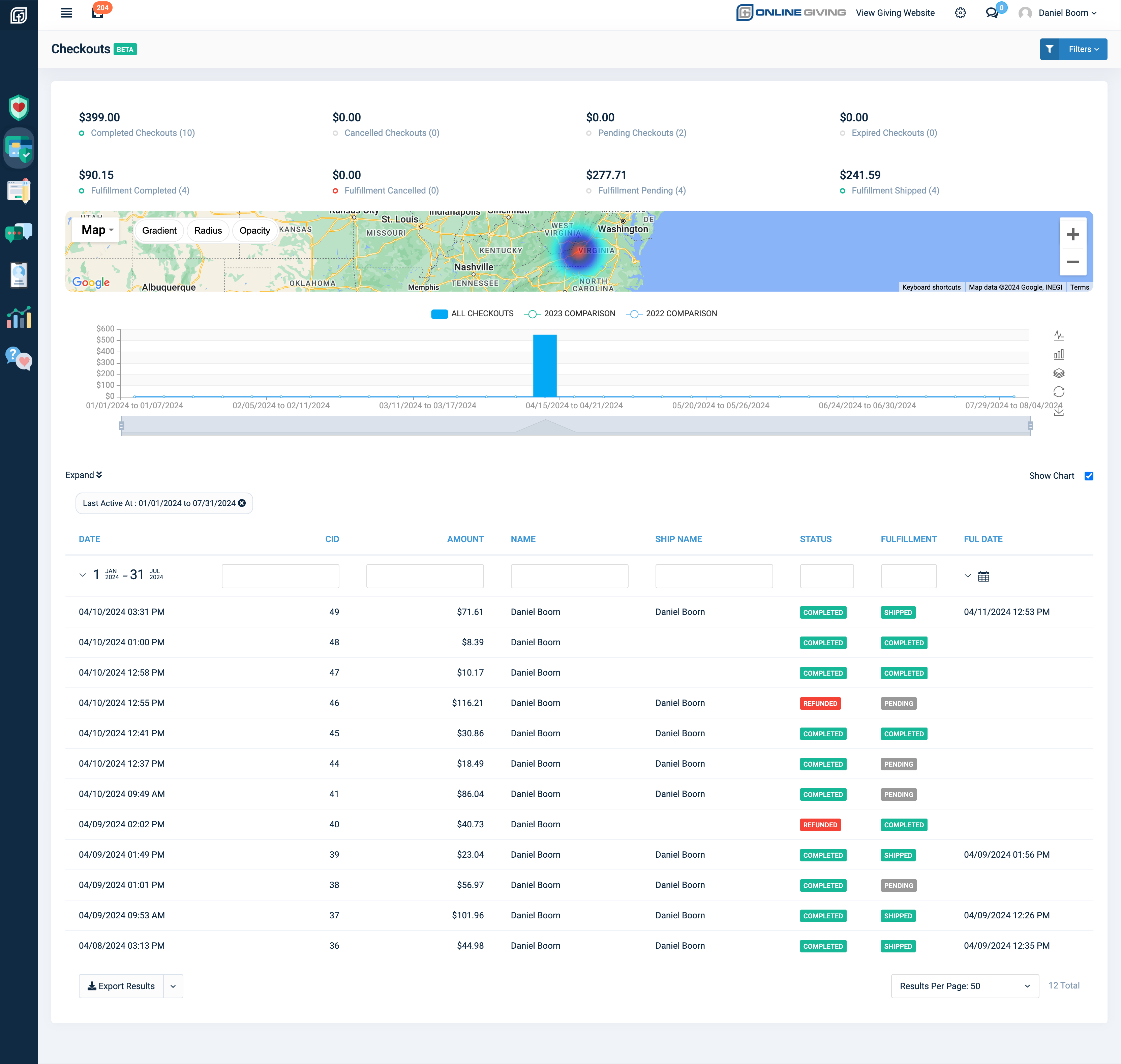
One of the standout aspects of this tool is its visual presentation. Checkout data is displayed on a heatmap, showing the geographical locations where transactions are taking place. This is particularly useful for churches with a broad online presence, potentially reaching different regions or even countries. The system also includes a timeline chart displaying checkout activity over the last two years, allowing admins to track patterns, such as seasonal spikes in giving or purchases, and even project future trends.
Tracking Order Statuses and Fulfillment
The system offers more than just an overview of completed orders; it also provides detailed insights into orders still in progress and their statuses. You can see who has paid, who is waiting on fulfillment, and who might need a gentle reminder to complete their purchase.
When it comes to fulfillment, the Payment Checkout system integrates seamlessly with Shippo. If your church is selling physical products like books or merchandise, Shippo automates the process of creating shipping labels and tracking orders. Even if you’re handling shipping manually, the system allows you to update everything directly, ensuring that customers receive real-time tracking information.
Detailed Customer Insights
In addition to shipping, the tool provides detailed information for each checkout, including customer info, payment details, and even sales tax. There’s also a Know Your Customer section, which verifies user addresses and locations via interactive maps. This feature allows admins to compare the shipping address with the browsing location, ensuring accuracy, especially for larger transactions. If any discrepancies arise, such as an address mismatch, admins can easily contact the customer to verify details.
The Benefits for Churches
This comprehensive tool equips church administrators with the necessary resources to manage online interactions securely and efficiently. As more churches transition their giving, sales, and registrations online, manually handling these transactions becomes nearly impossible. The Payment Checkout feature simplifies this process, providing transparency and ease, ultimately freeing up time for more important ministry work.
If your church isn’t already using the Payment Checkout system, it’s certainly worth considering, especially if you manage a significant amount of online activity.
In this article, we'll overview the OnlineGiving.org Payment Checkouts feature.
Checkouts Overview:
The Payment Checkout feature is designed to provide church administrators with an efficient and user-friendly way to manage and review shopping cart checkouts. A shopping cart checkout is a collection of items added to a user's cart, while a completed checkout refers to an order with payment made by the user.
We have designed the checkout feature to be particularly special. It allows church administrators to view guests and authenticated users on your shopping cart checkout information on the control panel. Only completed checkout orders are displayed by default, enabling streamlined access to managing orders and fulfillment. Furthermore, by quickly searching for pending checkouts, you can easily gain a snapshot of active shopping cart checkouts created by users who have not yet completed payment.
The control panel's checkout feature also allows you to view quick snapshot totals of checkouts based on checkout status and fulfillment status. Additionally, all checkouts are geographically mapped on a heatmap, enabling you to visualize your shopping cart checkouts worldwide based on the user's geographic browsing location.
The checkout feature employs intelligent plotting, displaying checkouts on an interactive timeline chart based on the last activity date. It will show you the previous two years of checkouts on the timeline for comparison purposes and will also project checkout volume based on earlier years into the near future. As your church continues to use OnlineGiving.org's shopping cart, more data and information will automatically be included for visualization.
The Checkouts section is the designated workplace center for both completed shopping cart orders and viewing user checkouts still in progress. It is where you can filter orders by fulfillment status for management.
In summary, the Payment Checkout feature is an essential tool for church administrators. It provides an efficient and user-friendly way to manage and review shopping cart checkouts.
User Guide Sections:
Anatomy of Checkouts
The checkouts feature is designed to help you easily manage orders that have reached the review and fulfillment stage. Each checkout record contains important information about the order, such as the checkout order line items, checkout order status, fulfillment status, customer information, and more.
When you access the checkouts feature in the control panel, you'll see grand totals grouped together for the checkouts based on various checkout statuses and fulfillment statuses. This provides a quick overview of the checkouts at a high level. The totals are based on the current year-to-date by default.
Beneath the snapshot grand totals, you'll find a heat map that displays checkout activity based on the browsing network location of the user checkout. This map allows you to easily understand your user-base geographic locations.
Below the heat map, you'll find an interactive timeline chart that plots the checkouts based on the last active date or, for completed checkout orders, the payment date. As you continue to use OnlineGiving.org's shopping cart feature, more data becomes available. After more than one year, previous years (up to two) are included on the timeline for comparison purposes. The timeline will also project future checkouts based on multiple years of data.
Finally, under the interactive map and timeline is the main checkout table. This table includes the ability to sort checkouts by clicking on the table column headers. You can also change the date ranges by checkout last activity or fulfillment date, or narrow down checkouts by checkout ID (CID), amount, user name, shipping name, checkout status, and fulfillment status. This makes it easy for you to manage your orders and make informed decisions.
To view the details of a checkout, simply click on the row of the checkout in the checkout table. This will display the checkout information window which contains a wealth of information about the checkout and its associated payment. The checkout information window is divided into various sections such as customer information, payment details, a list of checkout order line items, fulfillment details, checkout sub-title, covered fee, sales tax, know-your-customer (KYC), payment funds/sub-fund, sales tax summary, ChMS external records, webhook notification status, transactional gateway information and more.
If you need to resend the order status email for a completed checkout order, click the "Resend Email" button at the top right corner. The payment status can also be edited to indicate a refund or canceled order. You may refund the checkout order directly or print the checkout information.
In the checkout items table, you can view the line items included in the checkout, such as the product item title, variant information, quantity, line item price, and line total. 
The fulfillment section provides easy access to shipping management features. OnlineGiving.org integrates with Shippo by default, which means that completed checkouts with an item requiring shipment are sent to Shippo automatically. This includes the user's selected shipping choice and the collected shipment fees. Clicking the "Manage Shipping" button allows you to manage shipping and will take you directly to the order in Shippo for shipment label purchasing and fulfillment.
The advanced OnlineGiving.org integration with Shippo is designed to automatically detect any changes to the fulfillment at Shippo, including the shipment label creation and tracking information. Tracking information is automatically collected and added to the OnlineGiving.org checkout order and made available to the user on the order detail page. Shippo also provides customers with real-time tracking email notifications. The integration with Shippo is designed to streamline shipping fulfillment.
If you are manually shipping, you may also click the fulfillment status at any time, manually add shipping fulfillment information, and adjust the fulfillment status of the checkout order. After purchase from the order details page, digital products with download links are automatically made available to users. For more information, please see our Shipping User Guide.
Know Your Customer (KYC) Section
The KYC (Know Your Customer) section is located below the Fulfillment and Checkout Total Amount sections. It has been designed to be easy to use by displaying two interactive maps. The first map is called "Shipping vs Contact Address," which plots the provided shipping address against the provided mailing address of the user. You can view the address and the calculated straight-line distance between the two locations by clicking on the icon for either address.
The second KYC map is called "Network," which plots the provided mailing address against the user's internet network geographic location when the checkout was completed. By clicking on the icon for either location, you can see the calculated distance between the user's mailing address and the internet location where they completed the checkout.
Our partnership with Google Cloud provides highly accurate internet geographic location information for most checkouts. However, please keep in mind that this information is regional-based and not address-based. This means that it will be accurate to the user's general region. Users on mobile networks connect through mobile network towers that may show as the same city or the next few cities away.
When using the KYC feature, the general rule is to ensure that the provided address and geographic locations reside in the USA. You should also ensure that the displayed location information passes the common sense rule when reviewing how far apart the locations are mapped. If you view a map location that seems unusual, you are advised to first reach out to the customer (user) and verify the order further via phone. For this specific purpose, all shipped checkouts require the user to provide a phone number and email address at the time of checkout.
If sales tax is collected when a checkout is completed, the amount will be shown in the Sales Tax section. This section provides an overview of the sales tax for a specific checkout order. For general sales tax management, you can refer to the Payments > Sales Tax feature, which allows you to generate a report and export data for sales tax reporting.
Sales tax can be enabled for individual products. When a checkout is completed for an order that requires sales tax, the sales tax rates are obtained through a paid service provider, based on the destination method and the shipping address information provided. If the order doesn't require shipping, the sales tax is still calculated based on the destination method, using the user's provided mailing address.
To ensure accurate tax collection, any order that includes a product that requires sales tax will have the sales tax calculated and displayed to the user at checkout, along with any shipping costs and cover-the-fee costs.
For more detailed information, please refer to our Sales Tax User Guide.
- Completed - A user with payment has completed the checkout order.
- Pending - The checkout order is in progress. The user is still shopping or has abandoned the cart.
- Expired - The checkout shopping cart session has expired.
- Canceled - The checkout has been updated as canceled by the administration.
- Refunded - The checkout payment has been refunded.
- Pending - Order fulfillment is pending. Necessary if the order is completed. Ignore if not completed.
- Shipped - Order fulfillment has been shipped. The same level as fulfillment completed.
- Completed - The fulfillment of the order has been completed. Used when digital products or non-shipping.
General Checkout Directions & FAQs
How to Access Checkouts in the Control Panel
- Log in to the control panel
- Under the "Payments" section in the left navigation menu, click "Checkouts"
How to Search for Completed Checkouts (Orders)
- Log in to the control panel
- Under the "Payments" section in the left navigation menu, click "Checkouts"
- By default completed checkouts for the year are displayed.
- To search, enter the search information into the search inputs and press the enter key.
- To narrow by date, select the date ranges as needed.
How to Manage Shipping for a Checkout
- Log in to the control panel
- Under the "Payments" section in the left navigation menu, click "Checkouts"
- Search and locate the desired checkout for management
- Click on the checkout row in the checkouts search results table
- Under the Fulfillment section, click the "Manage Shipping" button
- Log in to the control panel
- Under the "Payments" section in the left navigation menu, click "Prod Pages"
- Search and locate the desired checkout for management
- Click on the checkout row in the checkouts search results table
- Click the "Refund" button on the top right, confirm the refund when prompted
How to View Checkouts in Progress
- Log in to the control panel
- Under the "Payments" section in the left navigation menu, click "Prod Pages"
- Enter "pending" into the status search input and press the enter key.
- Or, under the "Filters" button select "Pending Checkouts"