Streamlining Your Church's Online Store with Product Collections
The Product Collections feature from OnlineGiving.org can completely streamline how your church offers products online. This tool is designed specifically for churches and organizations looking to create a more organized and user-friendly shopping experience on their websites.
Imagine you’re a church administrator with a variety of products—Bibles, event tickets, clothing—scattered across your site. Wouldn’t it be easier if you could group these items into clear, easy-to-navigate categories? That’s exactly what Product Collections help you do.
At its core, a Product Collection allows you to group similar products under a collection title. For instance, you could create a collection just for Bibles, another for apparel, and one for special events or seasonal items. The great thing about this feature is that you can also add banners and descriptions to each collection, making it not only functional but visually appealing as well.
Once these collections are set up, they’re displayed directly on your church’s shopping cart page. This makes it easier for visitors to browse through categories and find what they’re looking for quickly. It’s like walking into a well-organized store where everything is in its place, instead of rummaging through clutter. Plus, you can feature collections on specific product pages, further enhancing the browsing experience.
Building Your Product Collections
The Product Collection Builder is a user-friendly tool that gives you a lot of flexibility. To get started, all you need to do is click the Create New Collection button. If you’ve already set up collections, you can easily edit them by clicking the gear icon and selecting the edit option.
The Collection Builder itself is broken down into several key sections:
- General Information: This is where you enter the title and description of the collection. For example, if you’re setting up a Bible collection, this is where you’d label it “Bible Collection” and provide any helpful descriptions that might guide your users.
- Organization: In this section, you can tag the collection to make it easier for users to search for products. You can also toggle whether the collection is featured on the main shopping page. This gives you control over what your users see first when they arrive at your shop.
- Media: This is where you can upload banner-sized images that will be displayed at the top of your collection page. These banners help to make the shopping experience more engaging and professional. If you have multiple banner images, the system will display them in a slider, keeping your collection fresh and dynamic.
- Collection Products: This section allows you to add products to your collection. For example, if you’re adding the New King James Version Bible to your collection, you would just type it into the search bar, find the Bible you’re looking for, and click to add it. You can repeat this process to quickly fill out your collection with multiple products.
Accessing and Managing Product Collections
Once you log in to your control panel, head to the Payments section, and click on Product Collections. From there, you can create a new collection or update an existing one. If you need to search for a specific collection, there’s a search tool that makes it easy to find what you’re looking for in seconds.
Elevating Your Church’s Online Presence
The Product Collections feature is an incredibly valuable tool that helps churches organize their online stores. It makes the shopping experience easier for your users and simplifies how you manage your products. Whether you’re selling Bibles, event tickets, or apparel, this feature can elevate your church’s online presence and create a smoother experience for your community.
In this article, we'll overview the OnlineGiving.org Product Collections feature.
Product Collections Overview:
The product collections feature is an excellent tool for church administrators who want to provide an efficient and organized shopping experience on their website. By grouping products under a collection title, description, and advertisement banners, administrators can create a visually appealing display of their products grouped.
Administrators can group products in different ways by placing them in one or more collections, allowing for greater flexibility in product categorization. For example, they can create collections for Bibles, clothing, events, and more.
Once a product collection is created and published, it will be displayed as an option on the shopping cart website. This allows users to easily browse through the collections and find the products they seek. Additionally, administrators can include the collections on specific product pages, further enhancing the browsing experience for users.
Overall, the product collections feature is a valuable asset for church administrators who want to provide their customers with a user-friendly and organized shopping experience.
User Guide Sections:
Product Collection Builder Overview
The Product Collection Builder feature allows you to easily create collections of similar products to offer to your shopping cart users. To get started, click on the "Create New Collection" button. If you already have collections, you can access the collection builder by clicking on the gear icon and selecting the edit option from the dropdown menu. We're excited to provide you with all the necessary details about the Collection Builder in this section so you can confidently create and enhance your product collections.
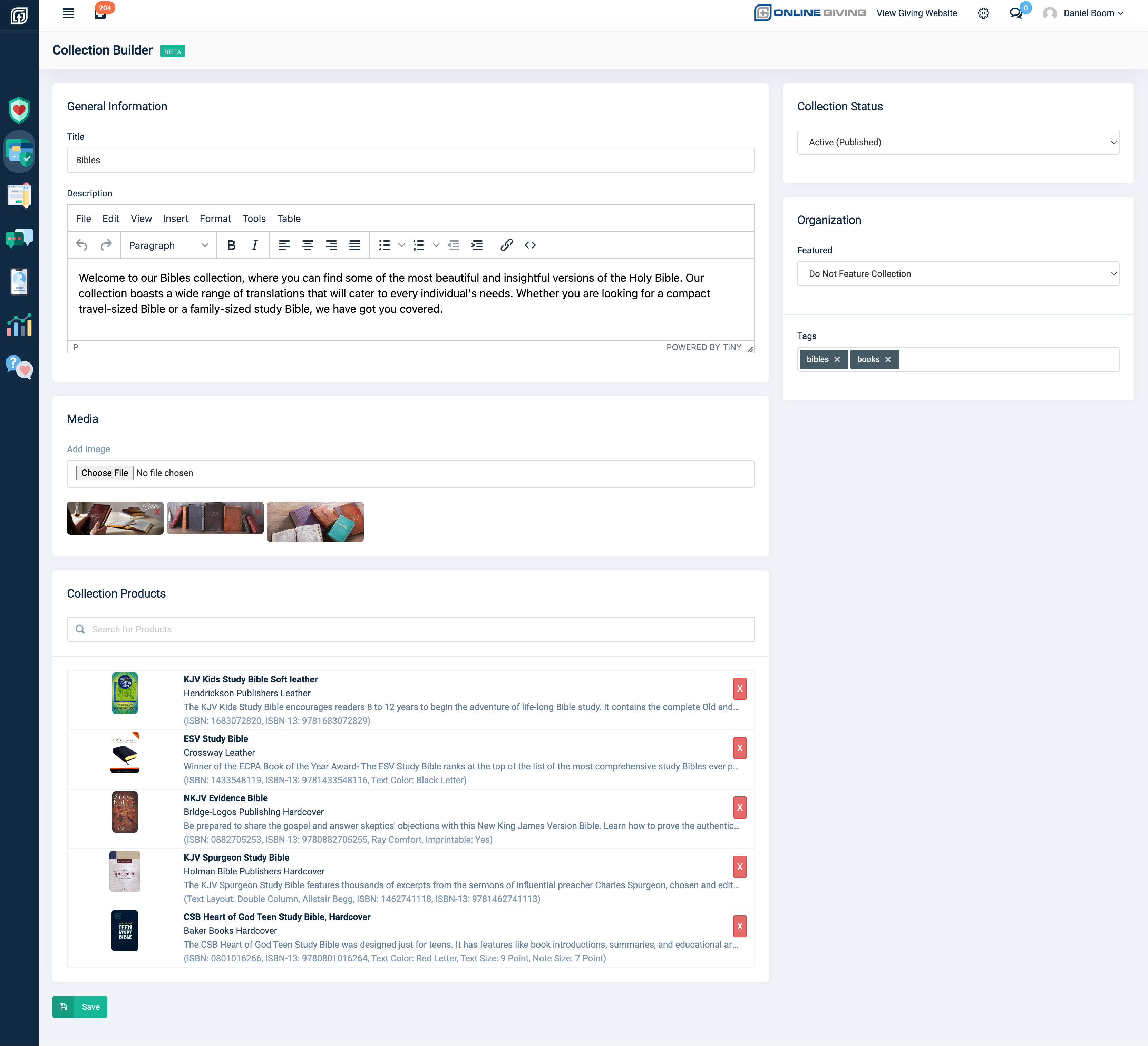
In the "General Information" section of the builder, you can enter the collection title and description, which are displayed on the shopping cart website.
In the example, we'll be creating a bible collection:
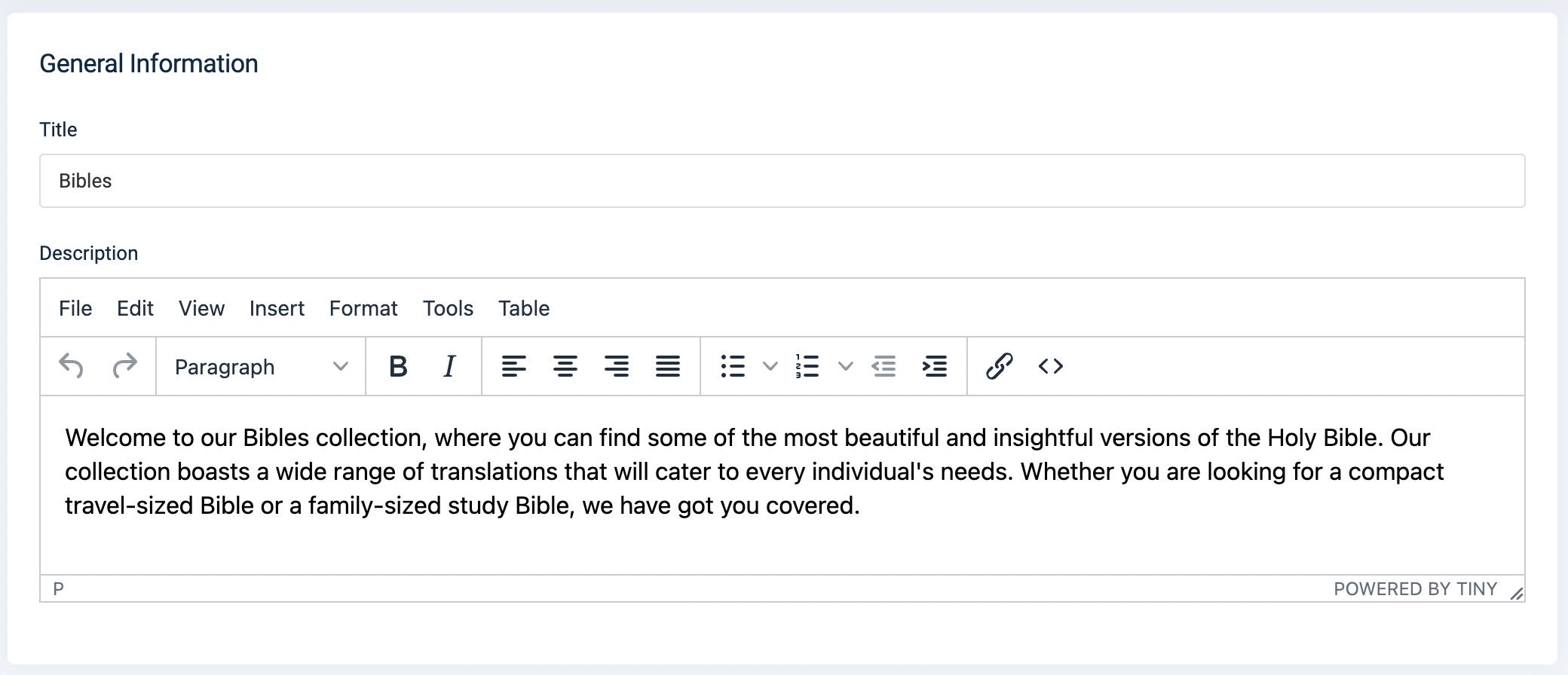
In the "Organization" section of the builder, you toggle the collection's featured status. You can also use tags to help users find the product collection while searching on your shopping cart website.
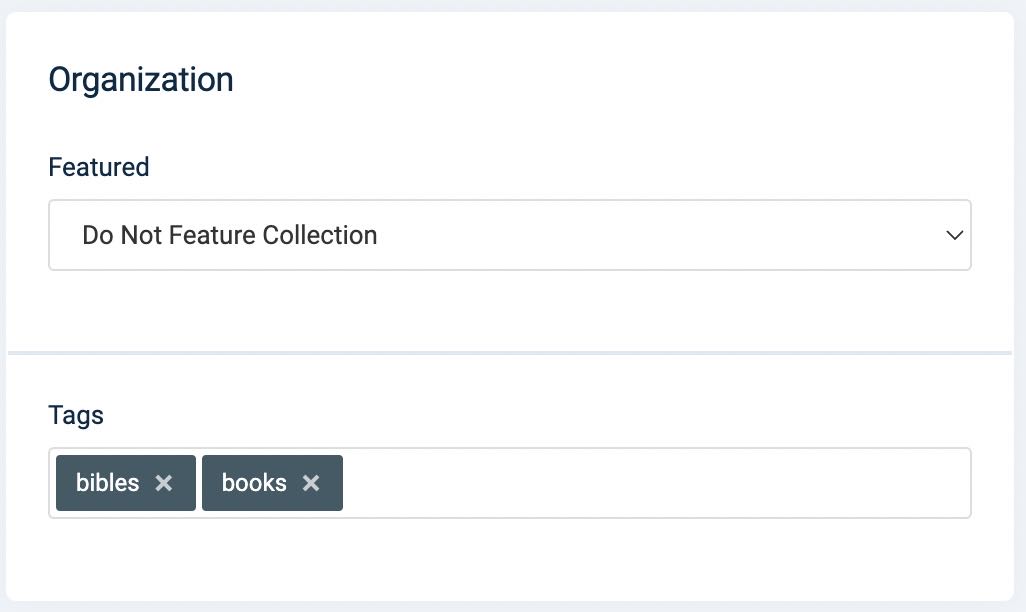
In the "Media" section of the builder, you can add the collection banner images. These should be banner (hero) sized images that will be displayed at the top of the collection page. When multiple banner images are present a slider is displayed on the shopping cart.
In the "Collection Products" section, you may quickly add products by searching by keyword. 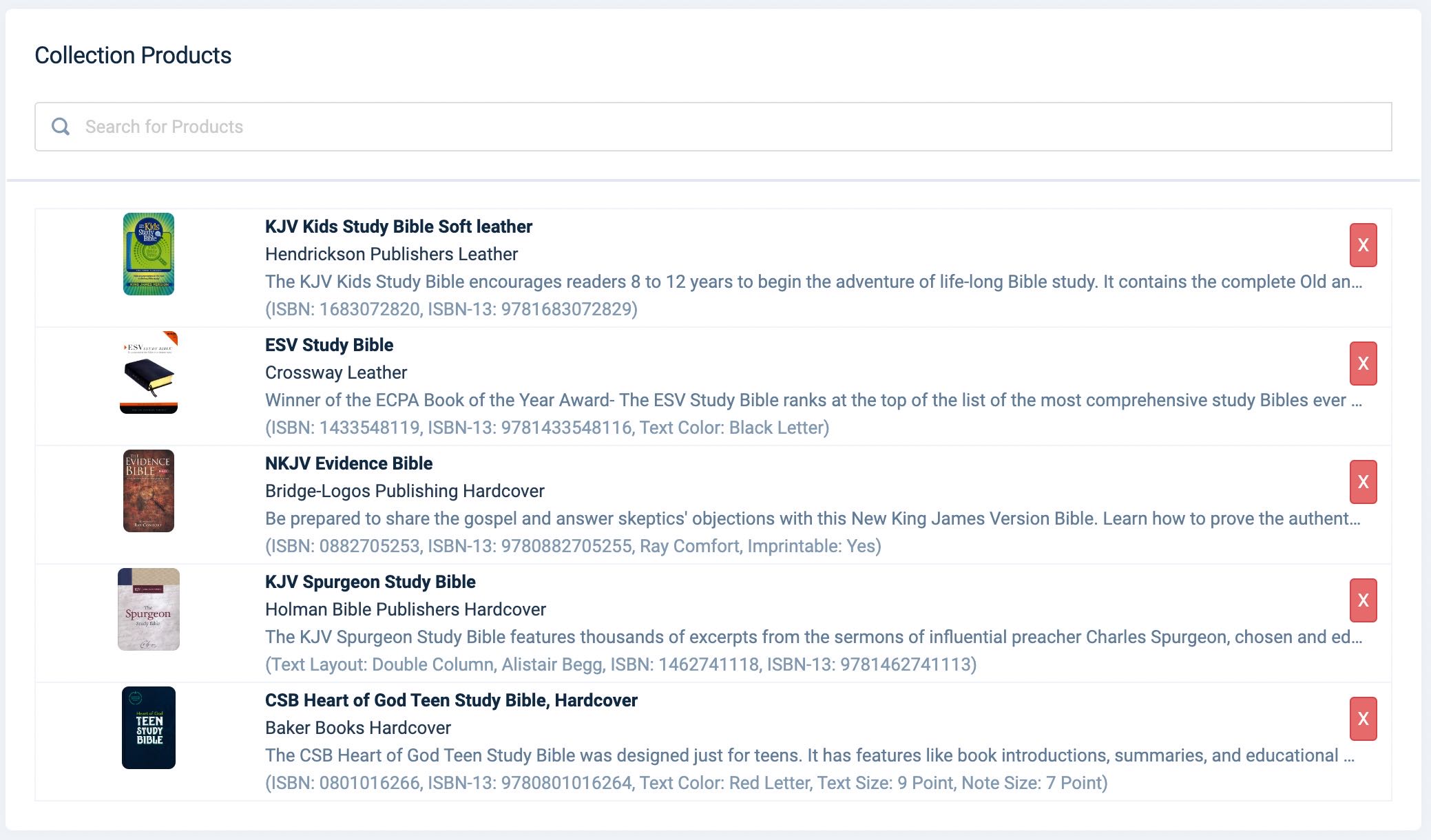
For example, to add the "NKJV Evidence Bible" product, we search with the keyword "evidence," and the bible shows up. To add the bible to our collection, click the search result. Then, repeat for any additional products that you would like included in the product collection.

General Product Collections Directions & FAQs
How to Access Product Collections in the Control Panel
- Log in to the control panel
- Under the "Payments" section in the left navigation menu, click "Prod Collections"
How to Create a New Product Collection
- Log in to the control panel
- Under the "Payments" section in the left navigation menu, click "Prod Collections"
- Click the "Create new Collection" button on the top right of page
- Complete the Collection Builder form fields (see overview of Collection Builder above)
- Click the Save button to commit changes
How to Update an Existing Product Collection
- Log in to the control panel
- Under the "Payments" section in the left navigation menu, click "Prod Collections"
- Search and locate the collection, then click the "Gear" icon and click the "Edit" dropdown menu option
- Edit the Collection Builder form fields (see overview of Collection Builder above)
- Click the Save button to commit changes
How to Search for an Existing Product Collection
- Log in to the control panel
- Under the "Payments" section in the left navigation menu, click "Prod Collections"
- Search click the Search Icon and then complete your search