Feature Updates 02/10/2026
PayPal & Venmo Giving Is Here
More Ways for Donors to Give — Seamlessly Integrated

Introduction
PayPal and Venmo are now available as giving options in OnlineGiving.org.
This feature brings two of the most widely recognized and trusted payment platforms directly into your existing giving experience. For donors who already use PayPal or Venmo in everyday life, this adds a familiar, fast way to give — while keeping all of your current payment methods exactly as they are.
PayPal and Venmo appear alongside cards, ACH, Google Pay, and Apple Pay, giving donors more choice without adding complexity for your church.
Just like all other OnlineGiving.org payment methods, PayPal & Venmo donations:
-
Capture complete donation details (donor, fund, amount, date, status)
-
Appear in OnlineGiving.org reporting
-
Sync to your Church Management System (ChMS) or CRM when connected
Donors can give using PayPal & Venmo from:
-
Your OnlineGiving.org giving website
-
Custom giving pages and forms
- Guest giving flows
-
Any device (desktop, tablet, or mobile)
Note: PayPal provides PayPal & Venmo. Your processing agreement for these transactions is with PayPal.
Watch It in Action
See exactly what donors experience when giving with PayPal or Venmo.
-
PayPal Donation Demo
https://vimeo.com/1159300105/06a4751c93?share=copy&fl=sv&fe=ci -
Venmo Donation Demo
https://vimeo.com/1159300133/9f99ed5724?share=copy&fl=sv&fe=ci
Enabled When You Choose
PayPal and Venmo are available but must be enabled by a church administrator.
They will not appear on your giving pages or Church Store until your church approves and completes the PayPal / Venmo onboarding in the control panel.
This ensures:
-
You explicitly approve the PayPal connection
-
The correct PayPal Business account is connected and verified
-
New payment methods appear only when you’re ready
Once onboarding is complete, PayPal and Venmo go live automatically. It's a simple 5 min or less process.
Fees
PayPal & Venmo donations are processed at:
2.99% + $0.49 per donation
No volume tiers. No contracts. No monthly fees.
Getting Started
Most churches complete setup in about 5 minutes.
What You’ll Need
-
A PayPal Business Account (you can create one during onboarding)
-
Your organization’s business information (EIN, address, etc.)
-
Admin access to your OnlineGiving.org control panel (Donor Admin)
Step 1: Open PayPal / Venmo Settings
Log in to your control panel. Click your name/avatar in the top-right corner and select PayPal / Venmo.
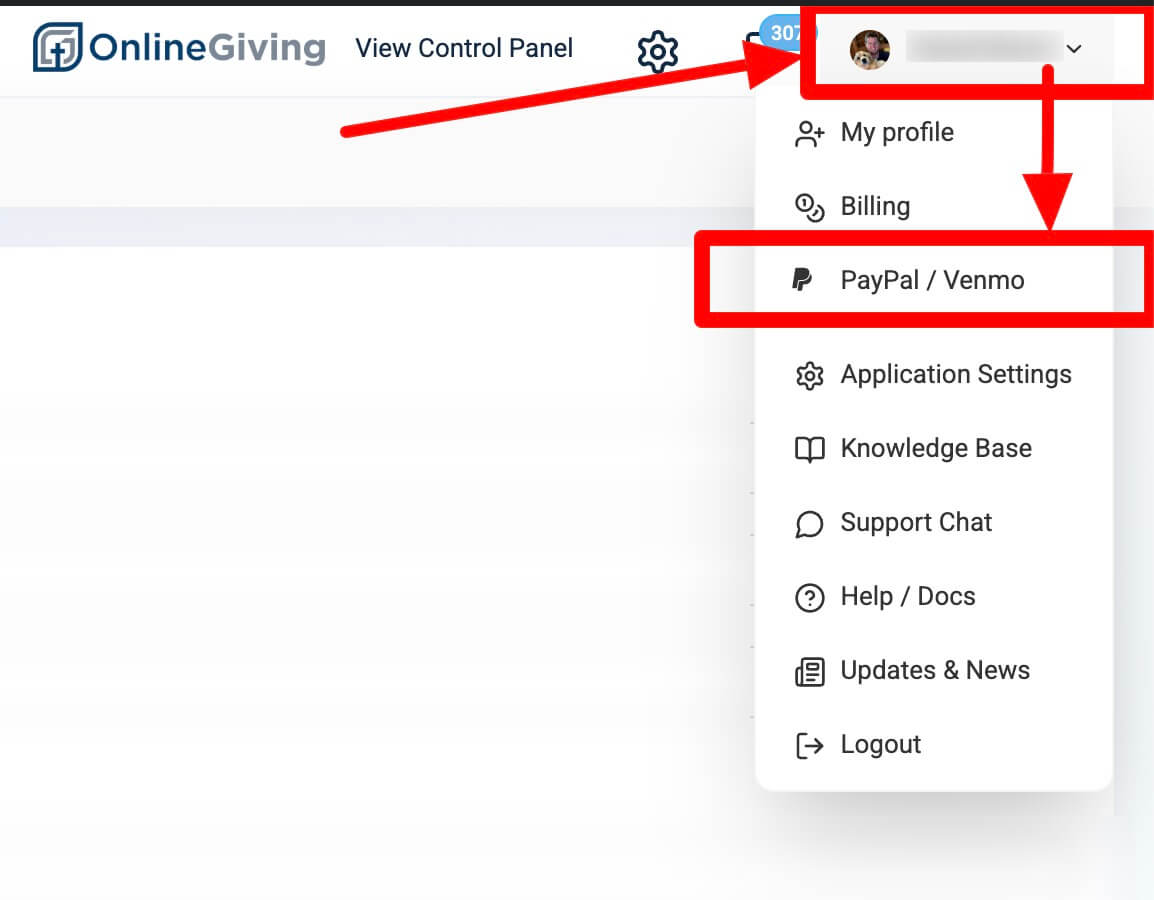
Or go directly to:yourdomain.onlinegiving.org/admin/paypal/onboard
Step 2: Connect Your PayPal Business Account
Click Connect PayPal Account to begin onboarding.
You’ll be redirected to PayPal to:
-
Log in to your PayPal Business account (or create one)
-
Review and approve the permissions requested
-
Complete any verification steps PayPal requires
PayPal may request:
-
Organization legal name and contact information
-
Bank account details for transfers
-
Authorized representative identity details
Step 3: Return and Go Live
After onboarding, PayPal redirects you back to OnlineGiving.org. When your status shows Connected, PayPal and Venmo are enabled automatically.
The buttons will immediately appear on your giving pages and Church Store.
Managing PayPal & Venmo
From the PayPal dashboard (/admin/paypal/onboard), you can:
-
View your connected PayPal account ID, email, and status
-
See your PayPal/Venmo fee rate and connection date
-
Refresh your connection status at any time
-
Jump directly to PayPal & Venmo transactions in reports
-
Open your PayPal account using the dashboard link
Transactions in the Control Panel
Viewing PayPal & Venmo Transactions
PayPal and Venmo transactions appear in your standard transaction list alongside all other payment types.
To view only PayPal/Venmo transactions:
-
Open the Filters dropdown on the Transactions page
-
Select PayPal / Venmo Transactions
You can also jump directly from the PayPal dashboard by clicking View PayPal Transactions.
Transaction Details
Opening a PayPal or Venmo transaction shows a PayPal-branded detail card with:
-
Order ID — PayPal order reference
-
Capture ID — PayPal payment capture reference
-
PayPal Account — Donor’s PayPal email
-
Payer Name — Name on the donor’s PayPal account
All standard transaction details (amount, fund, date, donor info, status) are also shown, just like any other transaction.
Financial Batches
PayPal and Venmo transactions are automatically grouped into their own batch type: PayPal / Venmo.
-
Batches are created by date
-
Each day’s PayPal/Venmo transactions are grouped together
-
PayPal/Venmo batches are separate from card and ACH batches
This makes reconciliation with PayPal deposits simple and predictable.
Deposits & Accounting
Net Deposits
PayPal deducts processing fees before funds are added to your PayPal balance. Transfers to your bank are initiated directly from PayPal.
Gross Donation Records
OnlineGiving.org and your ChMS record PayPal & Venmo donations at the full (gross) amount.
Accounting Reminder
Because deposits are net but records are gross, processing fees should be recorded during reconciliation (for example, as a fee expense) so PayPal balances, transfers, and donation records align.
Refunds
Refunding a PayPal or Venmo donation works the same way as refunding a card transaction:
-
Open the transaction in your control panel
-
Click Refund
-
The refund is processed directly through PayPal and returned to the donor
Refunds appear with a Refunded status and are grouped into refund batches.
Note: Refunds require available funding in your PayPal account or a linked funding source, based on PayPal’s requirements.
Optional Add-On: Express Wallet Buttons for Guest Giving
For churches that want to reduce friction even further, an optional setting places Google Pay, Apple Pay, PayPal, and Venmo buttons directly on the first step of the guest donation flow.
How It Works
Normally, first-time donors enter an email address or phone number to identify themselves if they are not automatically reconized with biometrics or single sign-on. With Express Wallet Buttons enabled, donors see an “or” divider followed by wallet buttons for Google Pay, Apple Pay, PayPal, and Venmo.
When a donor selects a wallet:
-
Name, email, phone number, and address are pulled automatically from the wallet
-
No manual data entry is required
-
The donation can be completed in a single step
Who It’s For
This option is ideal for:
-
Event giving
-
Campaign and outreach pages
-
Guest-heavy giving environments
-
Churches focused on reducing steps for first-time donors
How to Enable
Express Wallet Buttons are enabled by OnlineGiving.org Support.
Contact support@onlinegiving.org and request Express Wallet Buttons.
Good to Know
-
Currently PayPal and Venmo are for one-time (non-recurring) transactions
-
Works for both Giving and Church Store
-
Refunds are processed directly through PayPal
-
Funds deposit directly to your connected PayPal account
-
PayPal/Venmo transactions have their own batch type
-
All existing payment methods remain fully available and unchanged