Feature Updates 02/12/2021
Rock RMS New Addresses will Now Record as "Is Mapped Location = True."
An update is now live for Rock RMS churches. OnlineGiving.org will now record new mailing addresses into Rock RMS with the "Is Mapped Location" field set to true. Before the update, the integration did not populate this field for new addresses, which defaulted to "false" mapping enabled. Moving forward, new addresses saved into Rock will be mapping enabled.
New "Do Not Record" Option Available for Fellowship One Church's for Payment Funds
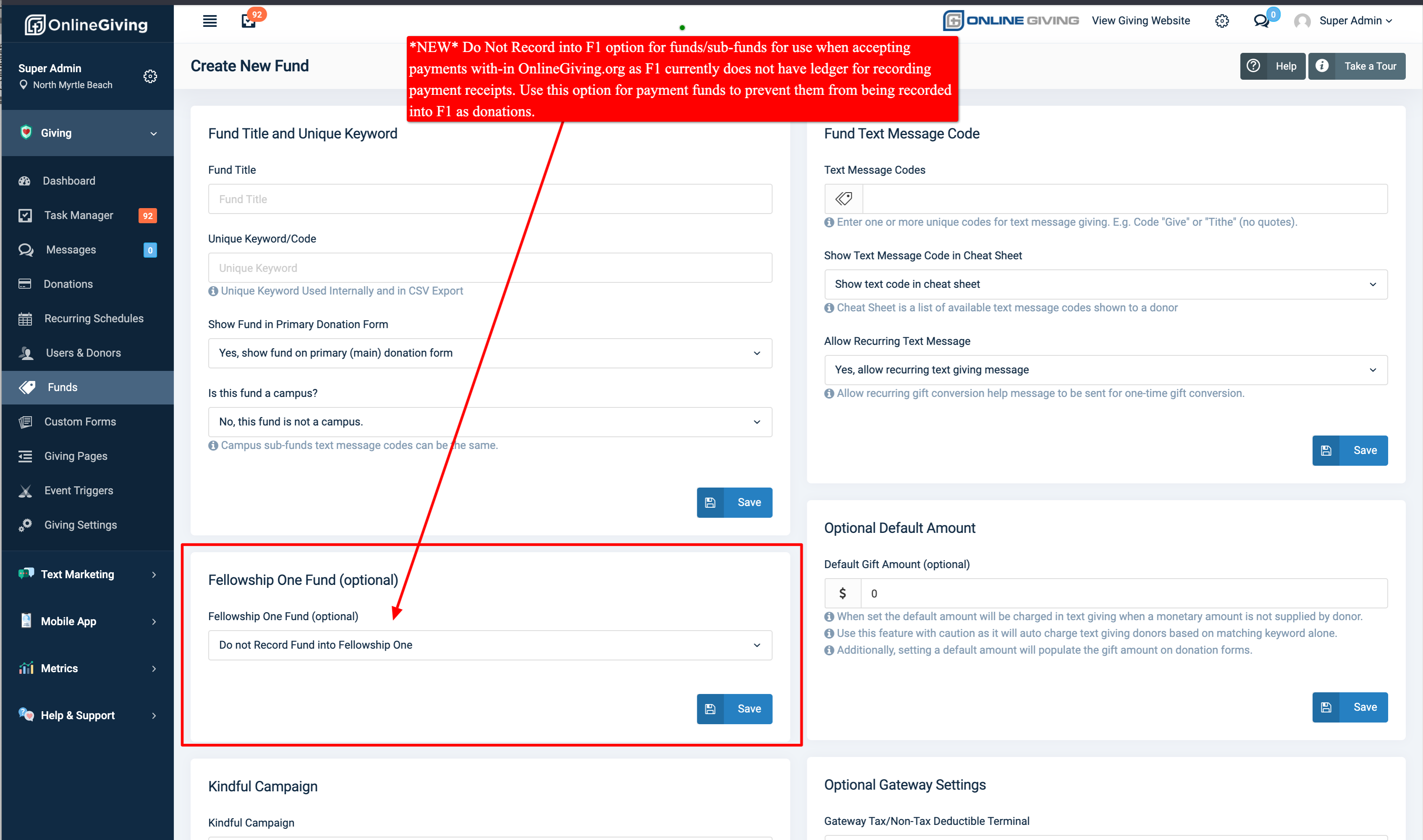
An update is now live for Fellowship One churches. Church administrators may now select a "Do Not Record into Fellowship One" option from the F1 Fund dropdown menu when creating/updating a sub-fund/fund from the OnlineGiving.org control panel. The feature's goal is to allow F1 churches to take advantage of OnlineGiving.org's payment features without having those transactions recorded into Fellowship One because F1 currently does not have a ledger to record payment transactions. Any transaction associated with a fund/sub-fund with "Do Not Record" will skip F1 recording and will have a zero-filled "0000" F1 contribution ID. Kindly note we only recommend using this feature for payments as currently, F1 does not have a location to record payments.
Screenshot of New Feature in Control Panel
OnlineGiving.org Control Panel > Giving > Dashboard > Donations Amounts by Fund: Updated with Matching Colors
An update is now live to the OnlineGivign.org Control Panel > Giving > Dashboard > Donation Amounts by Fund timeline chart to ensure the fund total colors match the fund legend colors in the timeline chart. The goal is to avoid confusion when reviewing the chart and intuitively making associations by color.
New ChurchTrec Donation Export Option Now Available
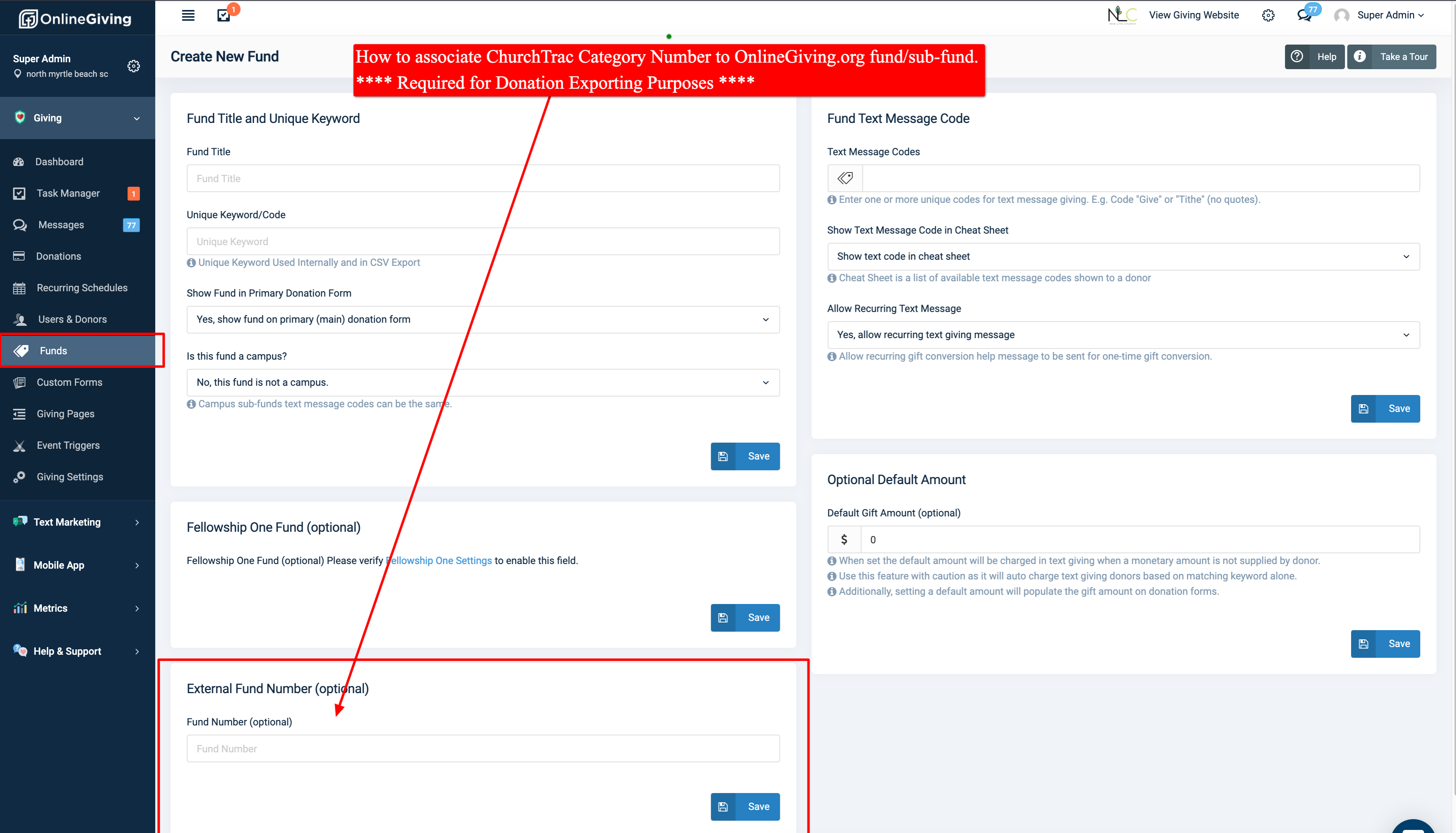
We're pleased to report a new donation export option is now available for church's using ChurchTrec.com to export donations for importing into ChurchTrec.com. To take advantage of the new feature, church administrators will first want to update their OnlineGiving.org funds/sub-funds to contain the associated ChurchTrec Category Number. When creating or editing a fund in the OnlineGiving.org control panel, use the "External Funds Number" input to enter the associated ChurchTrec Category Number. Doing so will allow the ChurchTrec Category Number to be included in the new export with the donation row.
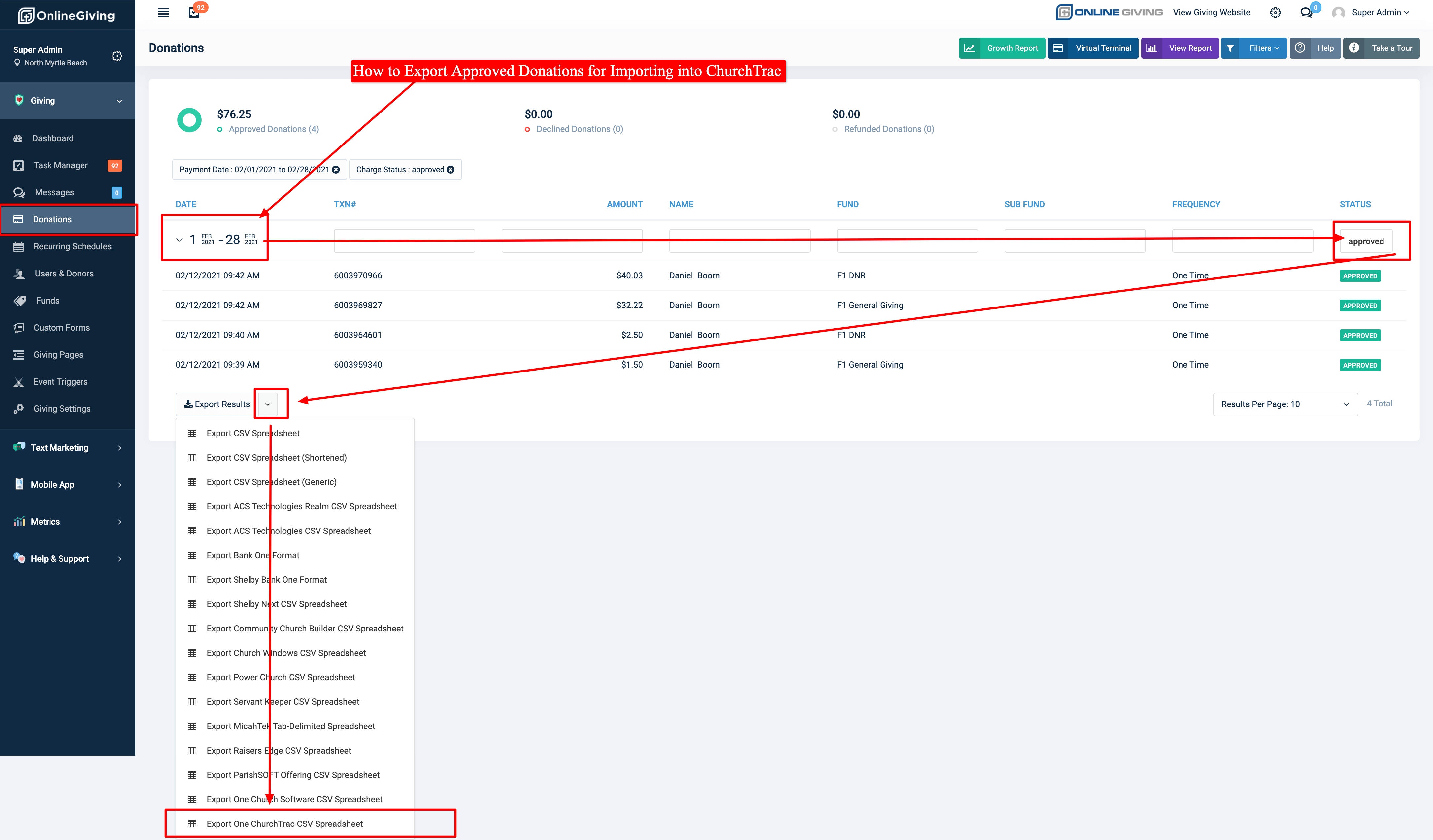
Exporting donations for ChurchTrec can be performed in the OnlineGiving.org Control Panel > Donations > Filter by Desired Date Range > Filter Approved Only > Click Export Arrow for Options > Click Export ChurchTrec CSV Spreadsheet Option. Then navigate to your ChurchTrec control panel to perform the import process using the downloaded CSV file. Church's may click here to read the ChurchTrec documentation outlining how to import the CSV spreadsheet. When importing, please be sure to select "Manual" from the "CSV Import Type" dropdown menu, then drag and drop the CSV spreadsheet to start the import process. Kindly see below for screenshots of both the Category Number and Export process.
Screenshot of How to Associate ChurchTrac Category Number to OnlineGiving.org Fund
Screenshot of How to Export Approved Donations by Date Range for ChurchTrac Importing