Feature Updates 02/27/2026
Care for the Right People at the Right Time: The Stewardship Pastoral Care Report
What's New
You know that sinking feeling when a long-time member quietly stops showing up — and by the time anyone notices, they've already moved on? Maybe they were going through a hard season. Maybe they felt overlooked. Maybe a single phone call three months ago would have changed everything.
Until now, catching those moments meant manually comparing giving lists, scrolling through spreadsheets, and hoping someone on staff happened to notice a missing name. Most churches don't catch members drifting until it's too late.
Not anymore.
The Stewardship Pastoral Care Report automatically watches your congregation's giving patterns and alerts your pastoral team when someone may be drifting — organized by urgency, with AI-powered guidance on exactly how to reach out. It's not a financial report. It's a shepherding tool that helps you care for your people before they slip through the cracks.

Where to Find It
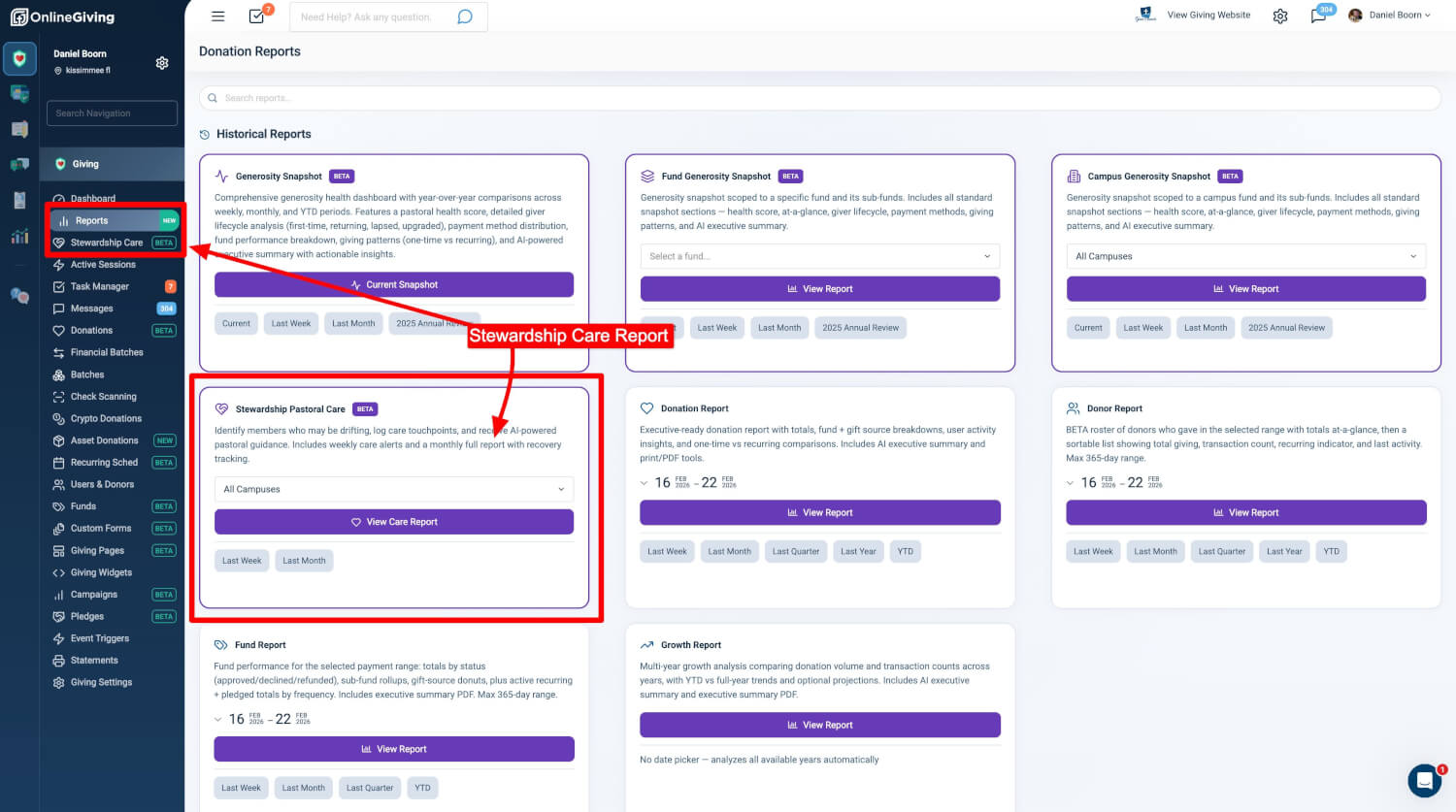
Stewardship Pastoral Care is in your control panel at:
Giving > Stewardship Care (in the left navigation)
Any administrator with Giving Admin access can view the report. Just click Stewardship Care, choose Last Week or Last Month for your time window, and the report loads with everything your team needs to start caring for people today.
Know Exactly Where Things Stand — Instantly
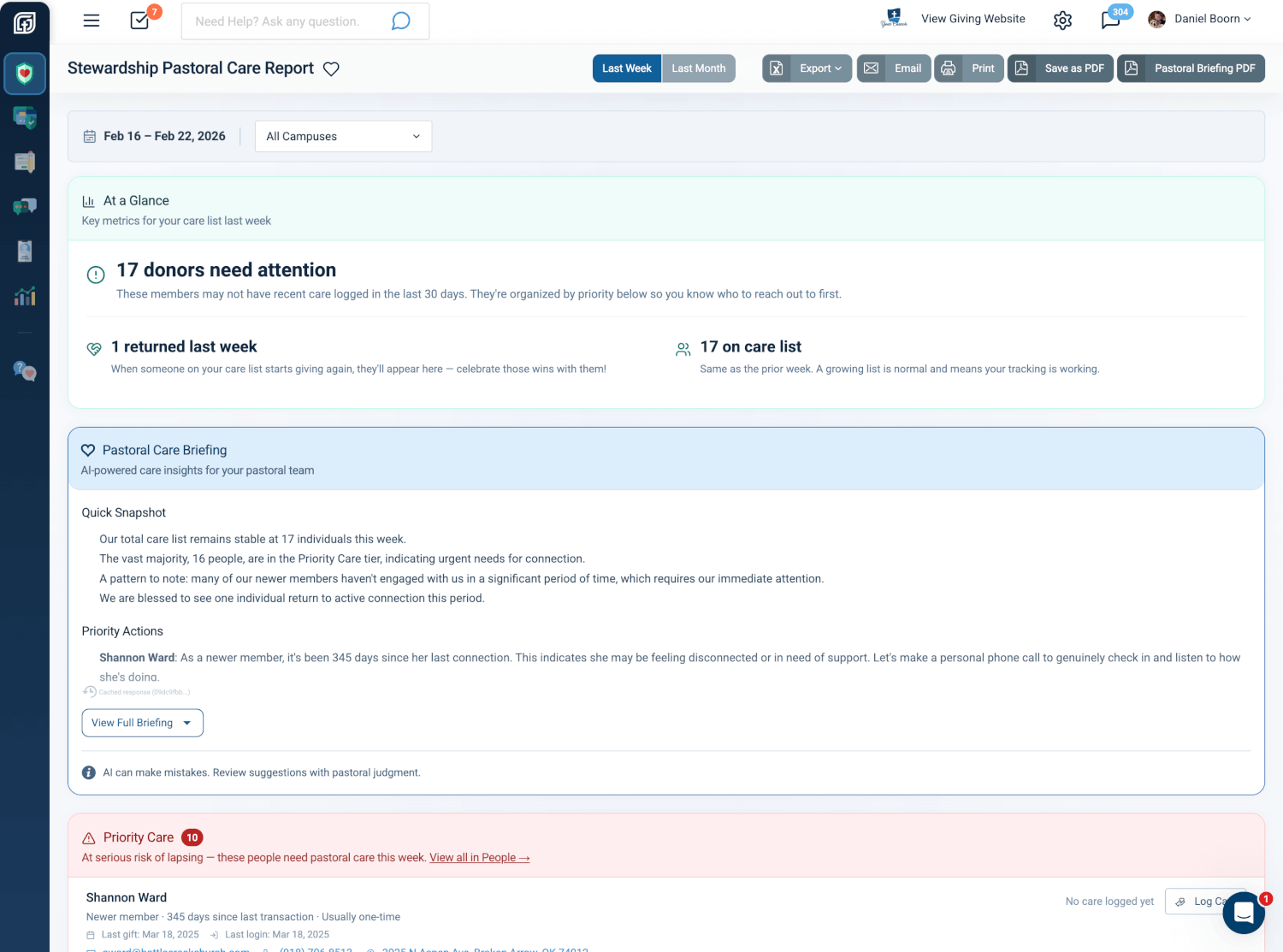
The report opens with three numbers that give your team an immediate read on the state of pastoral care:
- Needs Attention — how many people may be drifting, organized by priority below
- Returned This Period — members who started giving again (celebrate these wins!)
- On Care List — total count with trend context, like "Same as the prior week"
Every number comes with a plain-English explanation so anyone on your team — even someone who isn't data-oriented — understands exactly what they're looking at and what to do next.
Why it matters: Imagine walking into your Monday staff meeting and knowing in five seconds flat: "We have 17 people who need attention this week, one person came back, and our list is stable." No spreadsheets. No guessing. Just clarity.
Your AI Pastoral Advisor — Ready Before Every Staff Meeting
Below the key numbers, the Pastoral Care Briefing is an AI-generated narrative written in a pastoral voice. It reads like a report your associate pastor would prepare before a staff meeting — except it's ready the moment you open the page.
The briefing covers:
- A Quick Snapshot of your care list — how many people, which tiers, any patterns
- Priority Actions — specific people named individually with recommended next steps (e.g., "Shannon has been absent 345 days. Consider a personal phone call to genuinely check in and listen to how she's doing.")
- Wins and Encouragement — who came back this week, with a word of encouragement for your team
You can expand or collapse the briefing, and export it as a standalone Pastoral Briefing PDF — perfect for printing and handing out at your next staff meeting.
Why it matters: Your team doesn't have time to analyze data tables. The AI briefing turns numbers into a story your pastoral team can act on in 60 seconds — prioritized, personal, and practical.
People Organized by Who Needs You Most
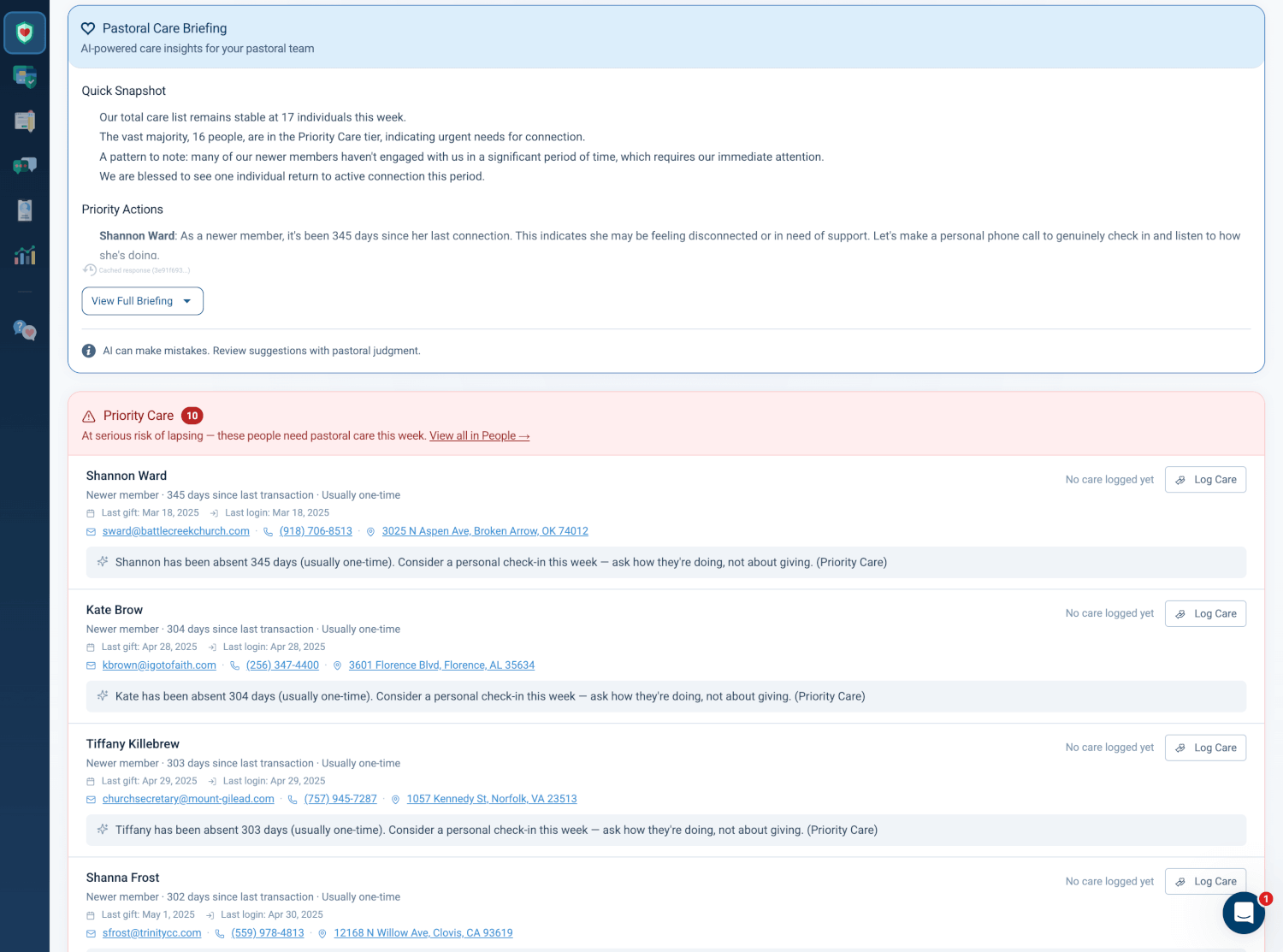
The heart of the report is the care list — every person who may be drifting, organized into three color-coded priority tiers:
- Priority Care (Red): At serious risk of lapsing — these people need pastoral care this week
- Personal Outreach (Orange): Drifting from their normal pattern — a timely check-in can make the difference
- Gentle Check-in (Blue): Slightly overdue — keep them on your radar, but no urgent action needed
The system doesn't just look at dollar amounts. It analyzes each person's giving rhythm — their unique cadence. A weekly giver who's missed two weeks and a monthly giver who's missed two months both surface appropriately. Everyone is prioritized fairly based on their own pattern.
Each person on the list shows their name (linked to their full profile), how long since their last gift, their usual giving frequency, contact information, and — most importantly — an AI-generated care suggestion specific to that individual. Not generic advice, but a 2-3 sentence recommendation based on their particular situation: their giving trajectory, your staff's previous notes, and what contact methods are available.
Why it matters: When your team sits down to make calls, they don't have to guess who to call first or what to say. The report has already prioritized the list and prepared a conversation starter for every single person.
Log Outreach Without Leaving the Report
Click Log Care on any person and a full-screen care modal opens with everything your team needs — no switching screens, no hunting through other pages.
On the left, you see the person's complete context: their name, care tier, contact details (clickable phone number, email, address), giving activity, and the AI care suggestion. On the right, a simple form to record what you did.
Choose from six care types — Call, Text, Visit, Email, Pray, or No Concern — pick the date, add optional notes with formatting, and click Save Touchpoint.
After saving, something special happens: the report automatically advances to the next person who hasn't been contacted yet, scrolls to their row, and highlights it. Your team can work through the entire care list like a checklist — log care, advance, log care, advance — without ever leaving the report.
If someone has moved away or left the congregation, the Mark as Moved On option removes them from future reports with a single click.
Why it matters: Picture your office administrator on a Monday afternoon with 30 minutes between meetings. She opens the care report, sees the first person flagged for Priority Care, taps the phone number to call directly from the modal, logs the touchpoint, and the report automatically scrolls to the next person. In 30 minutes, she's personally reached out to five people who were silently drifting — and every interaction is documented for the rest of the team.
Care Reports Delivered to Your Inbox
You don't have to remember to check the report. Set up automated care emails and the report comes to you — or your entire pastoral team — on a schedule.
- Weekly emails arrive every Monday morning covering the previous week
- Monthly emails arrive at the start of each month covering the previous month
- Choose who receives them: all giving administrators, a customized list, or specific email addresses
- Privacy controls let you decide whether contact details appear in the email or require logging in to view
You can also send the report to anyone right now with the Send Report Now button — perfect for forwarding to your senior pastor before a board meeting.
The emails include the same AI Pastoral Briefing and tier-organized care list you see in the control panel, with a professional layout featuring your church logo.
Why it matters: Your senior pastor is traveling and asks, "How's our congregation doing?" You've already set up weekly care emails. He opens his inbox Monday morning and has the full pastoral care briefing with specific names and recommended actions — without logging into anything.
Celebrate the Wins
When someone on your care list starts giving again, the report celebrates it. The "Returned This Period" count shows how many people came back, and the AI briefing highlights them by name with a word of encouragement for your team.
Pastoral care isn't just about reaching out to people who are drifting — it's about recognizing when your outreach works. Seeing that "1 returned last week" number is a reminder that your calls, texts, and prayers are making a difference.
Why it matters: Ministry can feel thankless. Seeing concrete evidence that your outreach brought someone back is the encouragement your team needs to keep going.
Multi-Campus Support
For churches with multiple campuses, the campus filter at the top of the report scopes everything — the care list, AI briefing, exports, and email settings — to a single campus. Each campus can have its own email schedule and recipient list, so your Downtown Campus pastor gets a care report for Downtown, and your Northside Campus pastor gets one for Northside.
Export, Print, and Share
- Export to CSV: Download the care list filtered by tier — great for importing into your ChMS or sharing with small group leaders
- Print: Clean, print-optimized layout with a Contact Quick Reference table — perfect for pastoral team meetings
- Save as PDF: Full branded PDF with your church logo — professional enough for board presentations
- Pastoral Briefing PDF: Just the AI briefing section — compact, printable, ready for your next staff huddle
Why it matters: When your board chair asks, "What are we doing about member retention?" you can hand them a branded PDF with the complete pastoral care picture — including AI-generated insights and specific outreach actions — in under 30 seconds.
At a Glance
- Automatic at-risk detection: The system watches giving patterns and alerts you when someone may be drifting — before they leave
- Three priority tiers: Focus your limited time on the people who need you most, right now
- AI Pastoral Briefing: A 60-second narrative summary ready for every staff meeting — no data analysis required
- AI care suggestions per person: Specific, practical outreach recommendations tailored to each individual's situation
- One-click care logging: Record calls, texts, visits, emails, and prayers without leaving the report
- Auto-advance workflow: Work through the care list like a checklist — log, advance, log, advance
- Automated email reports: Weekly and monthly care reports delivered to your pastoral team's inbox
- Return celebrations: See when your outreach brings someone back — and celebrate the wins
- Campus filtering: Scope everything to a single campus for multi-site churches
- Export and PDF options: Professional, branded reports ready for board meetings and pastoral huddles
Try It Now
- Go to Giving > Stewardship Care in your control panel
- Review the At a Glance numbers and read the AI Pastoral Briefing — in 60 seconds you'll know exactly who needs attention this week
- Click Log Care on the first person in Priority Care and make that call — the report will guide you to the next person automatically