Feature Updates 03/03/2026
Work Smarter, Not Harder: Instant Product Duplication & Checkout Visibility
What's New
Two time-saving enhancements for product managers. Product Duplication lets you create an exact copy of any product with one click — variants, images, pricing, and all — perfect for seasonal items, A/B testing, and building product families. Checkout Visibility answers "Where is this product being sold?" by showing every checkout page that includes a product, so you never have to guess or accidentally remove it from an active page.
Where to Find It
Path: Admin → Payments → Products
Who can use it: Any administrator with Donor Admin or Payments Admin role.
How to get there:
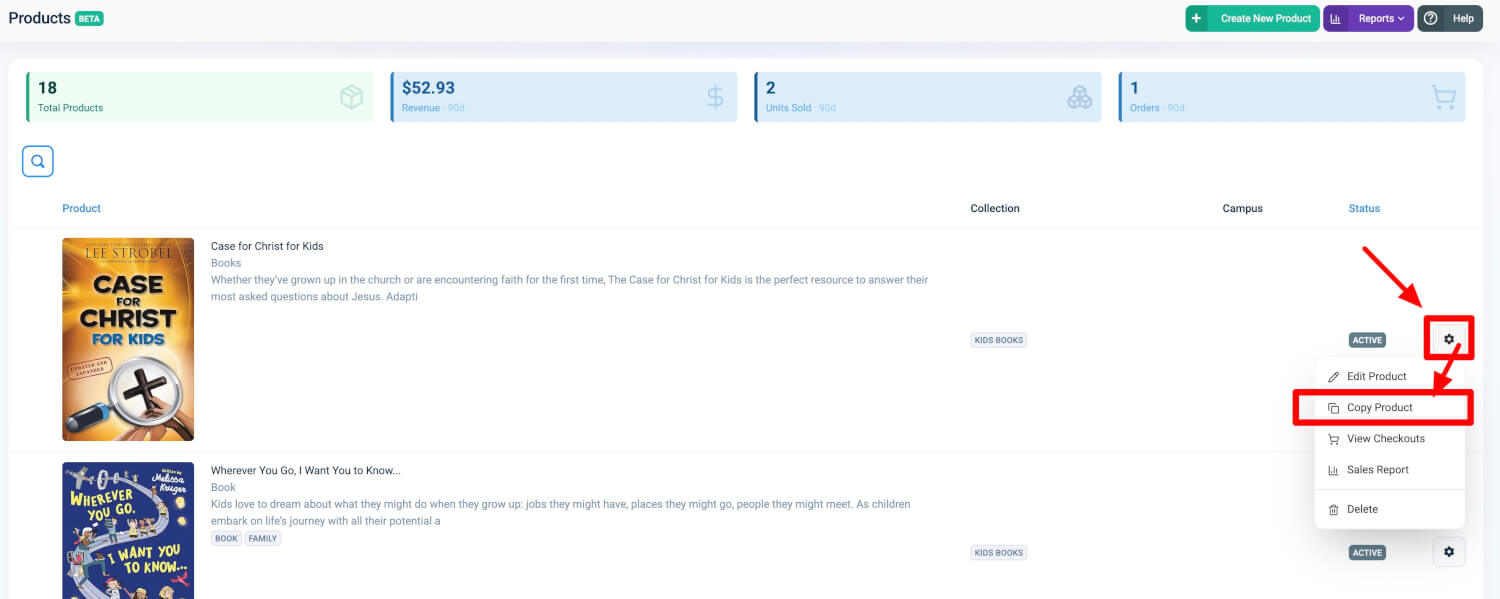
- Go to Admin → Payments → Products, select a product, click Edit, then use the Copy button in the product action toolbar
- On the same product edit page, open the Checkouts section to see where that product appears
Quick Start
- Go to Admin → Payments → Products and open any product for editing.
- To duplicate: Click the Copy button — a new draft copy is created instantly, ready for you to adjust.
- To see where it's sold: Open the Checkouts section on the product edit page to view every checkout page that includes this product.
Product Duplication (Copy)
Click one button to create an exact copy of a product. The copy is created as a draft (unpublished) and is ready for editing.
What Gets Copied
- Title: Copied with "Copy of" prefix
- Description: Full description copied
- Pricing: All pricing fields copied
- Variants: All variants duplicated with stock and SKU preserved
- Images: Product images copied
- Options: Product options copied
- Collections: Collection assignments copied
- Campus Assignments: Campus assignments copied
- Tax Settings: Tax configuration copied
What Is Not Copied
- Order History: Past orders remain with the original product
- Sales Data: Analytics and sales metrics are not copied
- Analytics: Hit counters and engagement data reset
Practical outcome: You can clone a proven product and change only what's different instead of rebuilding from scratch — ideal for seasonal products, A/B testing, and similar product setups.
Checkout Visibility
The Checkouts section on the product edit page shows every checkout page where this product appears. You can see at a glance where a product is being sold.
What Is Displayed
- Checkout Name: Name of the checkout page (linked for quick navigation)
- Status: Active or inactive
- URL: Checkout page address
- Product Count: Number of products on that checkout
Practical outcome: You no longer need to open each checkout individually to answer "Where is this product being sold?" This visibility helps prevent accidentally removing a product from active checkouts and supports inventory and merchandising decisions.
At a Glance
- Product Duplication (Copy): One-click copy of title, description, pricing, variants, images, options, collections, campus assignments, and tax settings; creates a draft; order history and analytics stay with the original
- Checkout Visibility: See every checkout page where a product appears — name, status, URL, and product count
- Access: Donor Admin or Payments Admin role