Feature Updates 03/08/2026
From Cart to Doorstep: Order-Level Sales Intelligence & Fulfillment Command Center
Overview
Every order has a story — who bought it, when, what they paid, and whether it's been shipped. The Sales by Order view transforms your order data into a fulfillment command center with full-screen invoice modals, one-click status management, Shippo integration, and instant order-level exports. Process refunds, resend confirmations, and manage shipping without ever leaving the report.
Location & Access
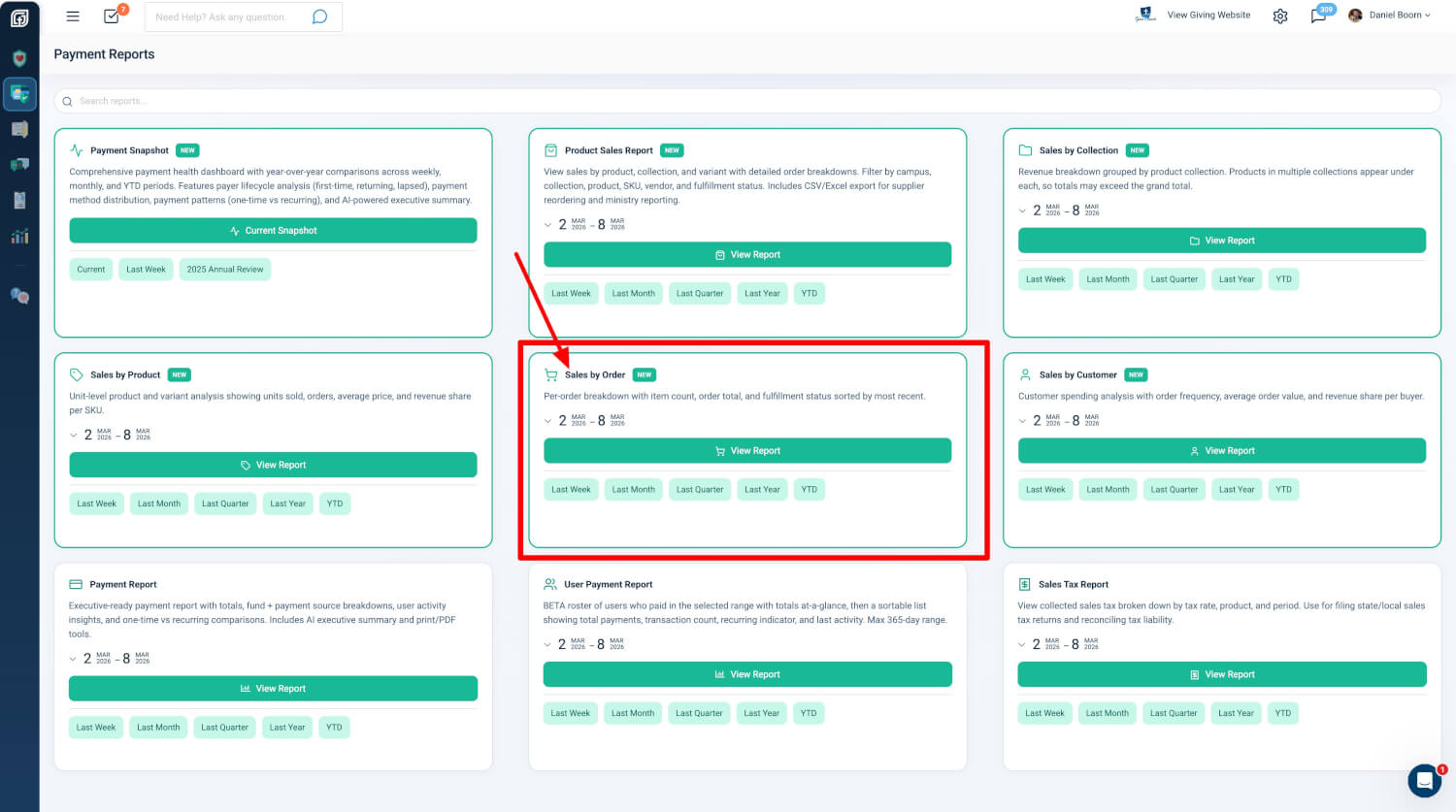
Location: Admin → Payment Reports → Sales by Order card
Who can use it: Users with Donor Admin or Payments Admin role.
Entry points:
- Payment Reports Hub → Sales by Order card → View Report
- Quick date shortcuts on the card: Last Week, Last Month, Last Quarter, Last Year, YTD
- Custom date range picker on the card before launching
Order-Level Summary Table
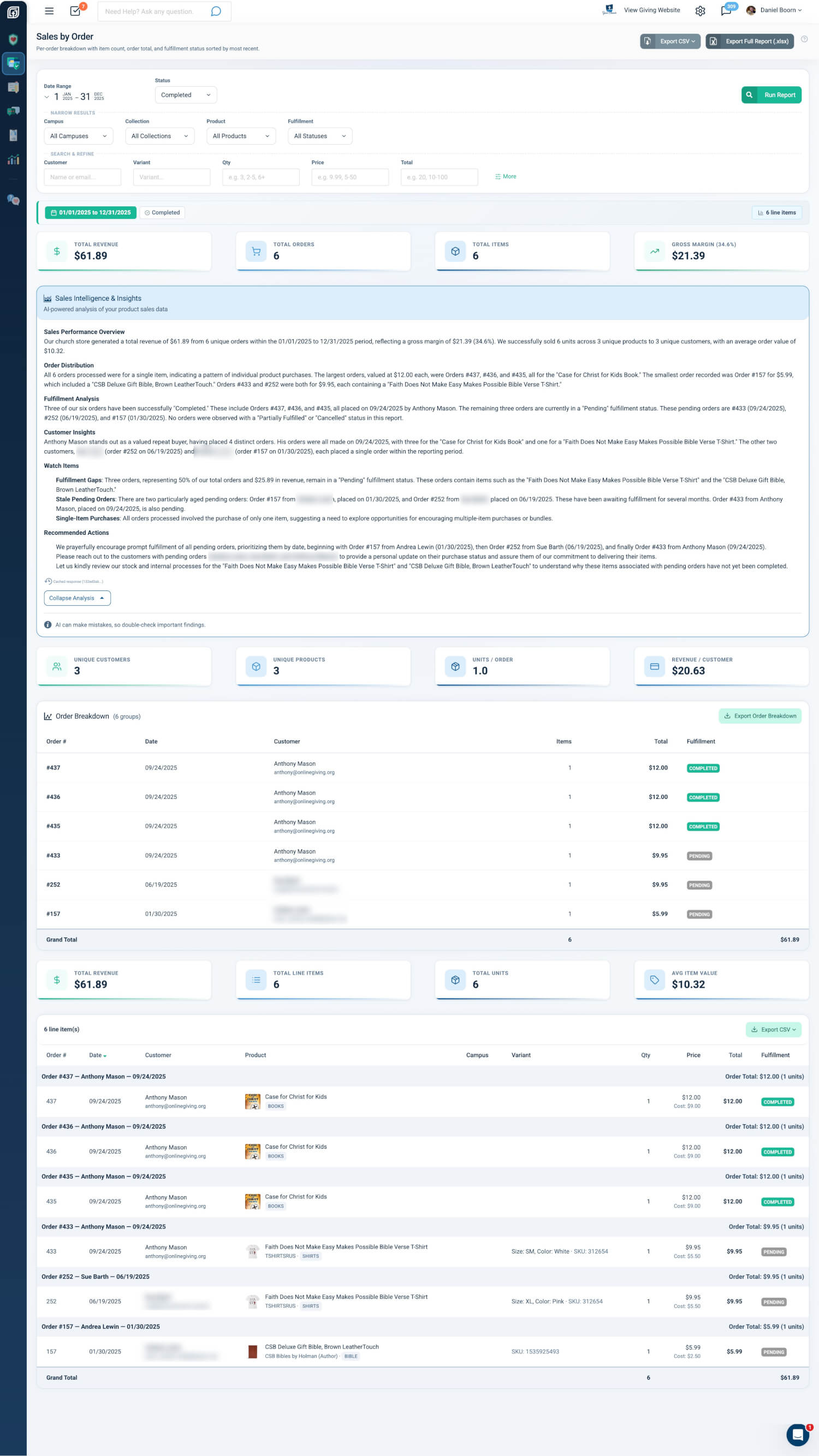
The summary table displays one row per order, sorted by date descending. Each row provides a quick scan of order essentials.
- Order #: Unique order identifier
- Date: Order date in the organization's timezone
- Customer: Customer name with email displayed below
- Items: Total item count for the order
- Order Total: Order total in dollars
- Fulfillment Status: Color-coded badge indicating current fulfillment state
A Grand Total footer row aggregates total items and total revenue across all orders. A dedicated Export Order Summary button downloads the order-level breakdown as CSV.
Why it matters: The summary table enables fulfillment staff to prioritize work at a glance. Sorting by date descending surfaces the most recent orders first, while the fulfillment badge makes it easy to identify orders needing attention.
Line Items Under Order Headers
Below the summary table, line items are grouped under visual order headers. Each order displays its order number and customer context (e.g., "Order #1234 — John Smith — Feb 15, 2026") with a subtotal row. The expand-to-detail model groups line items under each order header.
- Order Header: Order number, customer name, and date with subtotal
- Product Thumbnails: Product image for each line item
- Variant / SKU / Barcode: Variant details, SKU, and barcode when available
- Clickable Rows: Click any line item to open the Order Invoice modal
Why it matters: Grouping line items by order keeps fulfillment context intact. Product thumbnails and variant details support pick-and-pack workflows without leaving the report.
Order Invoice Modal
Clicking any order row or line item opens a full-screen Order Invoice modal with complete order management. The modal contains the following sections:
- Quick Actions: Print, Resend confirmation email, Refund, Edit payment status
- Customer Info: Name, email, phone, campus; quick links to View Profile, View All Checkouts, Change User, Sign In As User
- Payment Details: Visual payment card (Credit Card, ACH, Check, Cash) with masked numbers, processing fees, net amount
- Checkout Items: Full product list with thumbnails, variants, quantities, and prices
- Fulfillment Management: Status changes, tracking code, shipping provider, ship date, Shippo integration with "Manage Order in Shippo" link
- Totals: Subtotal, covered fee, sales tax, order status, final total
- KYC Answers: Shipping vs. contact address map, IP/region information
- Change History: Audit trail of all order modifications
Scroll position preservation: When the modal closes, the report restores the exact scroll position and briefly highlights the viewed row, enabling efficient processing of multiple orders in sequence.
Why it matters: Administrators can handle refunds, resend confirmations, update fulfillment, and manage shipping without leaving the report. Scroll preservation keeps context when reviewing many orders in a single session.
Fulfillment Badges
Fulfillment status is displayed with color-coded badges for at-a-glance scanning:
- Pending — Gray
- Partially Fulfilled — Amber
- Shipped — Blue
- Completed — Green
- Cancelled — Red
Why it matters: Color-coded badges allow fulfillment staff to quickly identify orders by status. Filtering by fulfillment status (e.g., Pending) narrows the list to orders requiring action.
Metric Cards (Order-Specific)
Two rows of metric cards adapt to the order view:
Row 1:
- Total Revenue: Sum of all order totals
- Unique Orders: Count of distinct orders
- Avg Items/Order: Average line items per order
- Avg Order Value: Average order total; replaced by Gross Margin when cost data exists for 50% or more of items
Row 2:
- Unique Customers: Count of distinct customers
- Product Variants: Count of unique product/variant combinations
- Total Units Sold: Total quantity across all line items
- Gross Margin: Revenue minus cost when cost data is available
Why it matters: Order-specific metrics provide immediate context for fulfillment volume and revenue. Gross Margin surfaces when cost data is sufficient, supporting profitability analysis.
Exports
CSV Exports
- Order Summary: Dedicated Export button on the grouped summary table; exports order-level breakdown (Order #, Date, Customer, Items, Total, Fulfillment)
- All Line Items: 39-column flat export with full order, product, shipping, tax, and collection data
- Summary by Order: Grouped CSV with order headers, shipping details, fulfillment, tracking, and line items per order with subtotals
Excel Export (.xlsx)
Full report workbook with six sheets: Report Summary, Line Items, By Collection, By Product, By Order, By Customer. Limited to 10,000 line items. Monetary and quantity values stored as native Excel numbers.
Why it matters: CSV supports unlimited rows for data pipelines and shipping workflows; Excel provides a structured multi-sheet report for sharing with stakeholders. The By Order sheet aligns with the Sales by Order view structure.
At a Glance
- Order Summary Table: Order #, Date, Customer Name, Items Count, Order Total, Fulfillment Status badge; sorted by date descending; Grand Total footer; Export Order Summary button
- Line Items Under Order Headers: Expand-to-detail model; order number headers; product thumbnails; variant, SKU, barcode
- Order Invoice Modal: Full-screen modal with Quick Actions, Customer Info, Payment Details, Checkout Items, Fulfillment Management (Shippo), Totals, KYC Answers, Change History; scroll position preserved on close
- Fulfillment Badges: Pending (gray), Partially Fulfilled (amber), Shipped (blue), Completed (green), Cancelled (red)
- Metric Cards: Order-specific: Total Revenue, Unique Orders, Avg Items/Order, Avg Order Value; second row: Unique Customers, Product Variants, Total Units Sold, Gross Margin
- Exports: CSV (Order Summary, All Line Items 39 columns, Summary by Order); Excel (.xlsx with By Order sheet)
- Access: Donor Admin or Payments Admin role