Feature Updates 03/13/2026
Never Lose a Member Again: AI-Driven Pastoral Care & Risk Intelligence — Part 3 of 7
What's New
The old way: manually checking lists, hoping someone notices when a member drifts away. The new way: the system alerts you. Care Assessment is your pastoral care command center — a proactive, smart system that catches members before they slip through the cracks. It watches each member's giving patterns and flags when someone might be drifting. Four care levels help you prioritize: Healthy, Gentle Check-in, Personal Outreach, and Priority Care. Combined with AI-generated next steps that feel like your personal pastoral advisor, you get a single view of care status, suggested actions, and recent touchpoint history. Any administrator can prioritize outreach, understand risk factors, and take informed action without leaving the member's profile. Never lose a member again.
Where to Find It
Go to Giving > Donors & Users > click any name > Profile. Scroll to the Care Assessment section. Any administrator can access this view.
Your At-a-Glance Care Status
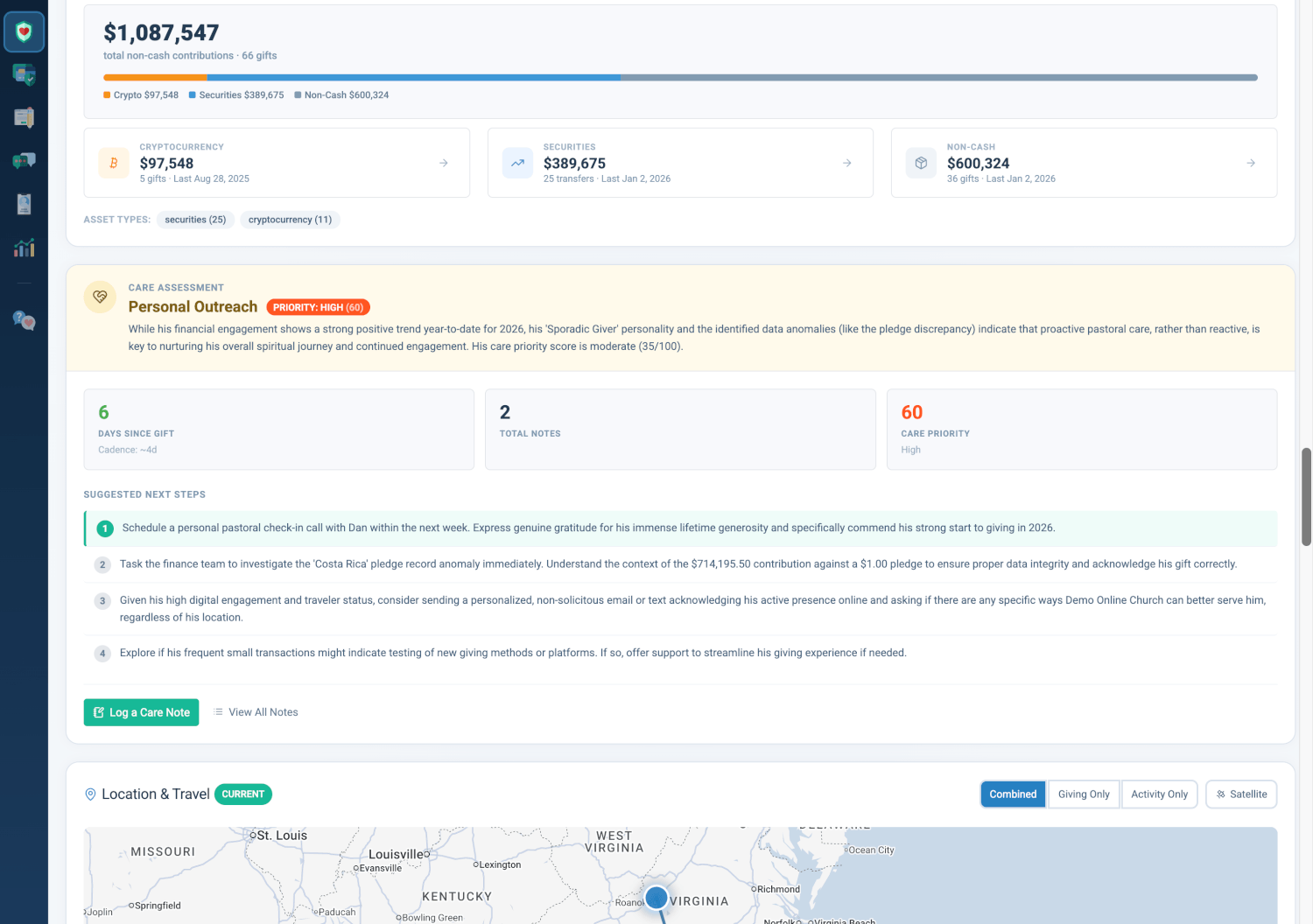
A full-width, color-coded panel anchors the Care Assessment section and gives an immediate visual signal of the member's care status.
- Background Color: Green (Healthy), Blue (Gentle Check-in), Amber (Personal Outreach), or Red (Priority Care)
- Heart-Handshake Icon: Visual identifier for the care section
- Risk Tier Badge: Text label matching the color tier
- Care Priority Badge: Score 0–100 with descriptive label
- AI Detail Text: Contextual explanation of the current status
Why it matters: Pastoral teams need to triage members quickly. The color-coded Status Hero lets you scan profiles and identify who requires immediate attention versus routine check-ins, reducing decision time and ensuring high-risk members are not overlooked.
Key Care Metrics
The key numbers that inform care status are displayed for transparency.
- Days Since Gift: Days since the member's last donation — Green (≤45), Amber (46–90), Red (>90)
- Total Notes: Count of care notes on file
- Care Priority: Composite score 0–100 with label
- Overdue Ratio: Fallback metric when ratio cannot be computed
Why it matters: When the system flags someone for Priority Care, you can see the contributing factors before reaching out. Transparency helps you approach each member with confidence and context.
How the Four Care Levels Work
The smart system classifies members into four tiers based on their giving patterns relative to what's typical for them.
- Healthy: Giving is on track with their usual pattern — Green
- Gentle Check-in: Slightly behind their typical cadence — Blue
- Personal Outreach: Noticeably behind; a personal touch is warranted — Amber
- Priority Care: Significantly behind; needs attention soon — Red
The system normalizes risk across members with different giving cadences. A weekly giver who has missed two weeks and a monthly giver who has missed two months both surface appropriately, ensuring fair and consistent prioritization. Members with no giving history or very few gifts are handled with care so new or occasional givers aren't over-flagged.
Why it matters: You get a clear, consistent way to prioritize who needs attention first — without guessing or manually comparing lists.
Your Personal Pastoral Advisor: AI Suggested Next Steps
AI Suggested Next Steps presents 2–3 numbered, prioritized actions generated from the full member context. The first step is visually emphasized as the primary recommendation.
- Loaded: 2–3 numbered actions, first step emphasized
- Loading: Placeholder while suggestions are generated
- Empty: Placeholder when no suggestions are available
Actions are generated from the complete member profile, including giving history, engagement patterns, notes, and care metrics — like having a personal pastoral advisor who knows the full picture.
Why it matters: Staff often know a member needs attention but struggle with what to do next. AI-generated next steps reduce friction and ensure consistent, context-aware recommendations across the care team.
Care Timeline
Recent care activity and quick access to logging and viewing notes.
Last Care Touchpoint
- Type: Category of the last touchpoint (e.g., call, email, visit)
- Date: When the touchpoint occurred
Recent Care Notes
The five most recent care notes are displayed with:
- Type Badge: Category label for each note
- Text: Note content or summary
- Date: When the note was logged
CTA Buttons
- Log a Care Note: Opens the Notes tab or note-entry flow (green, primary)
- View All Notes: Navigates to full notes list
Why it matters: Care continuity depends on knowing what has already been done. The timeline prevents duplicate outreach and ensures staff can pick up where a colleague left off. The prominent "Log a Care Note" button encourages documentation immediately after interactions.
Working with the At-Risk Report
Care Assessment shares the same underlying insights as the Stewardship Pastoral Care (At-Risk) report.
End-to-End Workflow
- At-Risk Report identifies members who need attention (Go to Reports > Stewardship Pastoral Care)
- User Profile provides full context (Care Assessment, Giving, Notes)
- Notes tab logs the interaction
- Score updates reflect the new touchpoint in subsequent views
Why it matters: The integration creates a seamless pastoral care workflow. Staff can move from list-based identification to member-specific context to action and documentation without switching tools or losing context.
Quick Start
- Go to Giving > Donors & Users and click any member's name.
- Open their Profile and scroll to Care Assessment.
- Check the color-coded Status Hero and AI Suggested Next Steps, then log a care note after any outreach.
At a Glance
- Color-coded Status Hero (Healthy, Gentle Check-in, Personal Outreach, Priority Care): Triage members at a glance and focus on who needs attention first
- Key metrics: Days Since Gift, Total Notes, Care Priority: Understand why someone was flagged before you reach out
- Four care levels based on giving patterns: Prioritize outreach fairly and consistently
- AI Suggested Next Steps (2–3 prioritized actions): Know exactly what to do next, like a personal pastoral advisor
- Last Care Touchpoint and Recent Care Notes: Avoid duplicate outreach and pick up where colleagues left off
- Log a Care Note and View All Notes buttons: Document interactions quickly and keep care history in one place
- Integration with Stewardship Pastoral Care report: Move from report to profile to action without losing context