Feature Updates 03/15/2026
Know Where They Are: Location Intelligence & Travel Pattern Discovery — Part 5 of 7
What's New
Discover the geographic stories hidden in your insights. The system detects where members connect from and identifies travel patterns. Where do members connect from? Are they travelers? Do they have seasonal patterns? Interactive maps bring location insights to life. AI-powered geographic summaries reveal travel profiles and movement patterns. Address currency detection tells you if their address is still good — before year-end statements bounce. This section unlocks campus-specific outreach and travel-aware engagement strategies, giving you the geographic context that transforms how you connect with every member.
Where to Find It
Path: Admin > Donors & Users > click any member name > Profile tab > scroll to Location & Travel section
Who can use it: Any administrator with access to donor and member records.
Interactive Map
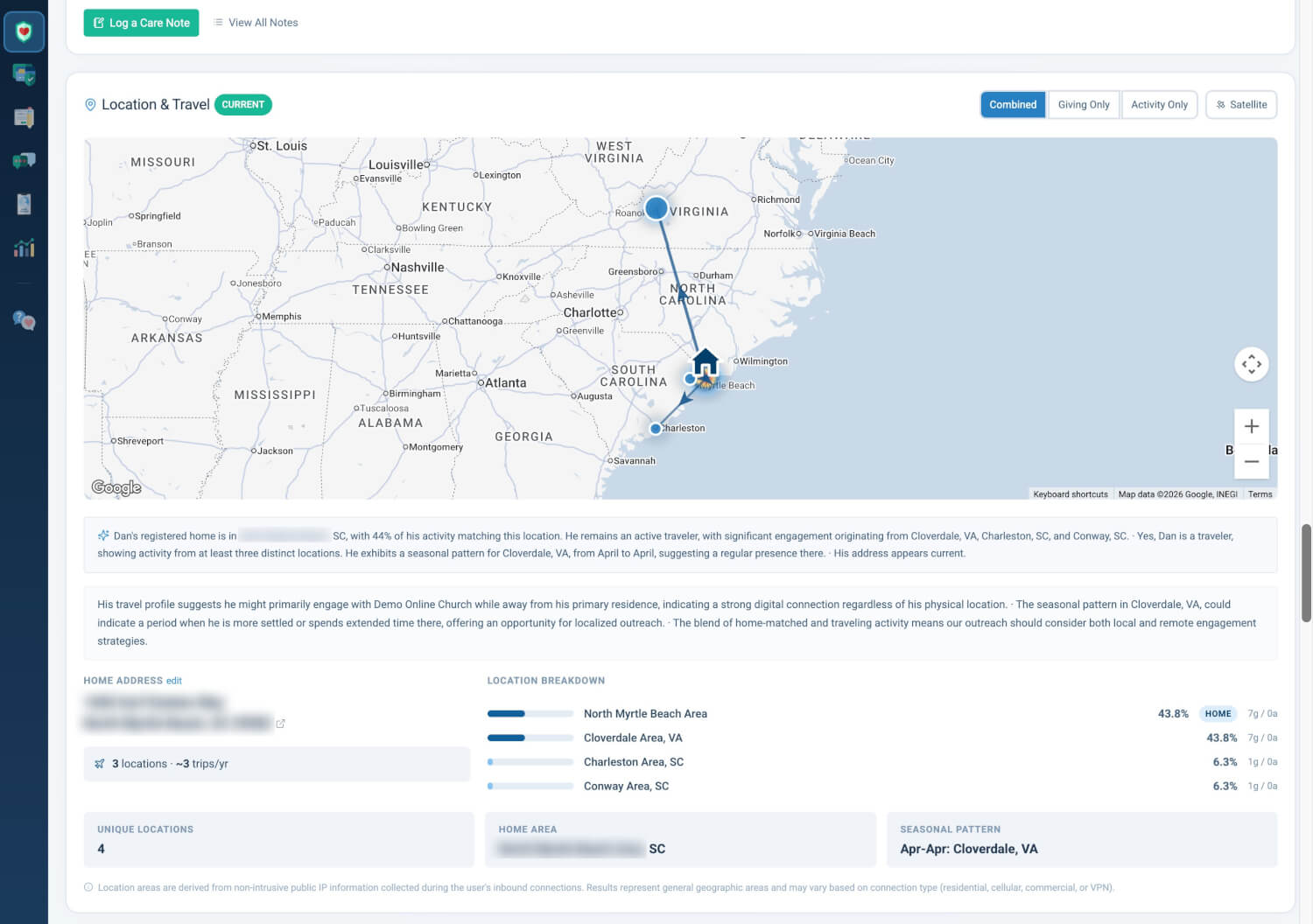
The section opens with a large, full-width Interactive Map that shows where members connect from.
Map Features
- Location markers: Sized proportionally to activity frequency at each location
- Popup details: Clicking a marker shows city name, activity count, and percentage of total activity
- Auto-fit bounds: Map automatically zooms and centers to encompass all markers
- Loading state: Spinner with "Loading map..." while map insights are prepared
Filter Controls
A button group in the section header allows filtering the map insights:
- Combined (default) — All location insights from gifts, purchases, and browsing
- Giving Only — Only locations from gifts and purchases (financial activity)
- Activity Only — Only locations from browsing activity
Satellite Toggle
A separate toggle switches between standard road map view and satellite/aerial imagery.
Empty States
- When coordinates are available but the map cannot render: "Map coordinates unavailable. Location insights shown below are based on city-level activity."
- When no location insights exist: "No location insights yet. Maps will appear once a gift is made or a login occurs."
Why it matters: The visual map provides instant geographic context that numbers alone cannot. Seeing markers clustered in one city with a single marker elsewhere tells a story. The filter controls let staff distinguish between "where they give from" and "where they browse from" — useful for identifying members who research online from one location but attend services at another.
Address Currency Detection
Address Currency Detection indicates whether the member's registered address appears to be current.
- Current (green) — Recent activity matches the registered home address area
- Update Needed (amber) — Recent activity suggests the member may have moved
Why it matters: Outdated addresses cause mail returns, wasted postage, and missed tax statement deliveries. The address currency detection proactively identifies members who may have moved, enabling the organization to reach out and update records before year-end statements are mailed.
AI Geographic Summary
When AI analysis is available, an AI Geographic Summary provides narrative context.
- Primary summary: Plain-language description of the member's geographic profile
- Travel profile: AI assessment of travel frequency and patterns
- Address status: AI interpretation of address currency
- Additional insights: Bullet-point observations about geographic behavior
Example: "Primarily based in the Dallas, TX area with 92% of activity from home. Occasional travel to Austin (3 trips/year) suggests a family or business connection. Address appears current — no indication of relocation."
When AI is unavailable, a fallback based on computed insights is shown:
- "Primary location: Dallas, TX · 92% of activity from home area · Travels to 3 other locations"
Home Address Display
The member's registered address is displayed prominently with:
- Large format address: Street address, city, state, and ZIP in bold text
- Map link: The entire address is clickable, opening a map search in a new tab
- Edit link: Direct link to update the address
- Empty state: "No address on file. Add one" with an edit link
Travel Intelligence
When the member is identified as a traveler, a highlighted Travel Intelligence info card appears.
Traveler Detection
A member is flagged as a traveler when:
- Home area activity is less than 70% of total activity, OR
- They have activity from 3 or more non-home cities
Travel Stats
- Locations: Number of distinct non-home cities with recorded activity
- Trips/Year: Estimated trips based on non-home activity clustered within 14-day windows
- Avg Distance: Average distance from the registered home address to activity locations (in miles)
- Farthest: City name and distance of the farthest recorded activity from home
Why it matters: Travel patterns have direct pastoral implications. A member who consistently gives from a different city for 2–3 months may be traveling for work, dealing with a family situation, relocating, or snowbirding seasonally. Each scenario calls for a different pastoral response. Without geographic intelligence, staff would never know to ask.
Location Breakdown
Location Breakdown displays activity distribution across the top 5 cities as proportional bars.
- Proportional bar: Width represents percentage of total activity; top 2 locations use a more prominent color
- City name: With state abbreviation (e.g., "Dallas Area, TX")
- Percentage: Exact share of total activity
- HOME badge: Green badge indicating the registered home address location
- Activity split: Giving count and activity count shown separately (e.g., "15g / 32a") to distinguish financial vs. browsing activity at each location
Why it matters: The location breakdown reveals the member's geographic footprint in one glance. A member with 90% home activity and 10% split across 2 cities is very different from one with 40% home and 60% distributed — the latter may be a traveling professional or may have relocated without updating their address.
Geographic Stat Cards
A row of Geographic Stat Cards provides summary insights:
- Unique Locations: Total number of distinct city-level locations with recorded activity
- Home Area: Identified home city and state (may differ from registered address if activity suggests a move)
- Seasonal Pattern: Detected seasonal travel pattern (e.g., "Dec–Feb: Miami, FL") based on analysis of non-home activity clustered in specific calendar months
Seasonal Pattern Detection
The system identifies seasonal patterns when more than 60% of activity at a non-home location falls within a 3-month window. The month range and city are reported when a pattern is detected.
Monthly Geographic Activity
A collapsible Monthly Geographic Activity table shows month-by-month location activity for the past 12 months.
- Toggle: Click the "Monthly Activity by Location" header to expand/collapse; chevron icon rotates on toggle
- Table columns: Month, Location (city, state), Count
- Grouped by month: Month label appears only on the first row of each month group for clean readability
Why it matters: The monthly view reveals patterns that the aggregate breakdown masks. A member who was in Dallas Jan–Oct but Miami Nov–Dec for the past 3 years has a clear seasonal pattern that the aggregate would only show as "Dallas 83%, Miami 17%." The monthly view makes this seasonality unmistakable.
Privacy Note
"Location areas are derived from non-intrusive public information collected during the member's inbound connections. Results represent general geographic areas and may vary based on connection type (residential, cellular, commercial, or VPN)."
This transparency note ensures staff understand the insight source and its inherent limitations.
Quick Start
- Go to Admin > Donors & Users, then click any member name.
- Open the Profile tab and scroll to the Location & Travel section.
- Review the map and address currency first — then check Travel Intelligence and Location Breakdown for travel patterns and seasonal insights.
At a Glance
- Interactive Map: Full-width map with location markers, popup details, auto-fit bounds; filter by Combined, Giving Only, or Activity Only; satellite toggle — instant geographic context
- Address Currency Detection: Current (green) or Update Needed (amber) — catch outdated addresses before year-end statements bounce
- AI Geographic Summary: Primary summary, travel profile, address status, bullet observations — plain-language geographic story
- Home Address Display: Large format, map link, edit link — verify and update addresses quickly
- Travel Intelligence: Traveler detection; Locations, Trips/Year, Avg Distance, Farthest city — pastoral context for work travel, relocation, snowbirding
- Location Breakdown: Proportional bars for top 5 cities, HOME badge, activity split — see geographic footprint at a glance
- Geographic Stat Cards: Unique Locations, Home Area, Seasonal Pattern — summary insights for outreach planning
- Monthly Geographic Activity: Collapsible month-by-month table — uncover seasonal patterns the aggregate view masks