Feature Updates 03/20/2026
Help Is Already Here: Meet the New AI Support Chat
What's New
It is 9:47 on a Sunday night. Your worship leader just texted asking how to set up recurring giving for the new Building Fund. Your office admin left a sticky note about connecting the church's text marketing to the mobile app. A board member wants to know if there is a way to track giving by campus.
Before, you would open a new tab, search through the knowledge base, maybe send an email to support . Or you would try to remember which article had the answer and hope you could find it again.
Not anymore.
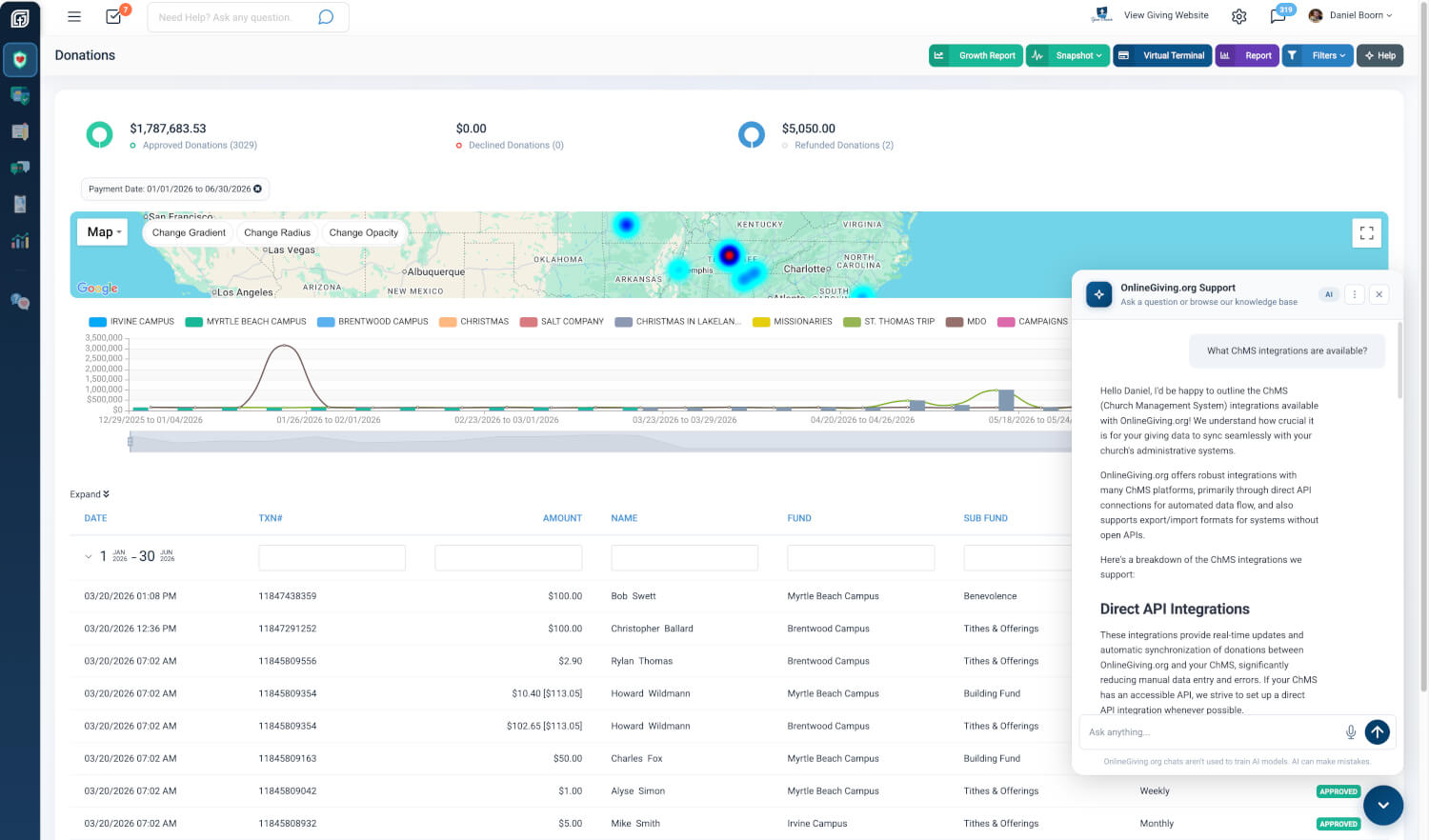
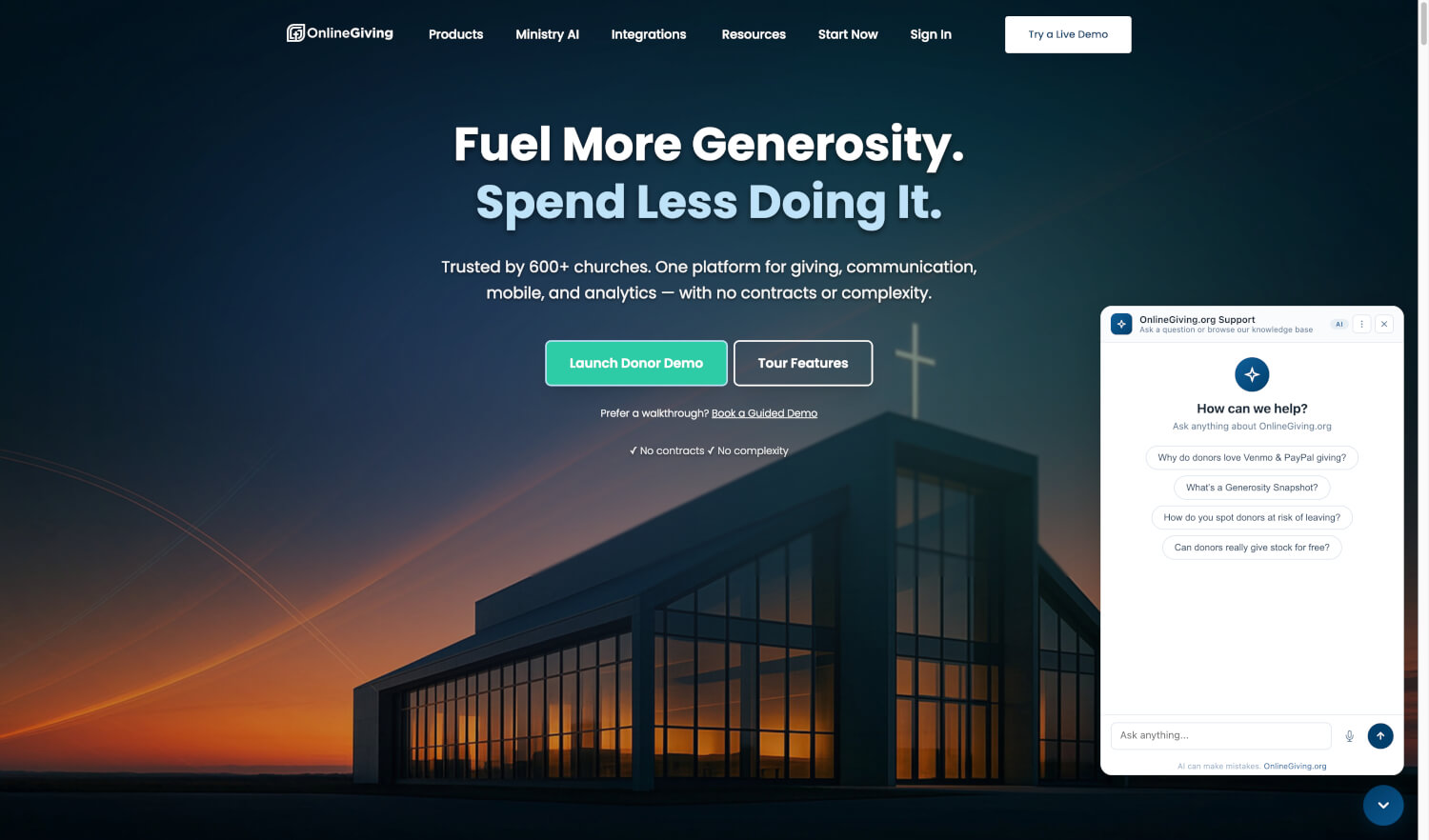
Your control panel now has a built-in AI Support Chat — a smart, always-available assistant that knows your entire knowledge base, every feature release, and even your church's stewardship resources. It lives in a floating bubble on every page of your admin panel, ready the moment you need it. Ask a question in plain English, get a detailed answer in seconds, and if you still need a human, the support team is one tap away.
Where to Find It
AI Support Chat is available on every page of your control panel. Look for the sparkle icon bubble in the bottom-right corner of your screen. You can also open it from the sidebar under Help & Support > AI Chat.
Every administrator on your account has access — no setup, no configuration, nothing to enable. It is already there.
Answers in Seconds, Not Hours
Click the sparkle bubble and the chat panel slides open right where you are. Type your question — "How do I set up text marketing keywords?" or "Where can I find my giving reports?" — and the AI searches across your entire knowledge base, recent feature updates, blog articles, and support documentation to give you a thorough, detailed answer.
The AI does not just give you a link and wish you luck. It reads the relevant articles, synthesizes the information, and walks you through the answer step by step. If a knowledge base article exists for your question, it includes a direct link so you can read the full guide.
Why it matters: You should not have to leave the page you are working on, open a new tab, and hunt through a help center just to answer a quick question. The AI brings the answer to you, right where you are, in the time it takes to type a sentence.
Every Help Button Is Now Smarter
You have seen the Help buttons throughout your control panel — on the Giving page, the Text Marketing dashboard, the Custom Forms builder, and dozens of other pages. Those buttons just got a major upgrade.
Instead of opening a knowledge base article in a new tab, every Help button now opens the AI chat with the relevant article already loaded. The AI knows exactly which feature you are asking about and keeps a separate conversation thread for each area of the control panel. That means your questions about Text Marketing will not get mixed up with your questions about Giving Statements.
Why it matters: When you are in the middle of setting up a new giving campaign and you hit the Help button, the AI already knows you are asking about campaigns. You do not need to explain the context — just ask your question and get an answer that is relevant to exactly what you are doing.
Beautiful, Detailed Responses
The AI does not just send you walls of text. Responses are formatted with clear headings, bullet points, numbered steps, clickable links, and even tables when the answer calls for structured data like pricing comparisons or feature breakdowns.
When the AI includes a table in its response, the chat window automatically expands to give the content room to display properly. You can also expand or collapse the window anytime from the menu.
Why it matters: A well-formatted answer is an answer you can actually use. When the AI lays out your options in a clean table or walks you through a process with numbered steps, you can follow along without squinting or guessing.
When You Need a Human: Message Our Team
Sometimes you need a person. Maybe the issue is complex, maybe you just prefer talking to someone, or maybe the AI could not find the answer. Whatever the reason, reaching the support team is built right into the chat.
Open the menu (the three-dot icon) and tap Message Our Team, or click the Contact Support button that appears after each AI response. A form slides open with your name and email already filled in, plus a summary of your conversation so the support team has full context before they even read your message.
You can set a priority level — Normal, Low, High, Urgent, or Critical — and even attach a screenshot to show exactly what you are seeing. When you hit Send, the support team receives a detailed email with everything they need to help you fast, and you get a copy for your records.
Why it matters: No more re-explaining your issue when you switch from AI to human support. The conversation summary, your priority level, and your screenshot travel with your request. The support team sees what the AI already told you and picks up where it left off.
More Than IT Support: A Ministry Assistant
The AI is not limited to technical questions about the control panel. It is also a ministry resource for pastors, worship leaders, and church staff.
Ask it to help you draft a stewardship email to your congregation. Request a sermon outline on generosity or tithing. Ask a theological question about what the Bible says about giving, and it will walk through the relevant passages with careful exposition. Need a year-end giving letter? Ask the AI to draft one and customize it for your church.
Why it matters: Your giving platform should do more than process transactions. When you can ask for sermon help, email drafts, and scriptural guidance in the same place you manage your giving, you have a tool that actually supports your ministry — not just your operations.
Works Beautifully on Every Device
The AI chat is fully responsive. On your desktop, it opens as a sleek panel in the corner of your screen. On your phone or tablet, it takes over the full screen so you have plenty of room to read, type, and interact.
Close the panel and come back later — your conversation is still there. The chat remembers your thread for each feature area, so you can pick up right where you left off.
Why it matters: Ministry does not happen at a desk. Whether you are at your computer in the office, on your phone during a meeting, or on your tablet at a coffee shop, help is one tap away.
At a Glance
- AI Support Chat on every page: Get answers instantly without leaving the page you are working on
- Smart Help buttons: Every Help button opens the AI with the right article and context already loaded
- Voice input: Speak your question instead of typing — perfect for mobile or multitasking
- Formatted responses with tables: Clear, structured answers you can actually follow and use
- Message Our Team: Escalate to a human with full conversation context, priority, and screenshots
- Ministry assistant: Draft emails, outline sermons, explore Scripture — all from the same chat
- Feature-specific threads: Separate conversations for Giving, Text Marketing, Forms, and more
- Works on every device: Full-screen on mobile, sleek panel on desktop, conversation preserved across sessions
Try It Now
- Look for the sparkle bubble in the bottom-right corner of any page in your control panel and click it.
- Type a question you have been meaning to look up — try something like "How do I set up a recurring giving campaign?" or "What integrations do you support?"
- Explore the menu (three-dot icon) to browse the Knowledge Base, start a new chat, or send a message directly to the support team.