Feature Updates 03/24/2025
New: QuickBooks Desktop Deposit Export (IIF Format)
OnlineGiving.org now supports QuickBooks Desktop Deposit Export using the IIF (Intuit Interchange Format) file format. This allows churches to export one or more closed Financial Batches into a format that can be imported directly into QuickBooks Desktop as structured deposit records. This integration is separate from our QuickBooks Online integration, and only one can be enabled at a time. If your church is using QuickBooks Online, or plans to switch between versions, our team can assist with that transition.
Overview of the QuickBooks Desktop Deposit Export
The IIF file created during export includes deposit records for each selected financial batch. Each deposit includes a total amount and detailed line items based on the fund and sub-fund setup in OnlineGiving.org. These line items reflect how funds are mapped to QuickBooks Desktop Account Names and, optionally, Class Names. Additionally, if your church has elected to use our Cover the Fee tracking option, those amounts will be included in their own separate line item within the deposit—not under a fund. All memo fields are pre-filled to help with reconciliation in QuickBooks.
How the Mapping Works in QuickBooks Desktop Export
When QuickBooks Desktop Export is enabled for your church, our support team will:
-
Set the primary deposit account name (e.g. "Checking") that will be used for the main deposit record in QuickBooks
-
Optionally configure a global Cover the Fee Account Name, which allows Cover the Fee portions of donations to appear as a separate line item in the IIF file
Church administrators can then assign:
-
A QuickBooks Desktop Account Name to each fund or sub-fund (this is required)
-
An optional QuickBooks Desktop Class Name per fund or sub-fund (used for class tracking in QuickBooks)
Only funds with assigned Account Names will appear in the export. Class names are included if configured. Cover the Fee amounts will always be listed as their own line item using the global account name provided to support.
(example of how to QB Desktop settings for fund/sub-funds - click for large image)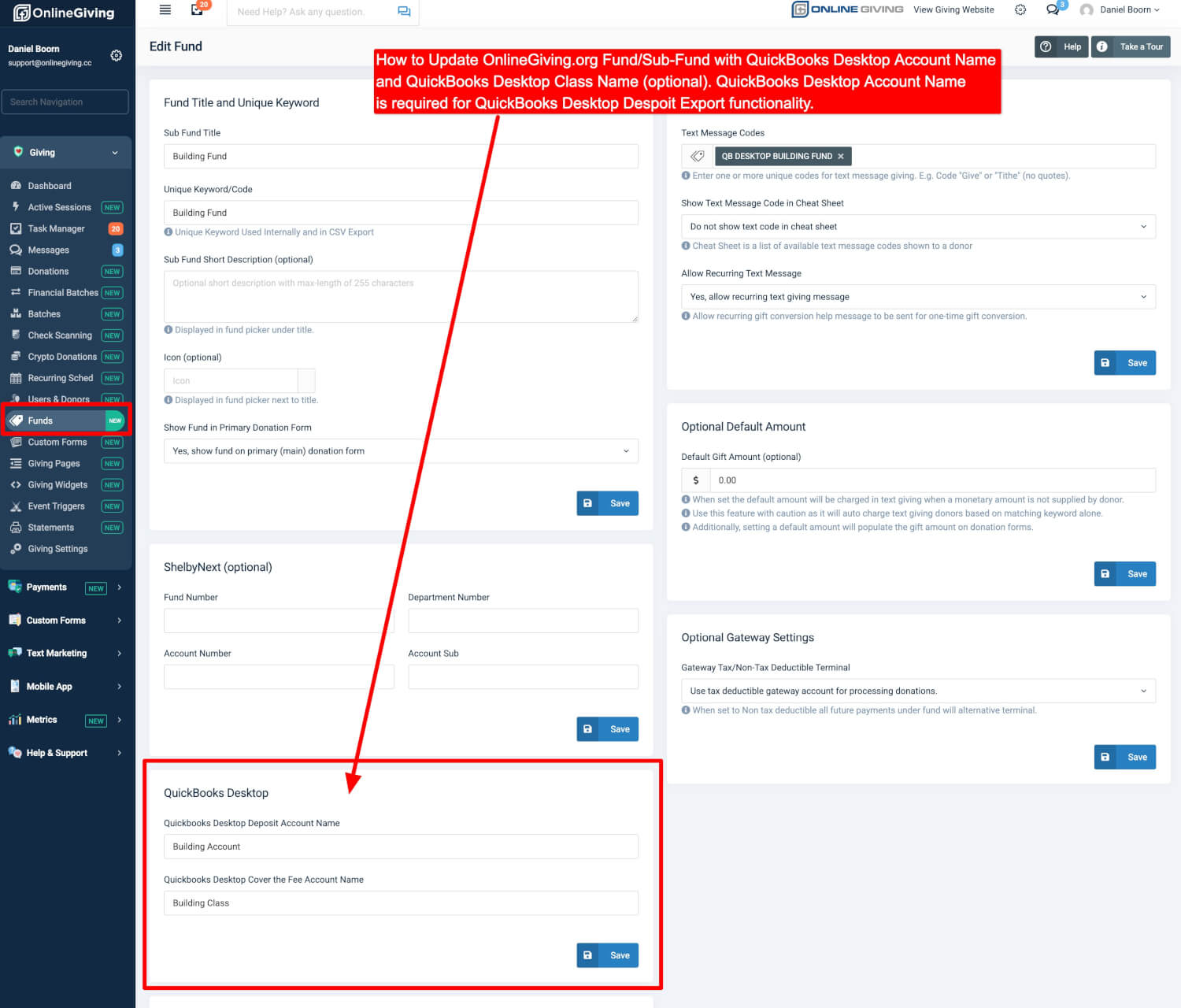
How to Export QuickBooks Desktop IIF Files
To export batches, go to Financial Batches in the control panel. Select a date range, filter the view to show only Closed batches, check the batches you want to export, click Export, and choose Export QuickBooks Desktop Deposits IIF. Multiple batches can be included in a single export file. The process takes just a few steps, and we’ve provided a visual guide in the annotated screenshot.d
(example of how to export QB Desktop - click for large image)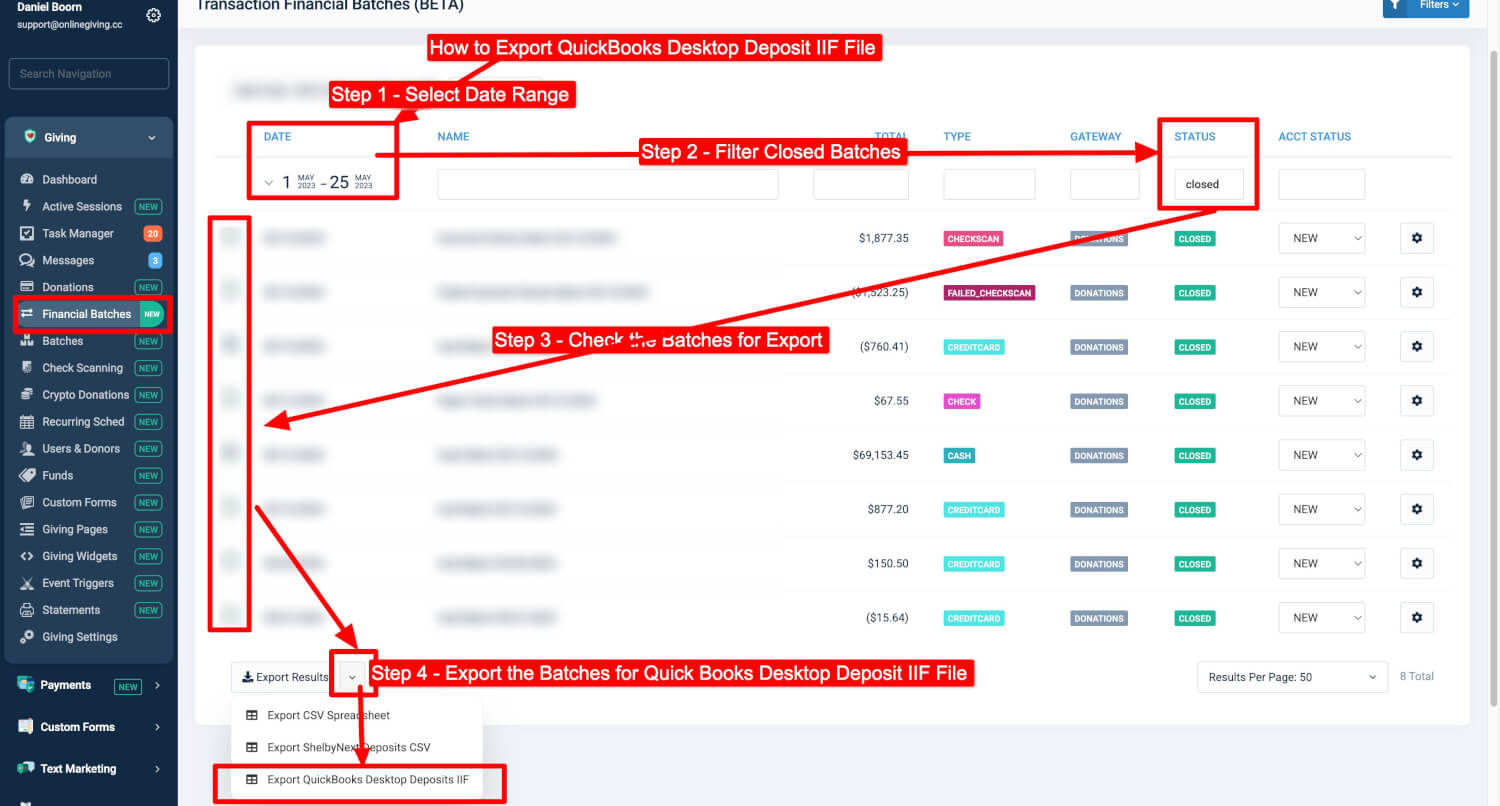
(example of QB Desktop Deposit IIF file - click for large image)
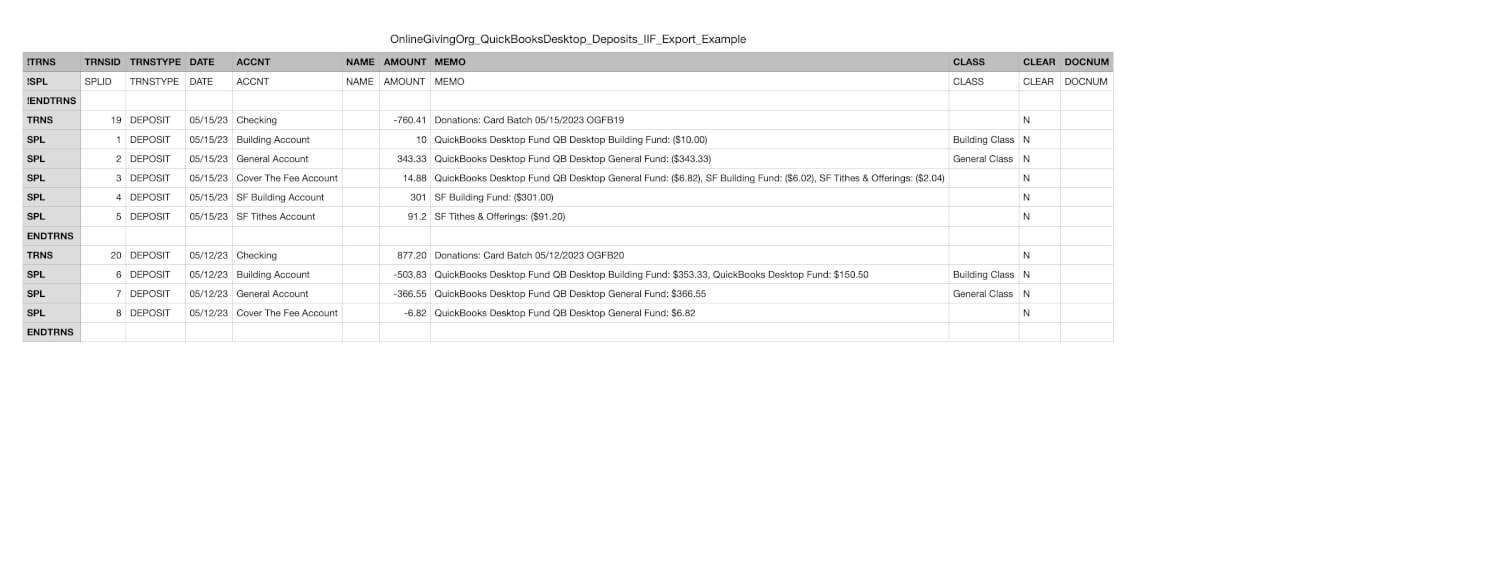
Fund Configuration for QuickBooks Desktop Export
To ensure fund-level line items are properly mapped in the export, make sure each fund and sub-fund has a QuickBooks Desktop Deposit Account Name assigned. This setup is done within the fund's settings (edit fund/sub-fund). You may also optionally assign a QuickBooks Desktop Class Name. These values are used to generate the detailed line items for each fund in the exported deposit. The Cover the Fee line item does not come from a fund—it is generated separately based on the global account configured by our team.
QuickBooks Desktop vs Online Integration
Again, this feature applies only to QuickBooks Desktop users. If your church uses QuickBooks Online, you should continue using the dedicated Online integration. The two systems are separate and cannot be active at the same time. If you plan to migrate between them, we can help you update your configuration.
Need Help Enabling QuickBooks Desktop Export?
To activate QuickBooks Desktop Export or update your fund mappings, contact our support team at support@onlinegiving.org or call (615) 206-4000. We’ll handle the setup and guide you through the steps to ensure your export is ready for QuickBooks.
Additional Setup for Multi-Gateway Account Mapping
If your church uses different QuickBooks accounts for donations and payments, and you have a secondary donation gateway or alternative payment gateway setup with OnlineGiving.org, we offer a special configuration option. Our support team can enable a feature that allows transactions from those alternate gateways to be mapped to a different QuickBooks Account Name during the export. Contact us if you'd like this enabled.