Feature Updates 04/29/2025
New: Non-Cash Asset Giving History Feature
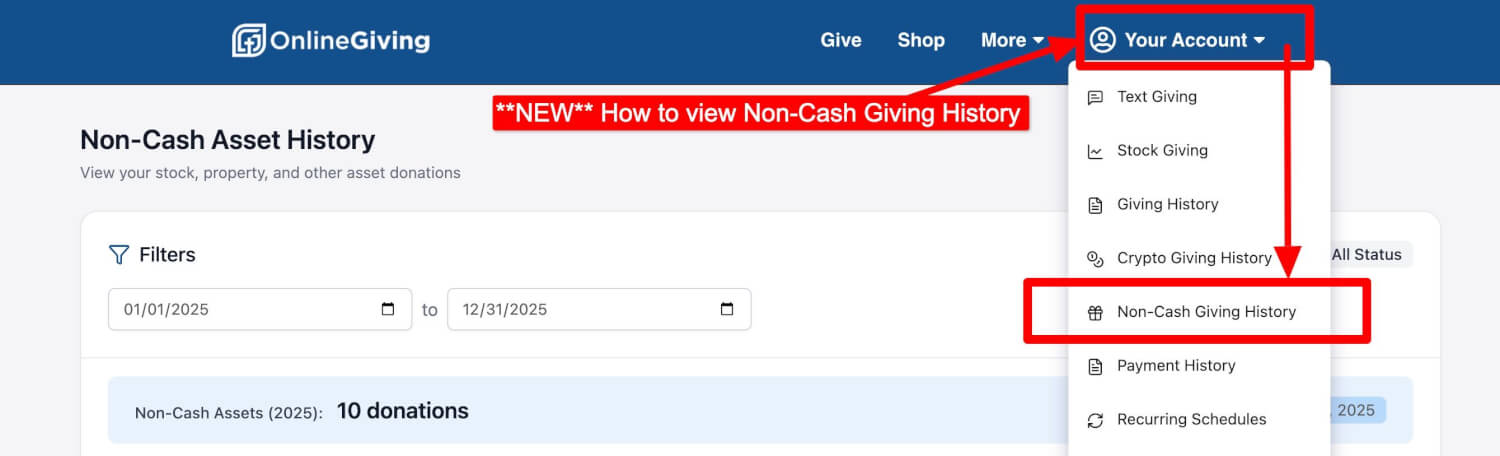
We are excited to introduce a new Non-Cash Asset Giving History feature for donors. Donors can now easily view their Non-Cash Asset contribution history by selecting "Your Account" in the dropdown menu and clicking on the "Non-Cash Giving History" option.
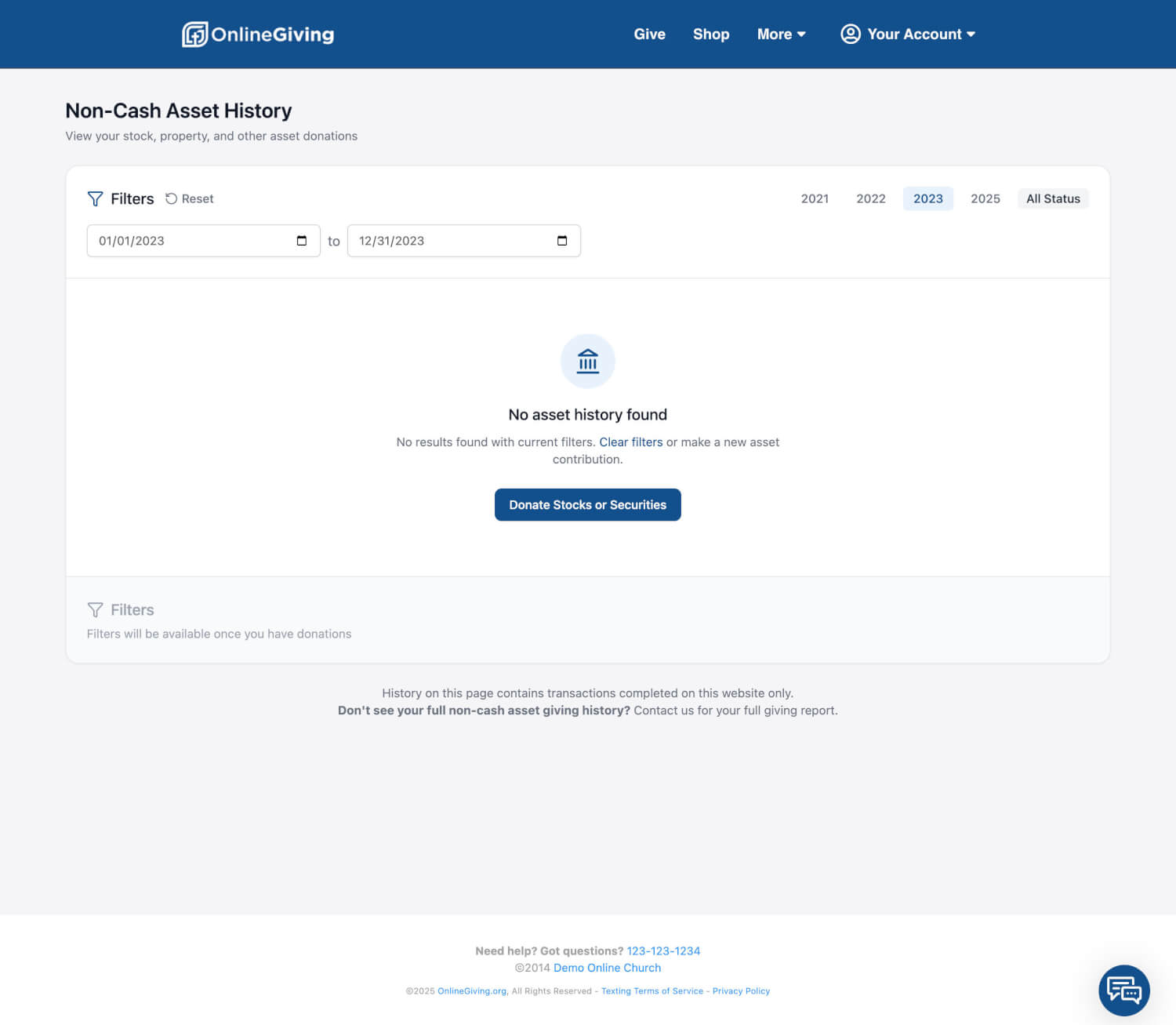
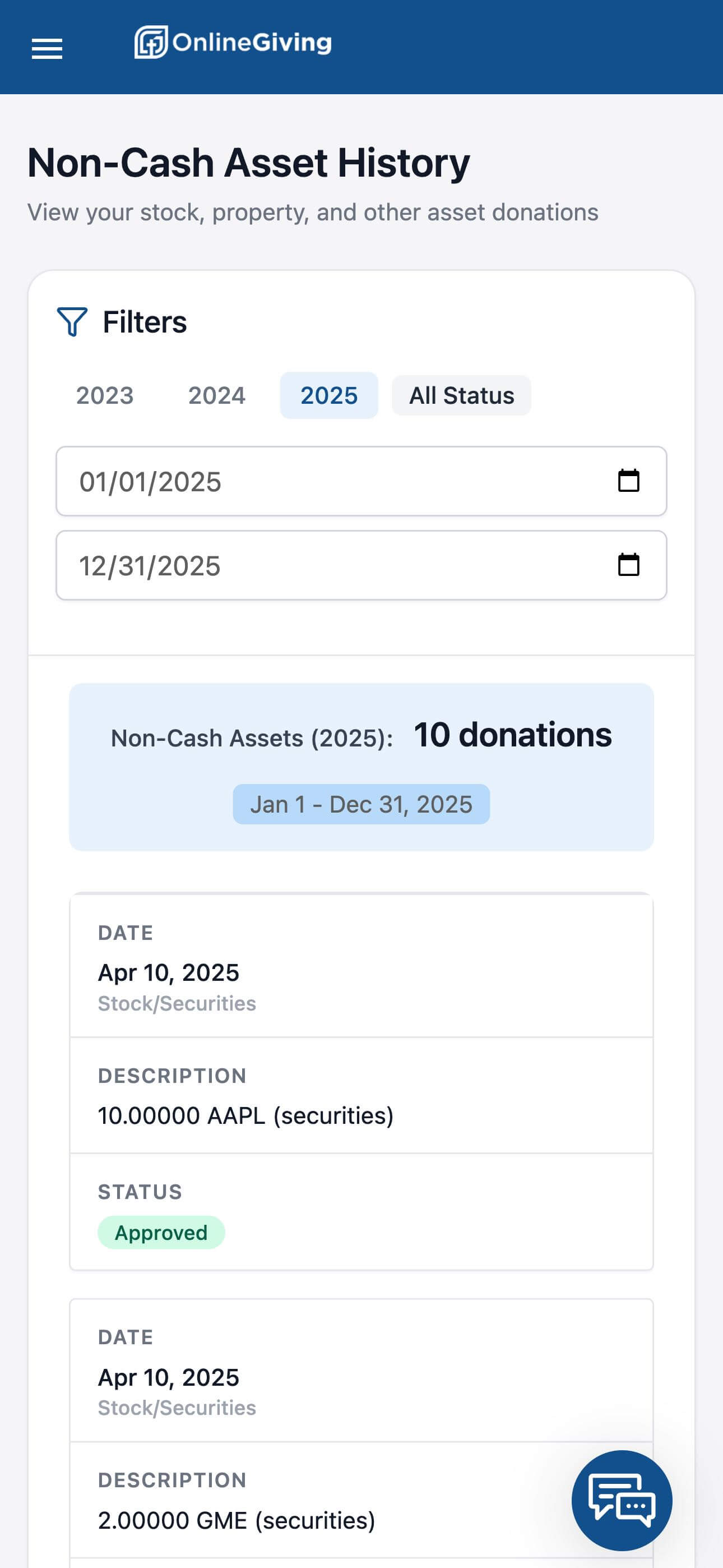
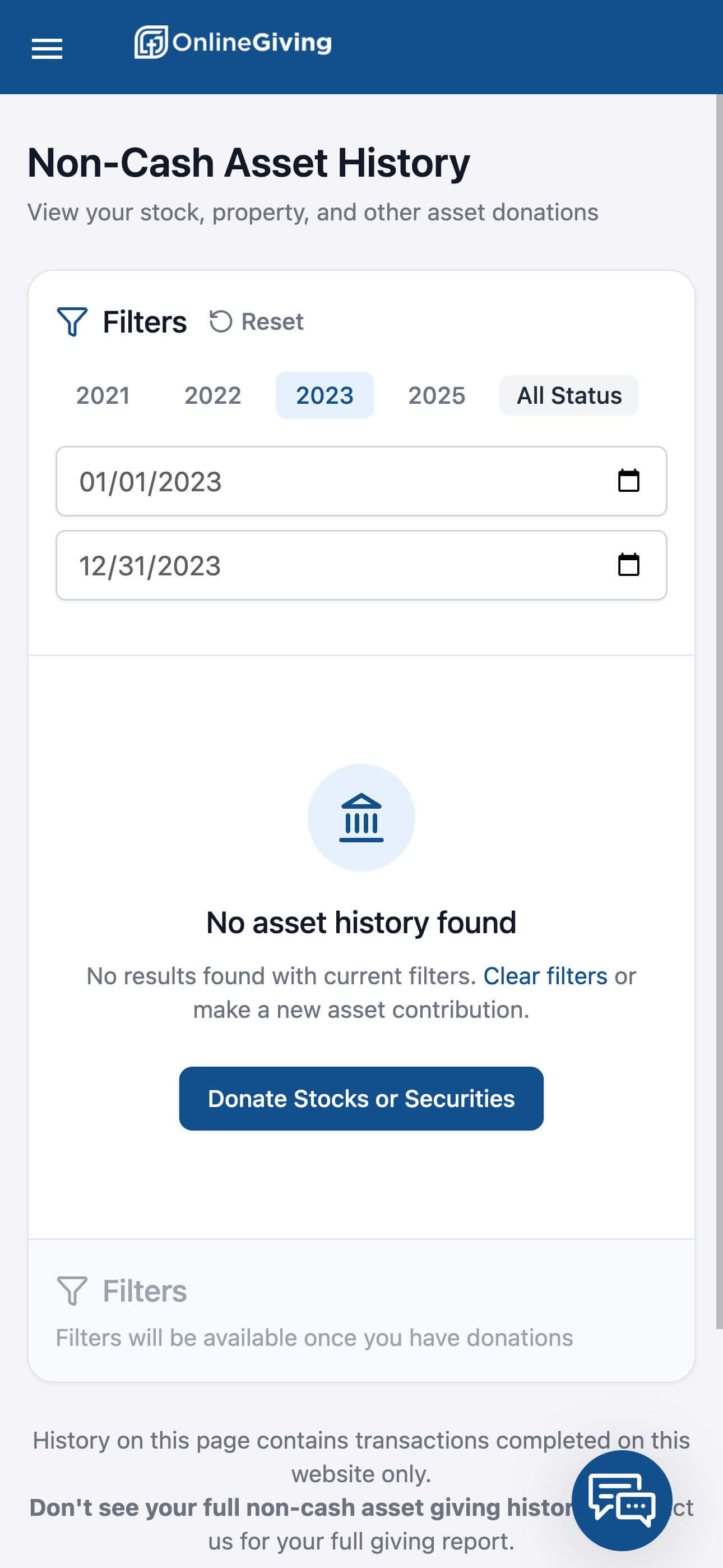
This feature is designed to be fully responsive, providing an optimized experience across all devices — from mobile phones to desktops. Donors can quickly filter and review non-cash asset contributions, including those entered via the Non-Cash Asset Quick Entry tool in the control panel or the upcoming Donor Stock Giving feature (more details coming soon).

New: Non-Cash Asset Contributions on Giving Statements
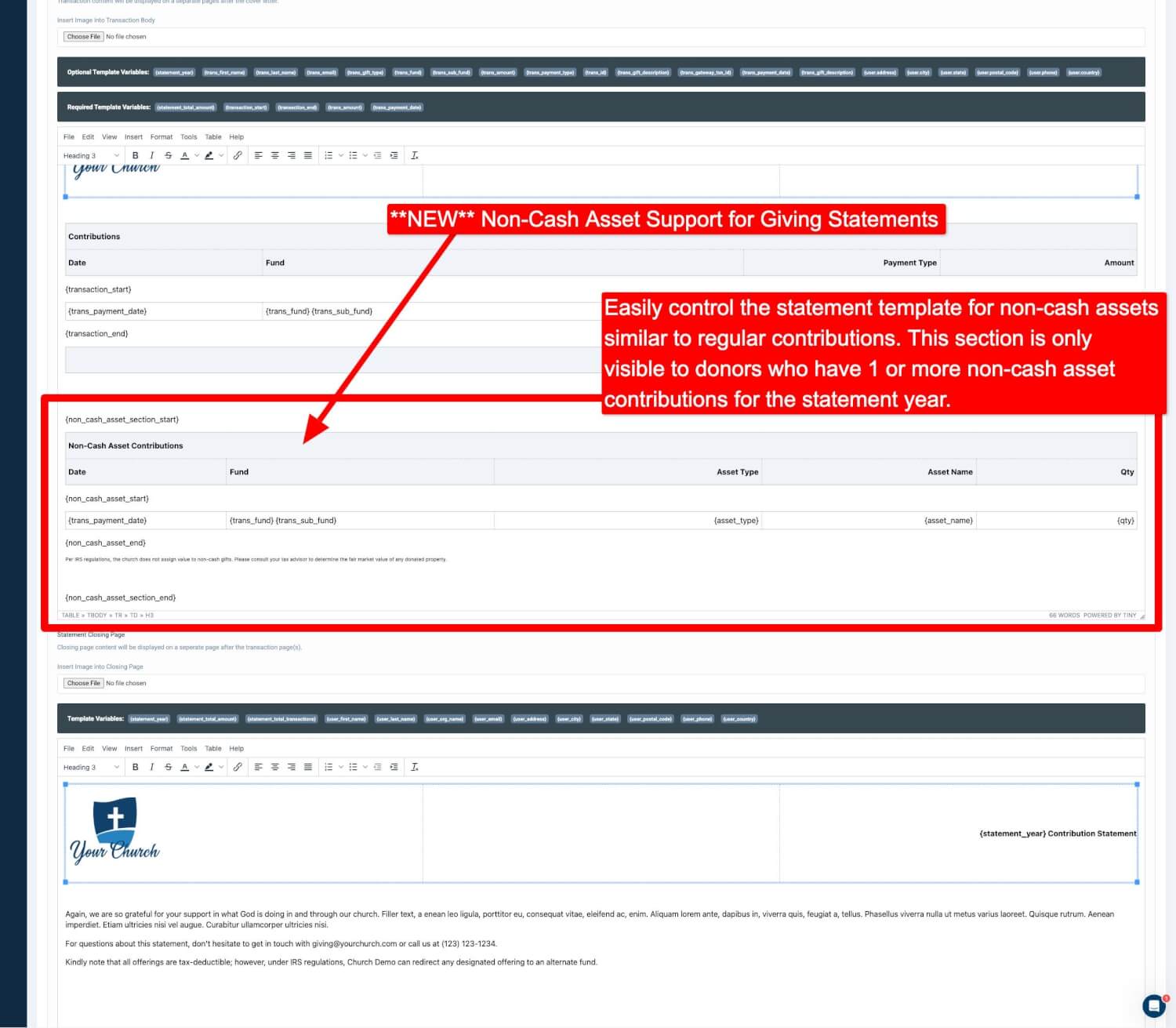
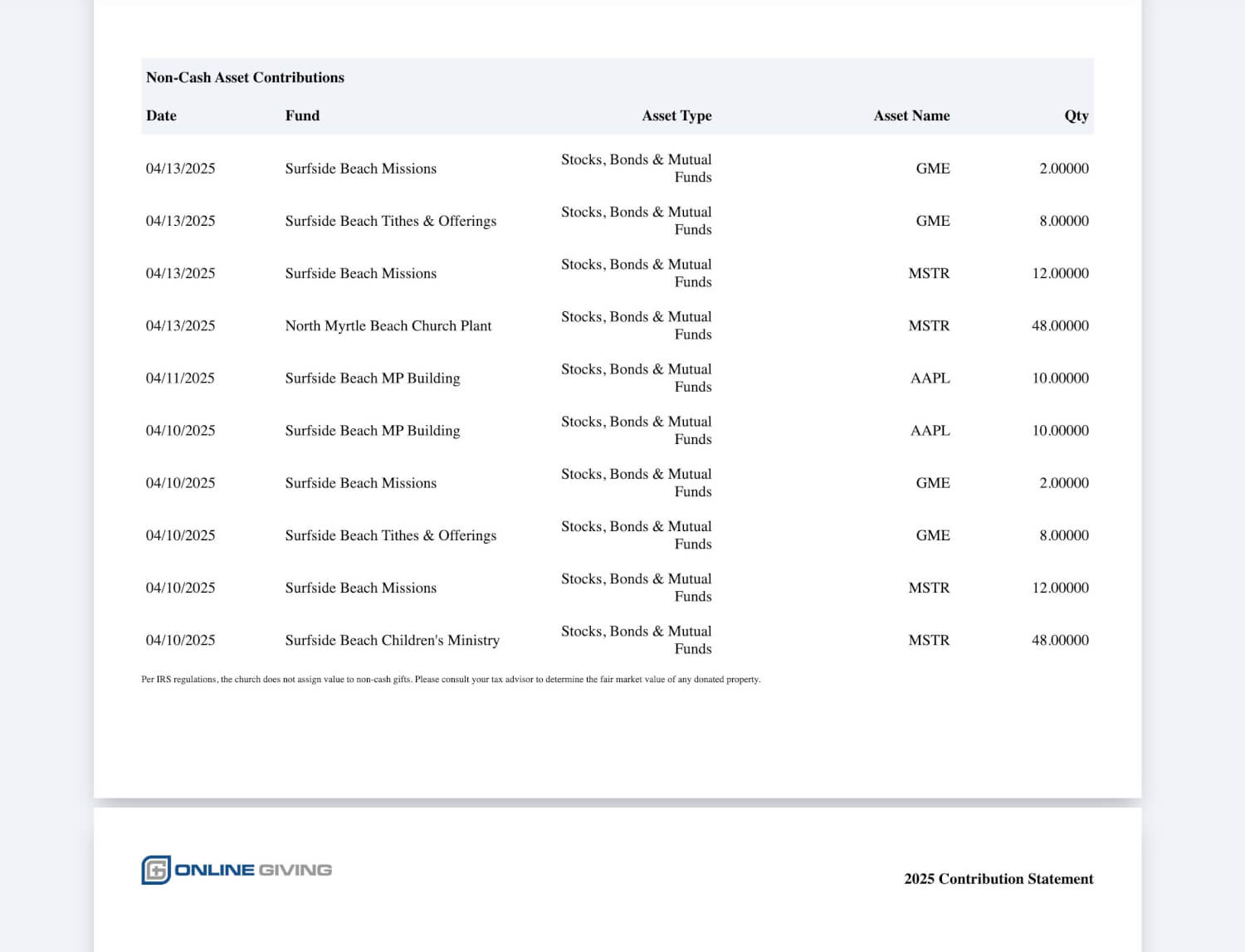
We have enhanced the Giving Statements feature to include dedicated support for Non-Cash Asset contributions. Giving statements will now feature a new Non-Cash Asset Contribution section or table within the statement template.
The system intelligently displays this new section only for donors with a Non-Cash Asset giving history. If no such contributions are recorded, the section will be automatically excluded from the statement, ensuring a clean and relevant document for every donor.
Summary of Benefits:
-
Dedicated Donor History: Donors can track and manage their non-cash giving easily.
-
Responsive Design: Looks great on mobile, tablet, and desktop devices.
-
Smart Statements: Donors with non-cash gifts receive a customized statement; others see no unnecessary sections.
-
Future-Ready: Prepares the platform for upcoming donor stock giving enhancements.
New: Selective Aplos Fund Recording – "Do Not Record into Aplos" Option
We are pleased to announce an important update to the OnlineGiving.org + Aplos integration that gives church administrators more control over how and when donation records are sent to Aplos.
Churches can now exclude specific funds or sub-funds from being recorded into Aplos, allowing greater flexibility in distinguishing between charitable donations and other types of payments.
How It Works
To activate this feature:
-
Log into your OnlineGiving.org control panel.
-
Navigate to Funds/Sub-Funds.
-
Select and edit the desired fund or sub-fund.
-
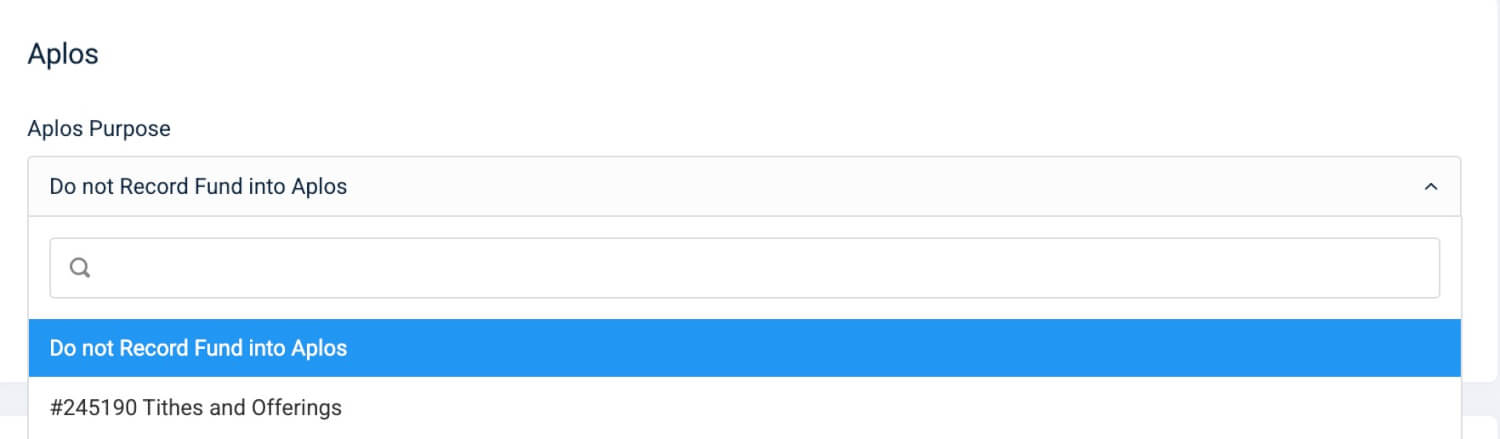
Check the new "Do Not Record into Aplos" option.
-
Save your changes.
Once enabled, all future transactions tied to the selected fund or sub-fund will no longer be pushed to Aplos.
Why This Matters
This feature is ideal for scenarios where Aplos integration is not necessary or desired, such as:
-
Payments for events or merchandise
-
Internal transfers or administrative-only purposes
-
Special fund handling workflows
It ensures Aplos remains clean and focused solely on relevant financial activity, avoiding unnecessary entries.