Feature Updates 07/13/2023
New OnlineGiving.org > Rock RMS Inbound Single Sign-On > Now Supports Native Rock RMS Impersonation Tokens SSO
We're pleased to report that an enhancement is now live for the OnlineGiving.org Rock RMS Inbound Single Sign-On (SSO) feature, which authenticates an OnlineGiving.org user into Rock RMS to avoid a double sign-in. OnlineGiving.org Rock RMS integration has included complete multi-directional single sign-on (SSO) since 2016. Today's update enhances the single sign-on from OnlineGiving.org into Rock RMS by taking advantage of the new Rock RMS impersonation token feature while still offering automatic fallback to the OnlineGiving.org Rock RMS Plugin Inbound SSO implementation. This new design allows redundant single sign-on support from OnlineGiving.org into Rock RMS external website pages for enhanced SSO availability. No action is required to take advantage of the new feature as it's enabled for all OnlineGiving.org Rock RMS churches.
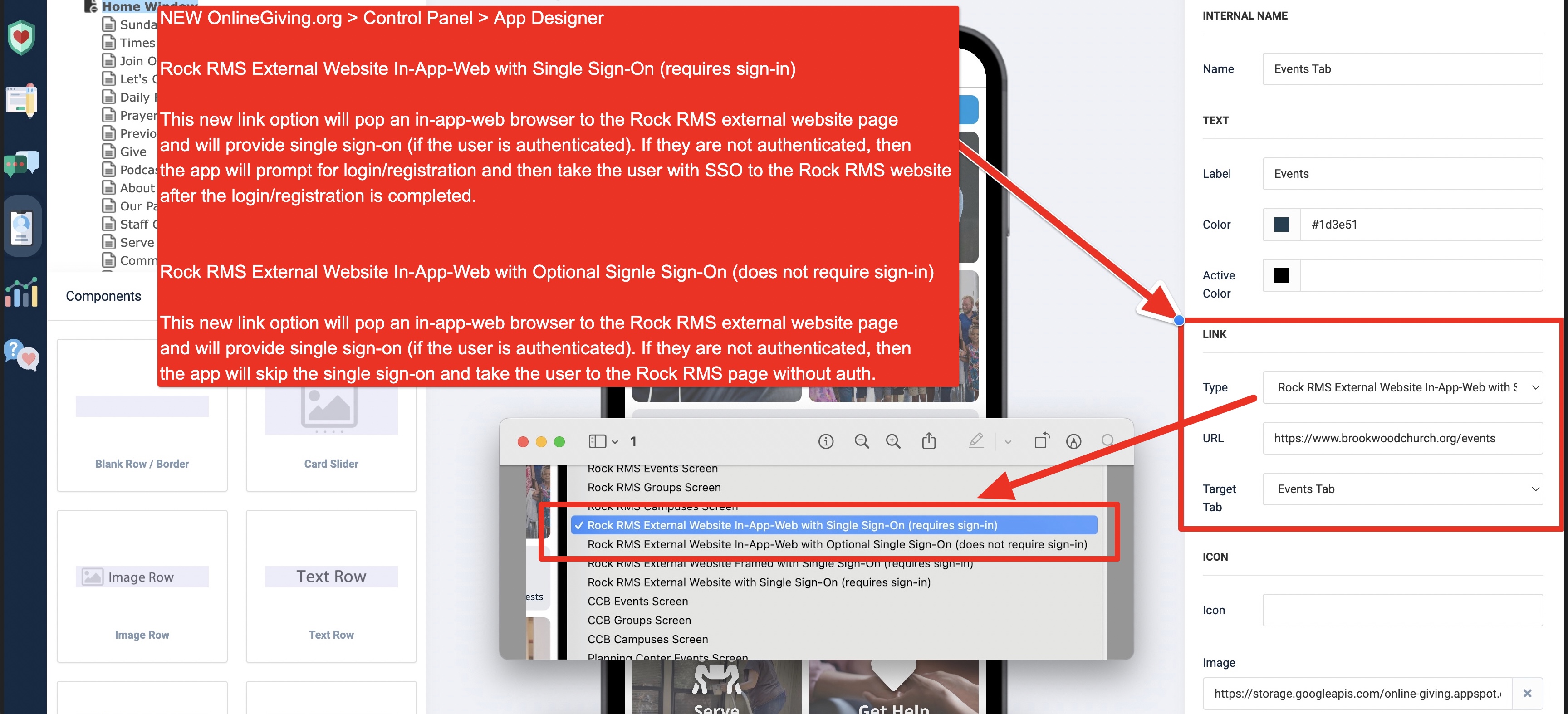
New OnlineGiving.org > Rock RMS Mobile App > App Designer > Open Rock RMS Website with Single Sign-On using In-App-Web
We're pleased to announce two new related features are now live for the OnlineGiving.org Rock RMS Mobile App. Church administrators may now choose to open Rock RMS external website links using the new "Rock RMS External Website in-App-Web with Single Sign-On (requires sign-in)" link type option or the new "Rock RMS External Website In-App-Web with Optional Single Sign-On (does not require sign-in)" link type option. Both options will pop up an in-application website browser and take the user to the supplied Rock RMS external website page with single sign-on.
The option requiring sign-in is designed to prompt the mobile app user for login/registration if they are not authenticated before accessing the page. To skip the required login and make the single sign-on optional, use the secondary option "does not require sign-in," which will use single sign-on if the mobile app user is authenticated but does not require it for guests.
It's important to note that mobile app users may need to close the open app from the mobile device app switcher to view the latest changes. For iOS devices, swipe up and hold from the bottom of the screen to view the app switcher (tasks manager), then swipe up on the open app to close, then open the app again to view the latest changes. For older iOS devices, double-tap the home button to view the app switcher. For Android devices, tap the navigation button, swipe up on the open app to close, and then open the app to view the latest changes.
Preview of New Link Type Options in App Designer