Feature Updates 08/08/2025
OnlineGiving.org Text Marketing Enhancements
We’re introducing a set of important updates to our text marketing platform—designed to improve message delivery, give you more control over your audience, and keep your lists accurate without extra work.
MP4 Video Attachments for Mass Text Messaging
You can now add short MP4 videos to your mass text campaigns—ideal for event promotions, service highlights, or quick personal messages.
How It Works:
-
Upload an MP4 video up to 5MB when composing a mass text.
-
Best practice: For the highest deliverability across all major carriers, keep videos 600KB or less.
-
Videos are hosted securely by OnlineGiving.org for 90 days, then automatically removed.
-
The send message panel includes a simple upload field with clear size and format guidelines.
Why It Matters:
Previously, messages were limited to text and images. Now, you can include richer media—helping your messages stand out—while following best practices to ensure they reach everyone reliably.
Preview: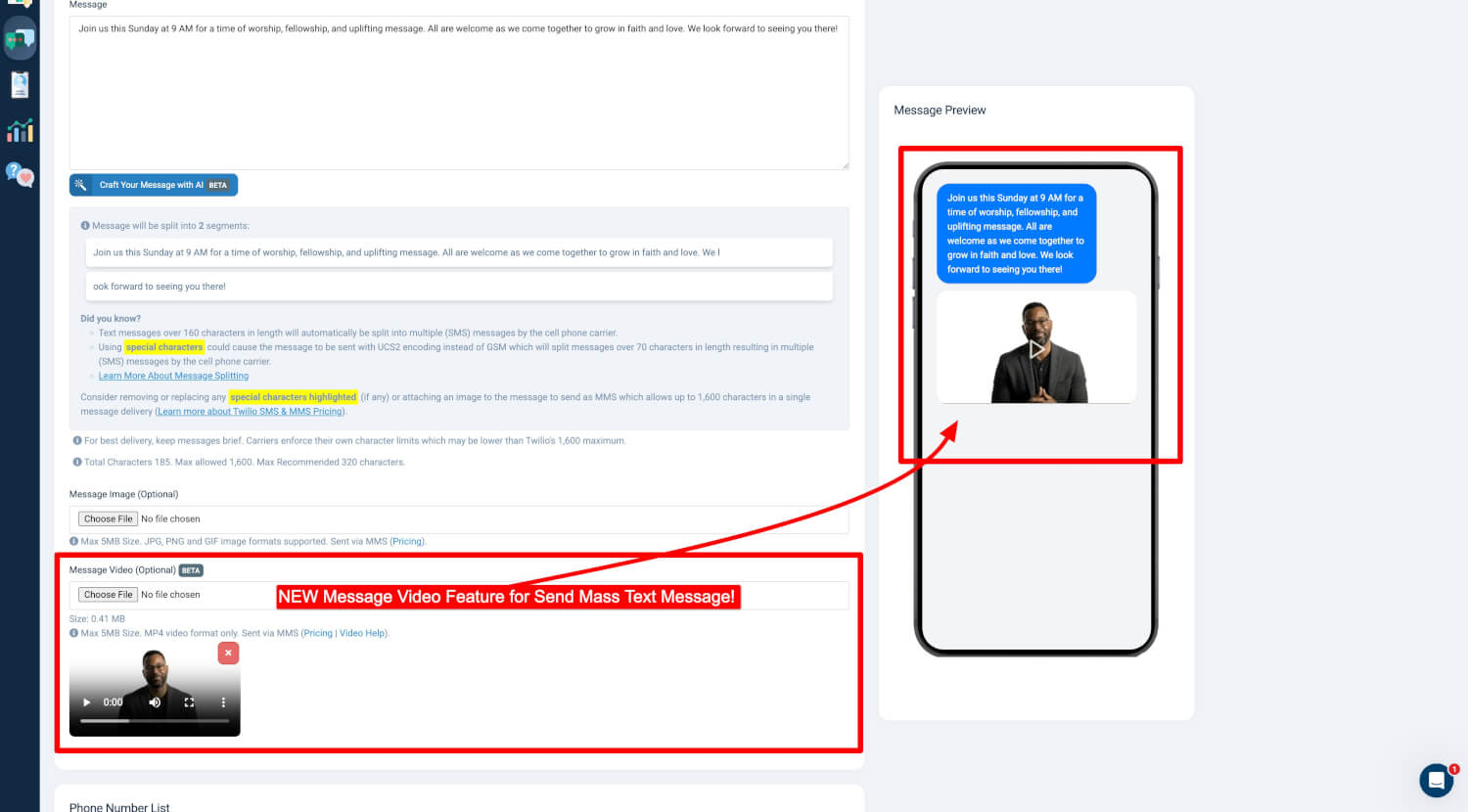
MP4 Video Requirements
-
Format: MP4 only — no other formats supported.
-
Maximum Size: 5 MB per video.
-
No Transcoding or Compression: Upload files already optimized for delivery.
-
Mobile Compatibility: Pre-encode for playback on mobile devices.
-
Fast Streaming: Use FFmpeg with
-movflags +faststartfor instant playback.
FFmpeg Encoding Example (Fast Start):
-
-c copy: Copy streams without re-encoding (fast). -
-movflags +faststart: Moves metadata to the front for immediate playback before the full file downloads.
FFmpeg Compression Example (Target < 600 KB):
-
-vf "scale=480:-2": Resize width to 480px (height adjusts automatically). -
-crf 30: Controls quality (higher = smaller file). Try 28–32 for best balance. -
-preset fast: Faster encode; useslowfor smaller size if time allows. -
Typical 10–15s clips can be reduced to under 600KB with these settings.
Carrier Limitations
-
Verizon: ~3.5MB limit.
-
T-Mobile: ~1MB limit.
-
Strong Recommendation: Keep videos under 600KB for best deliverability.
-
Some carriers may reject or downgrade video quality—test before sending large campaigns.
Multiple Media (Not Recommended)
-
While it’s technically possible to send a video + image together, many carriers reject multiple files or only display the first one.
-
Device compatibility issues are common.
-
Recommendation: Send either a video or an image, not both.
Best Practices
-
Use video-only or image-only (not combined) for maximum engagement.
-
Keep clips under 30 seconds and compelling.
-
Test delivery on different carriers and devices before large sends.
-
Monitor delivery rates and adjust file sizes based on results.
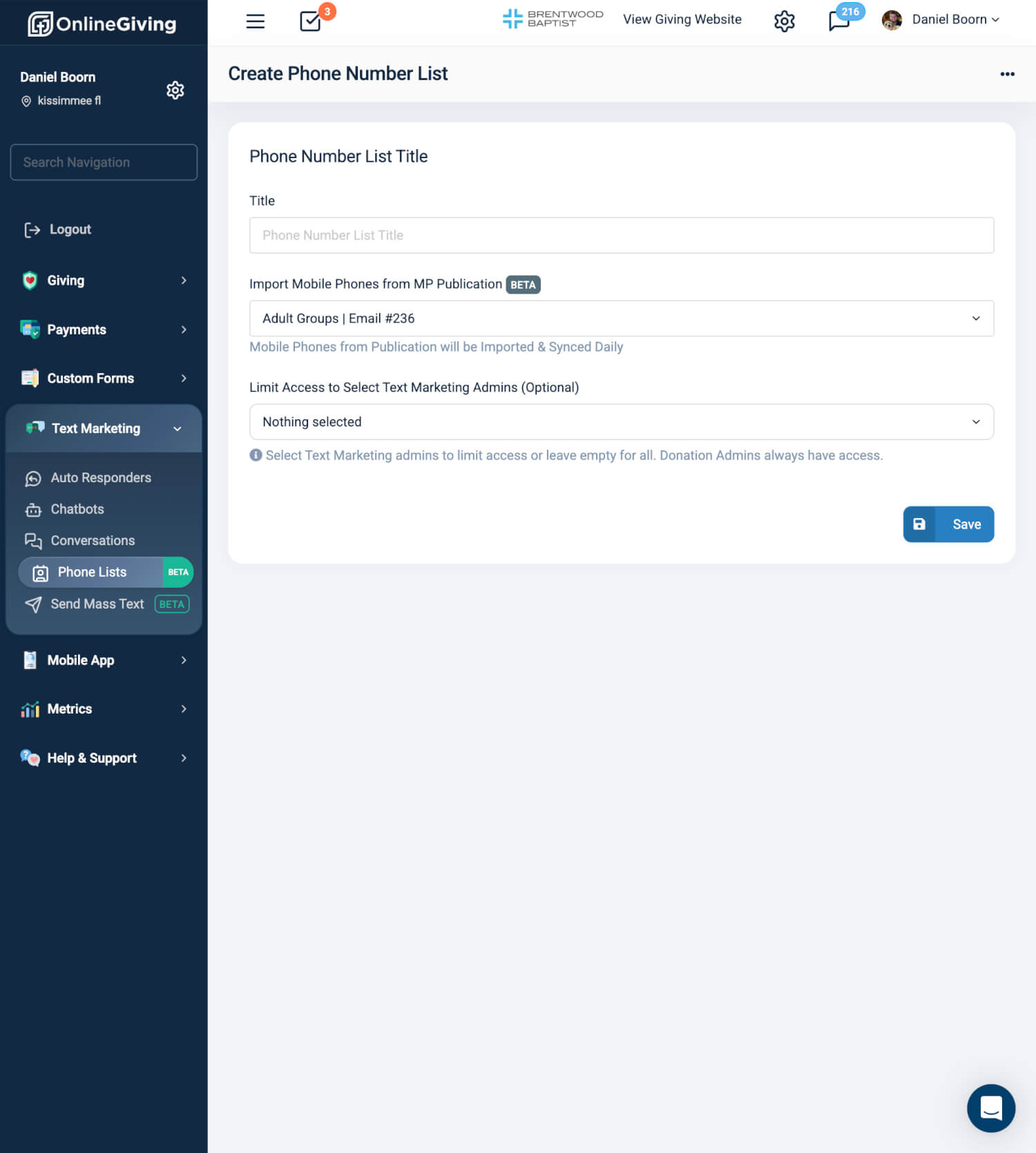
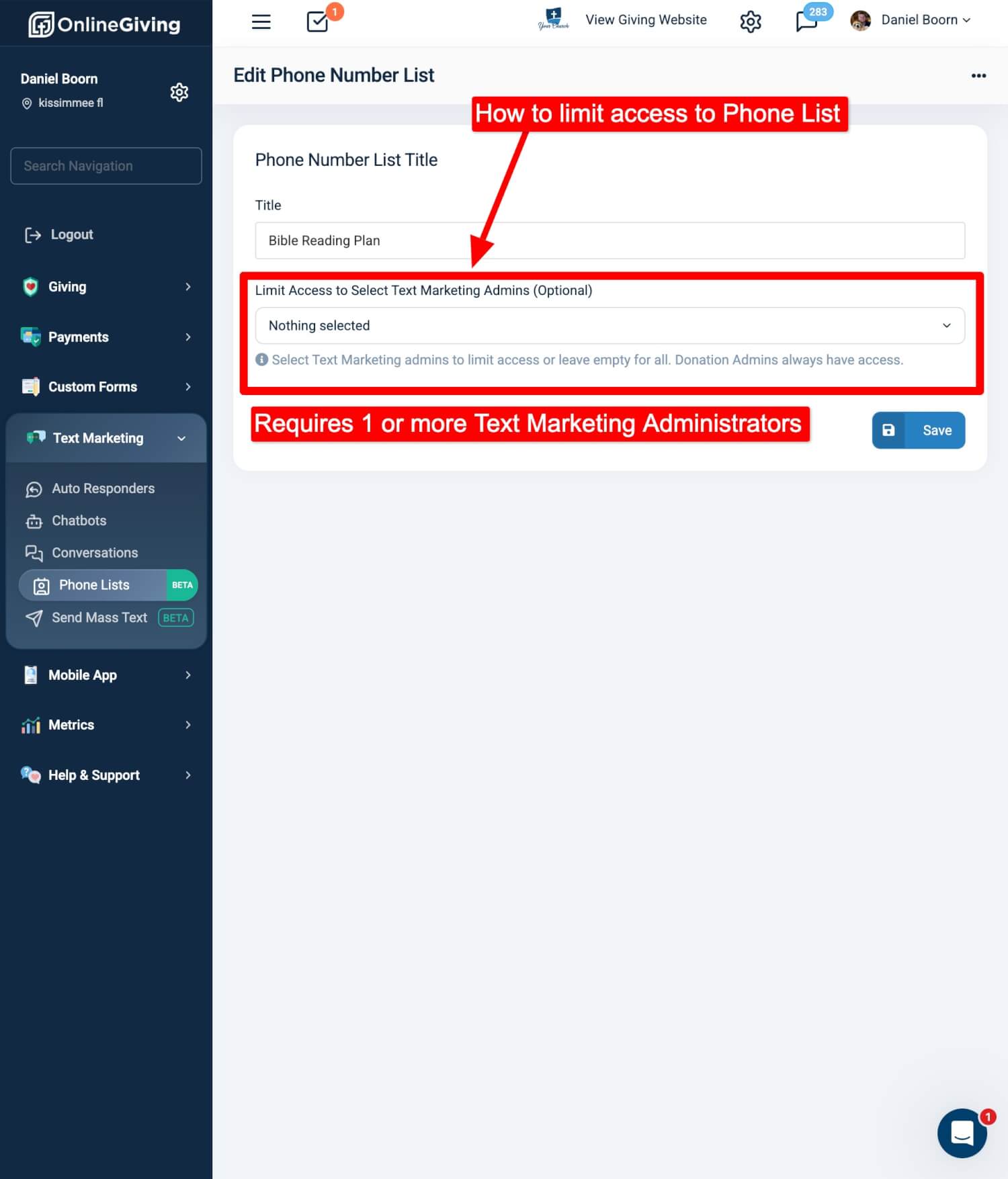
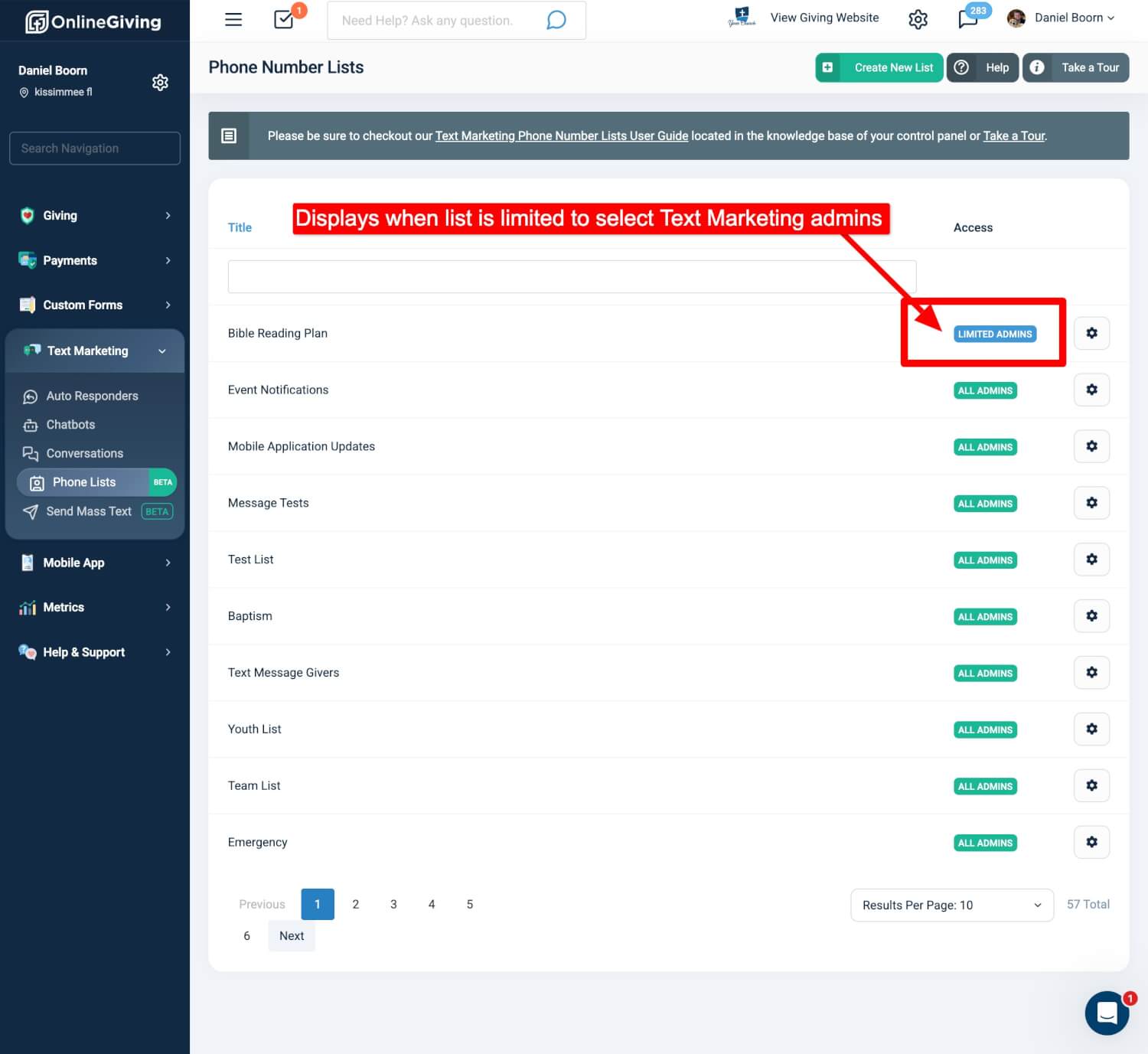
NEW – Optionally Limit Text Marketing Lists to One or More Text Marketing Administrators
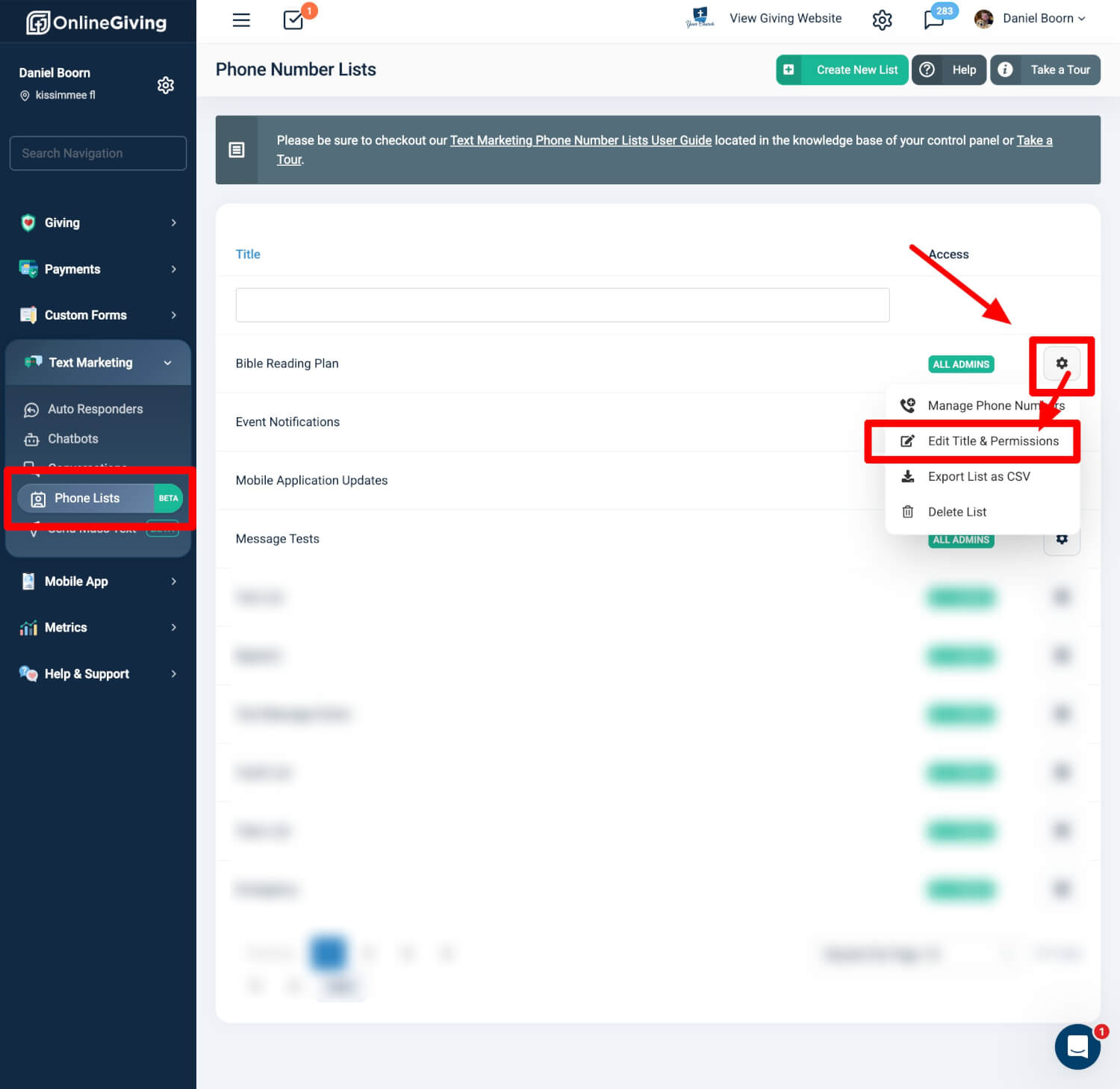
You can now control exactly which Text Marketing Administrators have permission to send to each list.
How It Works:
-
Master Administrators (with donation admin access) can:
-
Leave a list open to all Text Marketing Administrators.
-
Restrict it to one or more designated Text Marketing Administrators.
-
-
When a list is restricted, only those administrators (plus Master Administrators) can send to it.
-
Lists created by a Text Marketing Administrator are automatically restricted to that person and the Master Administrators.
-
Administrators can still create and manage their own lists or any they have been granted access to.
Why It Matters:
Before, all administrators could potentially send to any list, which could lead to mistakes or mixed messaging. Now, list permissions can match your team’s structure—keeping sensitive or targeted lists secure.
|
Clarifying “Smart List-Level Opt-Out” Here’s what happens:
In almost all cases, when someone opts out, they do so immediately after receiving a message or in direct reply to that message. This means the system can “smart match” their reply to that last list without you having to manually create or manage custom keywords via autoresponders. It’s an automatic process designed to save your team time and reduce setup complexity. Example 1 – Youth Group:
If the recipient replies Example 2 – Adult Bible Study:
If they reply Example 3 – Missions Team Updates:
Replying Example 4 – UNSUB by Itself (List-Level)
If they reply Just for clarity—the Auto-Responders → Opt-Out List feature is still available and works exactly as it always has. This is used if, for some reason, your church wants to have specific custom keywords tied to specific lists (e.g., “NOYOUTH” removes someone only from the Youth list). Before the recent update, this was the only way to achieve list-specific opt-outs, and while it works well, it requires extra setup and ongoing management.
The new smart list-level opt-out removes this requirement for most cases—automatically unsubscribing people from the last list they were messaged from when they reply with |
Preview:
Enhanced Opt-Out Options for Recipients
Recipients can now unsubscribe from only the messages they no longer want—without losing all communication from you.
What’s Already in Place:
-
Global Opt-Out: Keywords like
STOPorUNSUBSCRIBE(sent alone) permanently remove the recipient from all lists. This is an industry regulation and remains unchanged.
What’s New:
-
Smart List-Level Opt-Out: Two-keyword replies (e.g.,
STOP EVENTSorUNSUB STUDENTS) automatically unsubscribe the recipient from the most recent list they were messaged from—without affecting other subscriptions. -
Additional Keyword Support: The keyword
UNSUB(sent alone) is now a valid opt-out from the most recent list they were messaged from. -
Clear Messaging Templates:
-
“Reply
STOP STUDENTSto stop messages of this type, orSTOPto unsubscribe from all messages.” -
“Reply
UNSUBto stop messages of this type, orSTOPto stop all messages.”
-
Custom Opt-Out Keywords (Advanced Option):
You can also create custom opt-out keywords for specific lists by:
-
Creating a new Auto-Responder in the Text Marketing settings.
-
Assigning the Opt-Out List feature to it.
-
Selecting the list that should be updated when someone replies with the custom keyword.
Example: Set up “NO YOUTH” as a keyword that removes a contact from your Youth Ministry list, without removing them from other communications.
Why It Matters:
Previously, unsubscribing meant losing all future texts. Now, recipients can fine-tune their preferences—reducing unwanted messages while staying connected to updates they care about.
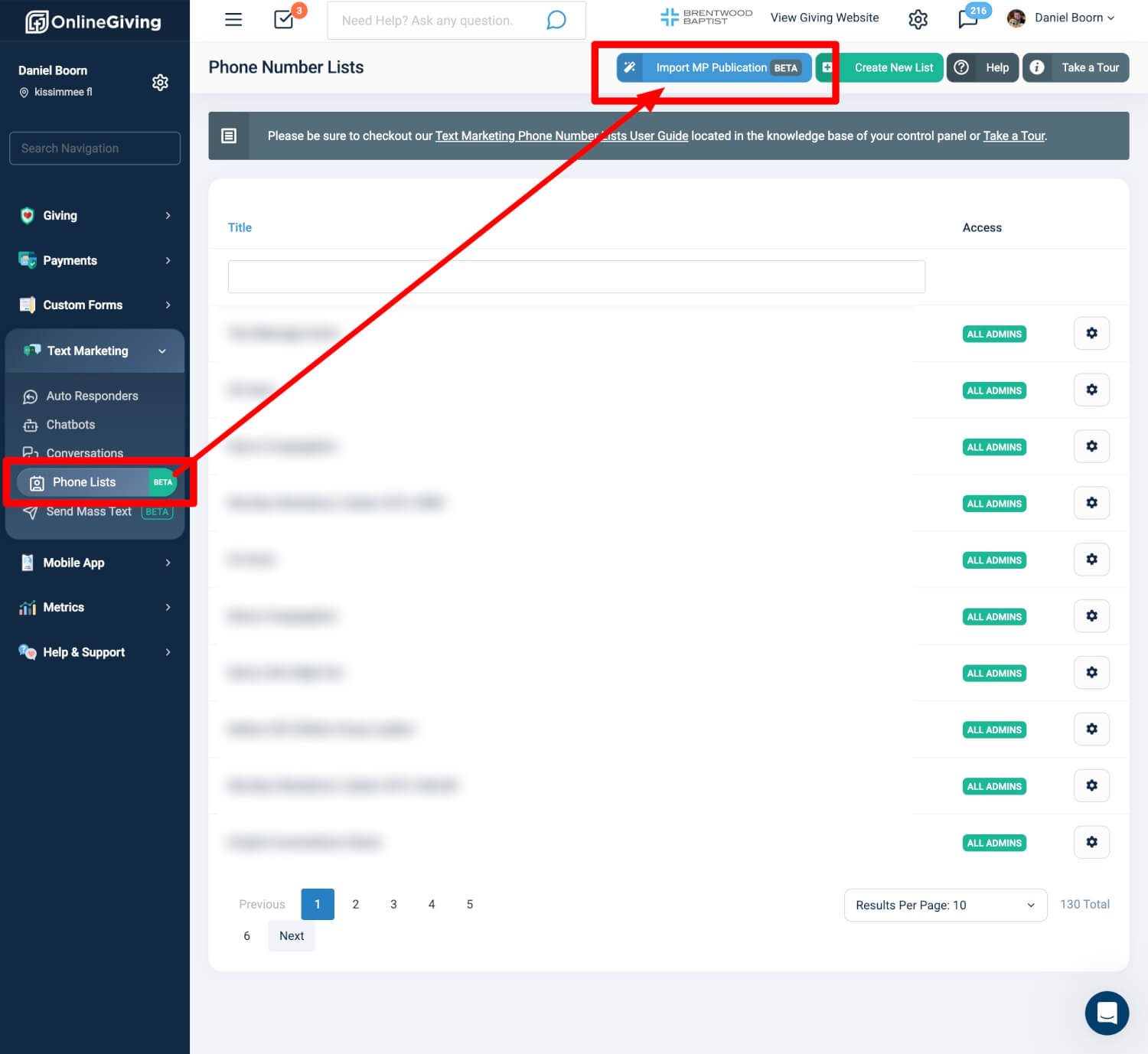
OnlineGiving.org Text Marketing Phone Number Lists > Import MP Publication → OG List Sync
Keep your OnlineGiving.org lists automatically in sync with MinistryPlatform Publications—no manual updates required.
How It Works:
-
Easily Import mobile phone numbers from a MP Publication with a click of a button!
-
Once imported, every night, OnlineGiving.org imports mobile numbers from that publication (while honoring local opt-out and MP publication opt-out preferences)
-
MP is the source of truth—additions and removals in MP are mirrored in OnlineGiving.org
-
For self-managed subscriptions, use our chatbot or form tools to update MP Publication contact lists in real time.
Example use the OnlineGiving.org subscribe or unsubscribe to publication Custom Form Action to add or remove contacts using an OnlineGiving.org Custom Form or Chatbot. -
Or, manage everything in MP directly— OnlineGiving.org will follow it exactly nightly on import (OnlineGiving.org phone opt-outs still honored)
Preview: