Feature Updates 09/26/2023
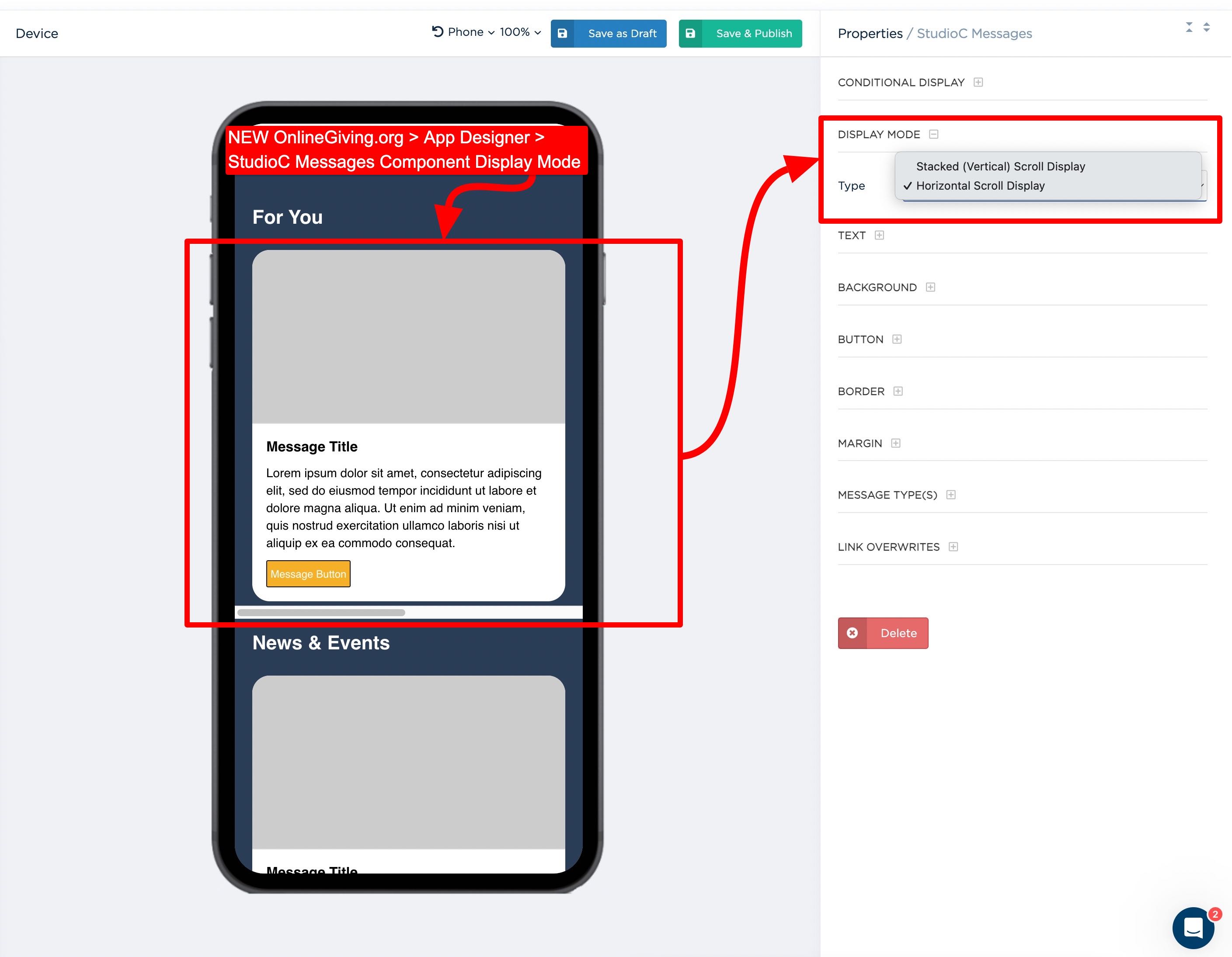
NEW OnlineGiving.org > Control Panel > App Designer > StudioC Messages Options
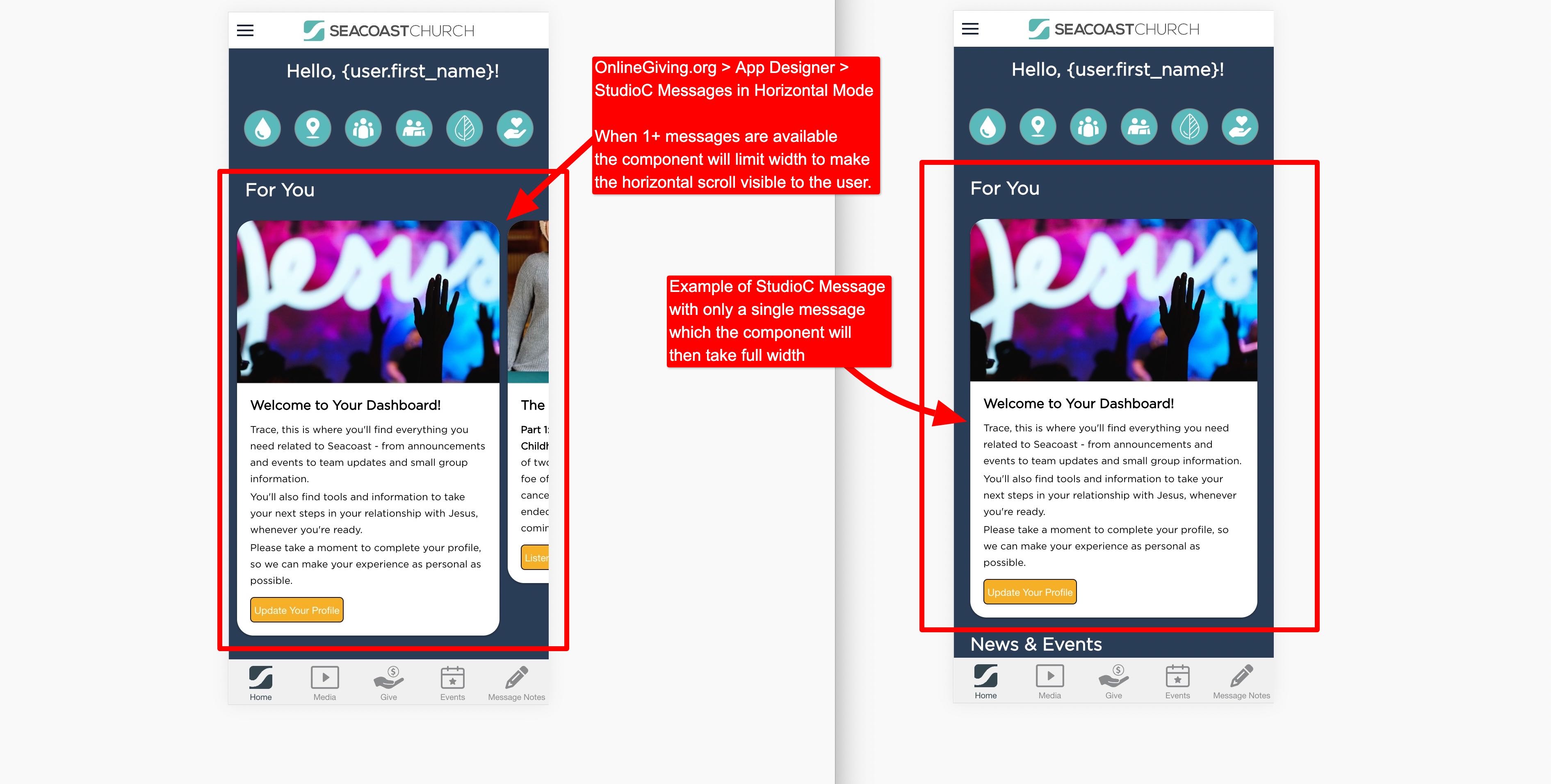
We're pleased to announce an update is now live that enhances the OnlineGiving.org > Control Panel > App Designer > StudioC Messages Component that adds a new "Display Mode" option to allow church administrators to change between a "Stacked (Vertical) Scroll" or "Horizontal Scroll" layout. The new horizontal scroll mode is smart and will adjust the message box width to allow visual cues of horizontal scroll when more than one message is available to the user. Additionally, when only a single message is available, the horizontal is smart and will display that single message at full-screen width to the mobile app user.
It's important to note that mobile app users may need to close the open app from the mobile device app switcher to view the latest changes. For iOS devices, swipe up and hold from the bottom of the screen to view the app switcher (tasks manager), then swipe up on the open app to close, then open the app again to view the latest changes. For older iOS devices, double-tap the home button to view the app switcher. For Android devices, tap the navigation button, swipe up on the open app to close, and then open the app to view the latest changes.
NEW OnlineGiving.org > Control Panel > App Designer > StudioC Badges Options
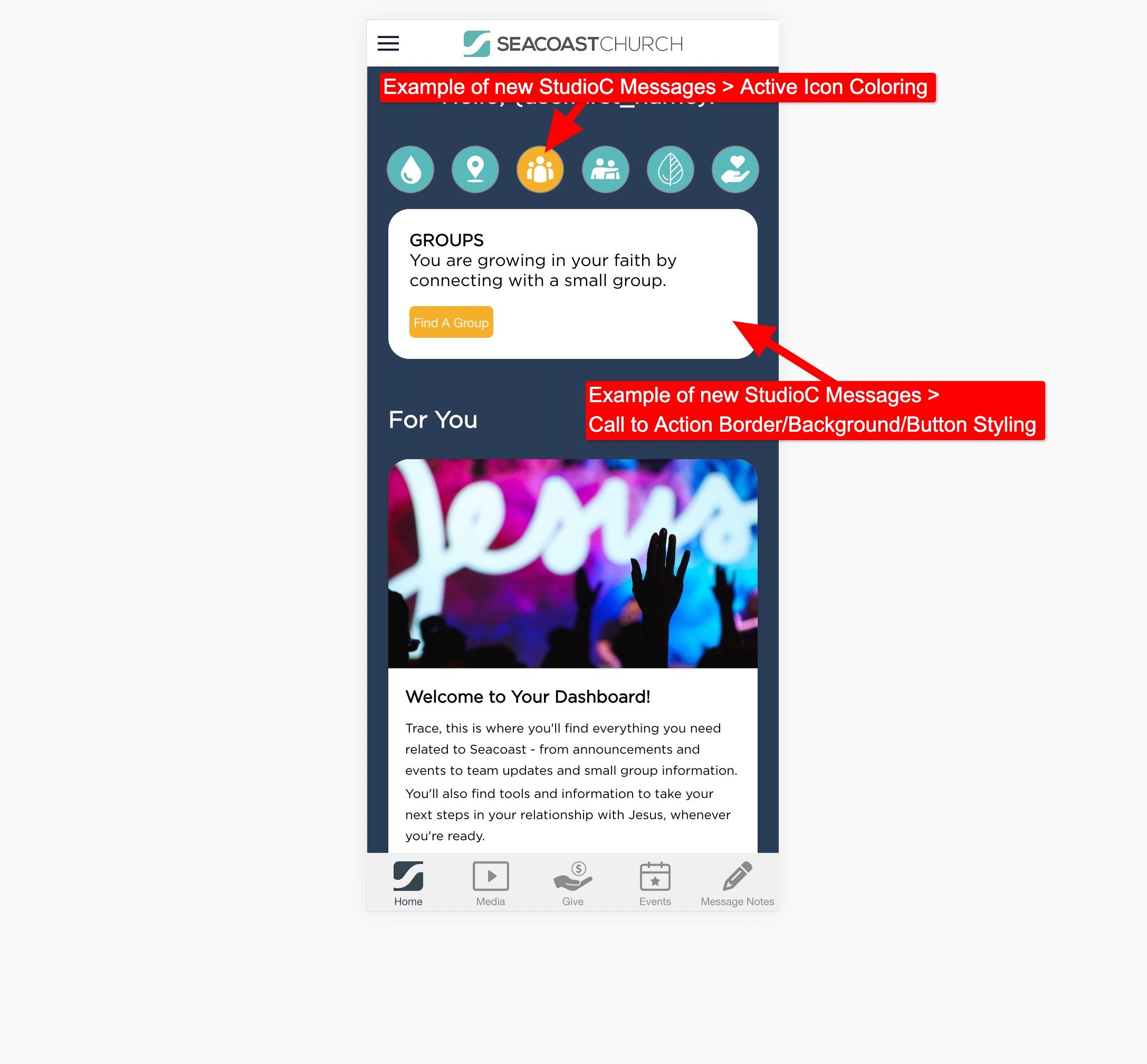
We're pleased to announce an update is now live that enhances the OnlineGiving.org > Control Panel > App Designer > StudioC Badges Component that adds new styling options for the "Call to Action" feature, which is displayed when the mobile app user taps on the StudioC badge. The additional styling allows the church administrator to control the call-to-action text, padding, button, background, and border styling options. Additionally, we've enhanced the StudioC Badges component with an "Active" badge status and color styling. Moving forward, an "Active" badge is used when the mobile app user taps the icon button. The goal of the "Active" badge color feature is to highlight the currently selected icon in the mobile app. This allows a triple color combination of StudioC Badge On, StudioC Badge Off, and Active Badge for a better user experience.
It's important to note that mobile app users may need to close the open app from the mobile device app switcher to view the latest changes. For iOS devices, swipe up and hold from the bottom of the screen to view the app switcher (tasks manager), then swipe up on the open app to close, then open the app again to view the latest changes. For older iOS devices, double-tap the home button to view the app switcher. For Android devices, tap the navigation button, swipe up on the open app to close, and then open the app to view the latest changes.

NEW OnlineGiving.org > Control Panel > App Designer > Collapsed/Expanded Properties
We're pleased to announce an update is now live that enhances the OnlineGiving.org > Control Panel > App Designer > Component Properties feature to collapse properties by default for space-saving purposes automatically. Church administrators may now click on the property title to toggle the display of the property options. Additionally, new "Collapse All" and "Expand All" buttons are now available on the top right of the properties pane, which toggles the display of the property options in bulk for the current component.
