Feature Updates 10/18/2022
OnlineGiving.org Control Panel Performance Boosts for Transaction Searching
We're pleased to announce an update is now live that launches multiple global performance boosts for searching transactions in the OnlineGiving.org control panel. It's important to note that the OnlineGiving.org platform operates on auto-scaling technology maintained by Google. The performance boosts, in this case, are optimizations in how specific queries are executed to provide speedier browsing and search experience.
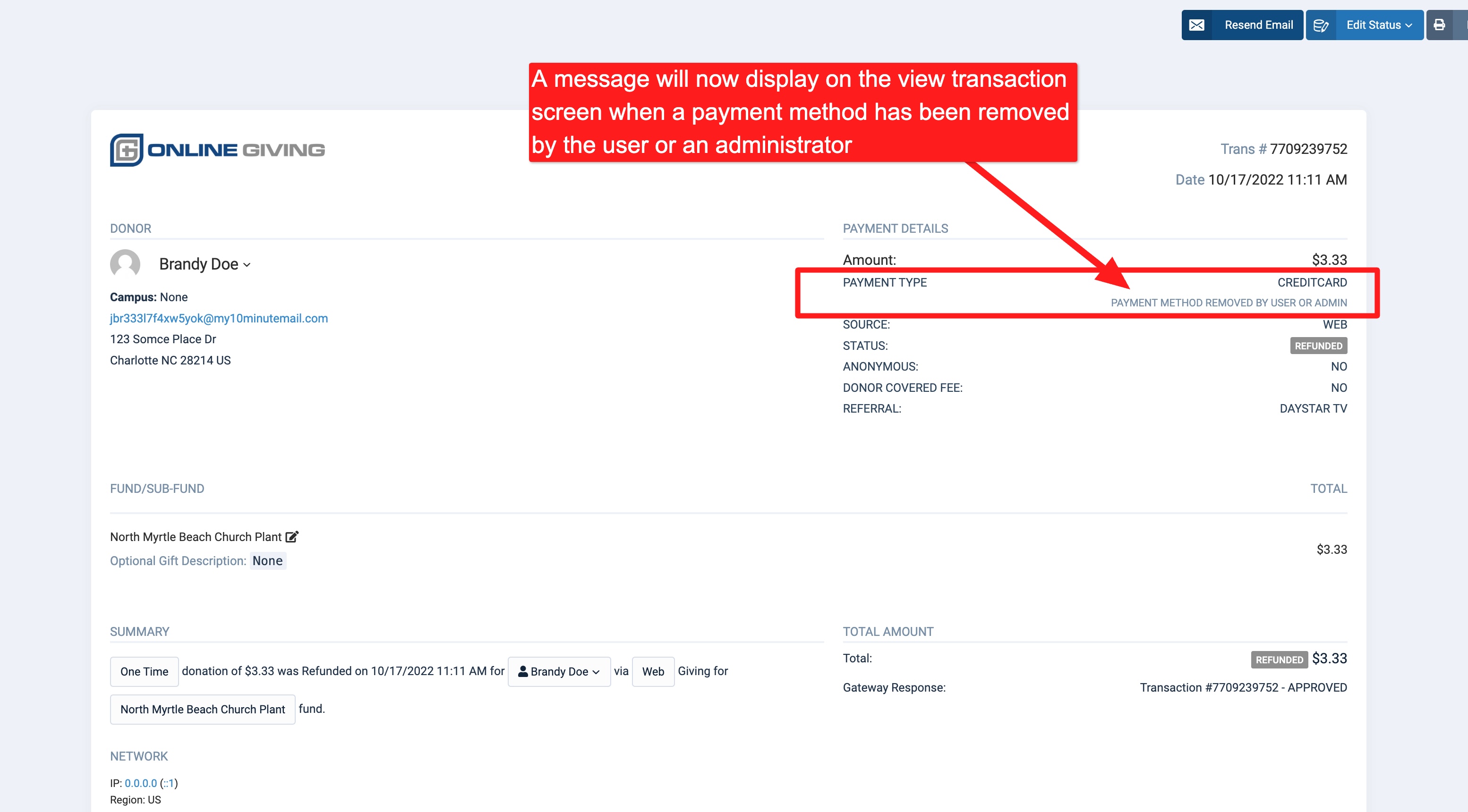
OnlineGiving.org Control Panel > View Transaction with Deleted Payment Method
An update is now live that enhances the OnlineGiving.org Control Panel > View Transaction screen to show a message on the top right under "Payment Method" to let the church administrator know when the associated payment method is no longer present in the system for the transaction due to being deleted by a user, administrator or system.
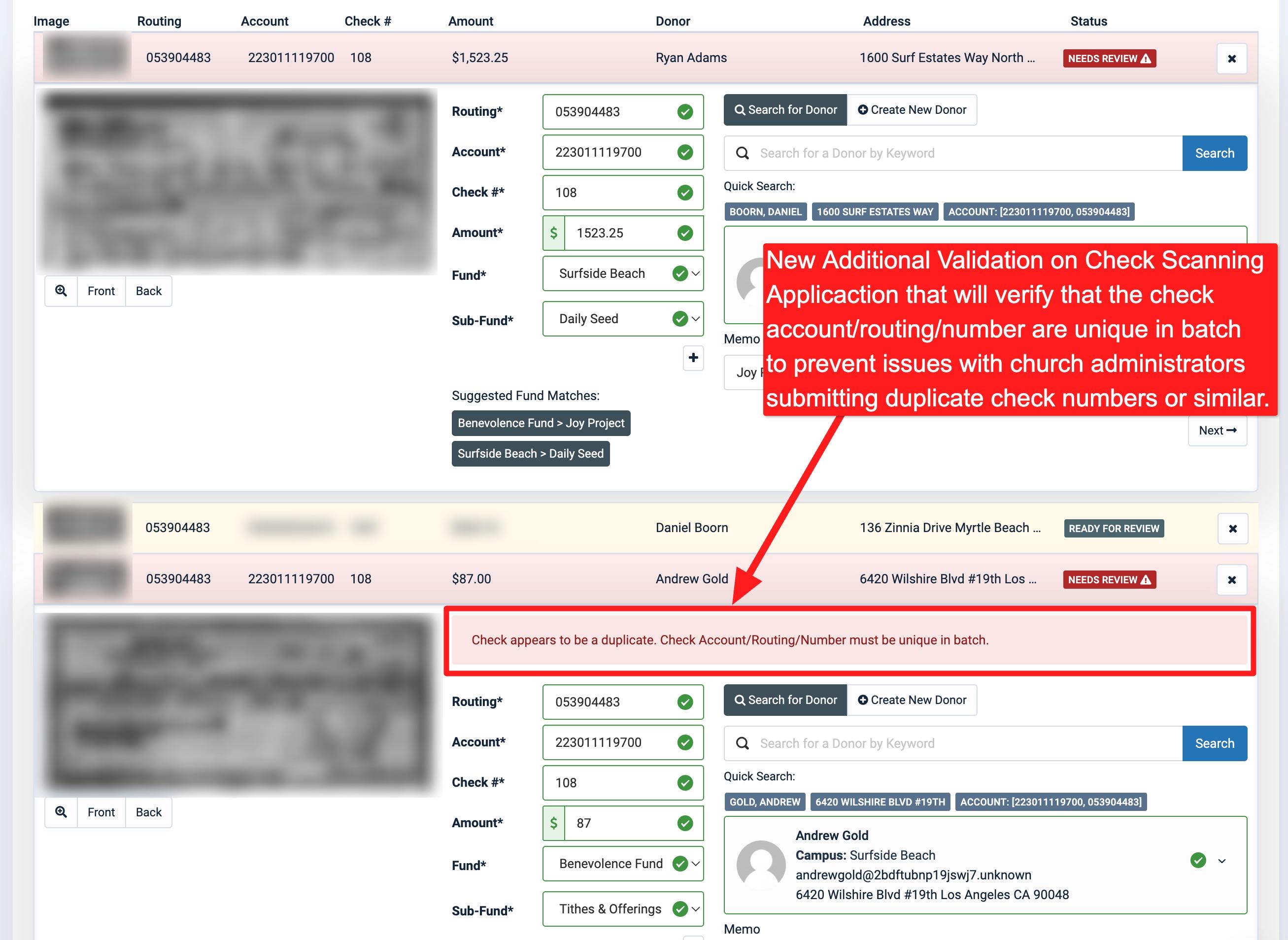
OnlineGiving.org Control Panel > Check Scanning Application Additional Validation
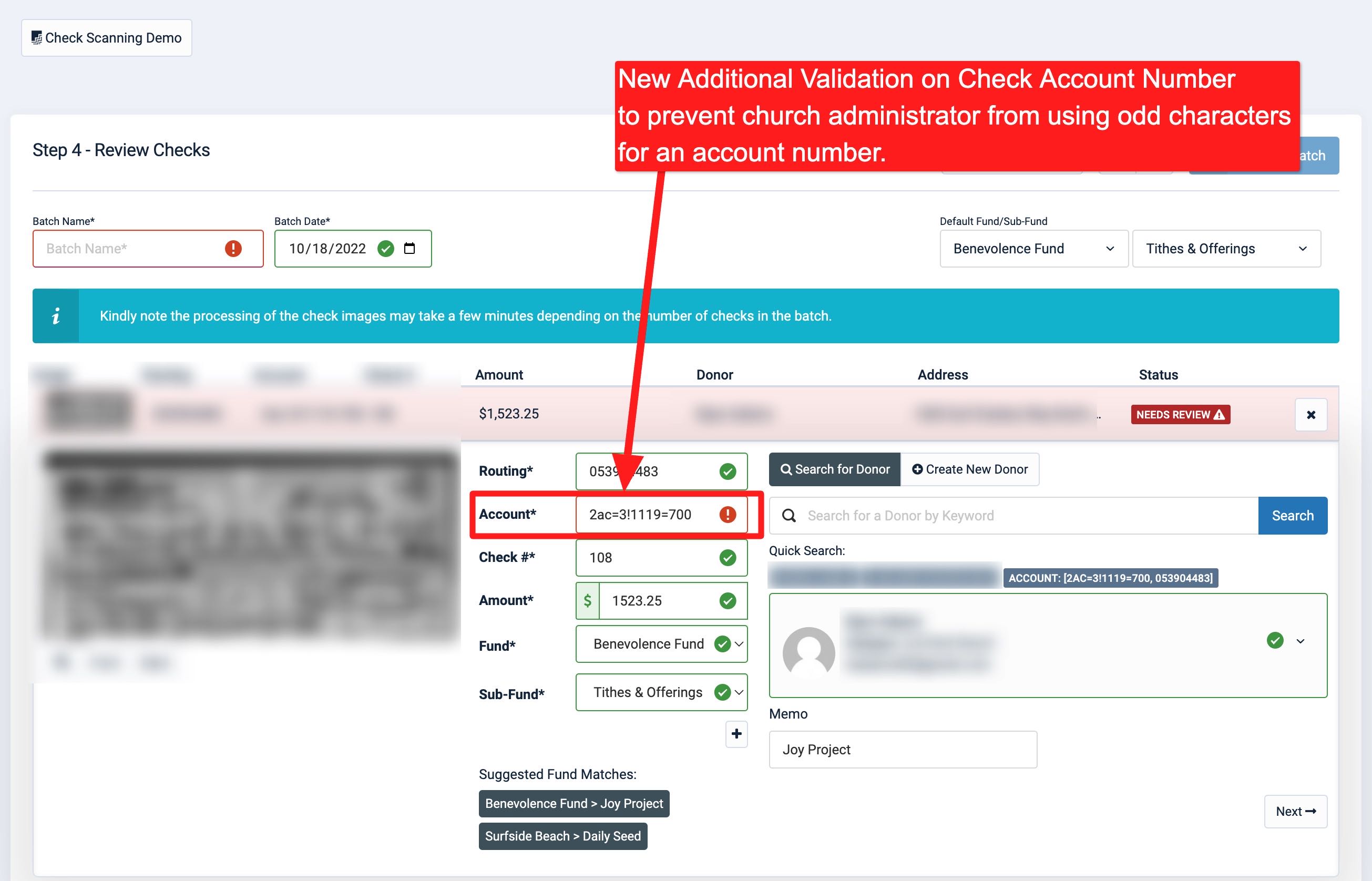
We're pleased to report an update is now live to the OnlineGiving.org Control Panel > Check Scanning application to add additional validation to protect church administrators from inadvertently entering a non-numeric account number and duplicate check into a batch. Before the update, the software performed many types of validation on the scanned checks, including routing number checksum validation, account number length, and much more. Our internal reports showed it was necessary to prevent a church staff member or volunteer from not correcting duplicate or invalid check account/routing/number fields.
While the application requires a church administrator to review all checks, we found it was still possible for a church administrator to allow duplicate or invalid account characters. The update resolves these issues by adding additional validation, ensuring the checks are unique (based on account/routing/number) and the account number contains only valid digits. The update was applied globally, and since the OnlineGiving.org check scanning application is cloud-based, no action is required by churches to take advantage of the new feature. The feature is now live for all check-scanning customers.
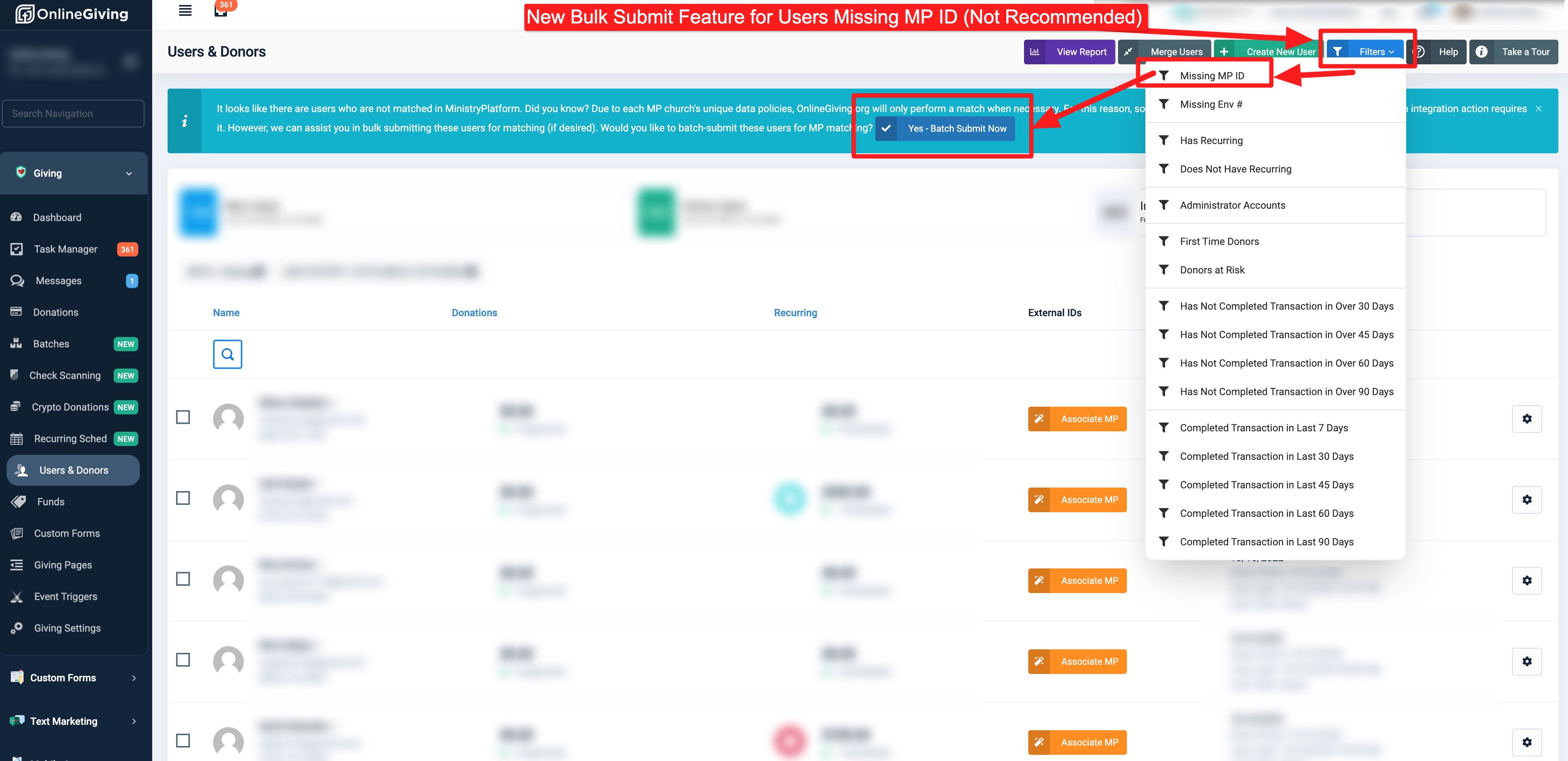
NEW OnlineGiving.org Control Panel > Users/Donors > Filters Missing MP ID > Bulk Submit Option
A new optional feature is now live in the OnlineGiving.org Control Panel under the Users/Donors > Filters > Missing MP ID feature. Moving forward, when a church administrator filters users/donors in the OnlineGiving.org control panel by "Missing MP ID" and one or more users are found without an MP ID, a bulk submits option will be displayed.
Due to each MP church's unique data policies, OnlineGiving.org will only perform a match when necessary. For this reason, some users may intentionally not be matched into MP until an integration action requires it. However, OnlineGiving.org has always allowed a church administrator to manually click the "Auto Match" button in a user's profile row to trigger the matching process (if desired). The update extends this feature to allow the matching to be performed in bulk.
OnlineGiving.org MP integration is fine-tuned based on church feedback to have trigger points for MP matching and/or record creation designed to appeal to the majority of church data policies. With great power comes great responsibility; we do not advise using this feature unless the church absolutely knows they will be bulk submitting any unmatched users for matching or record creation into MinistryPlatform.
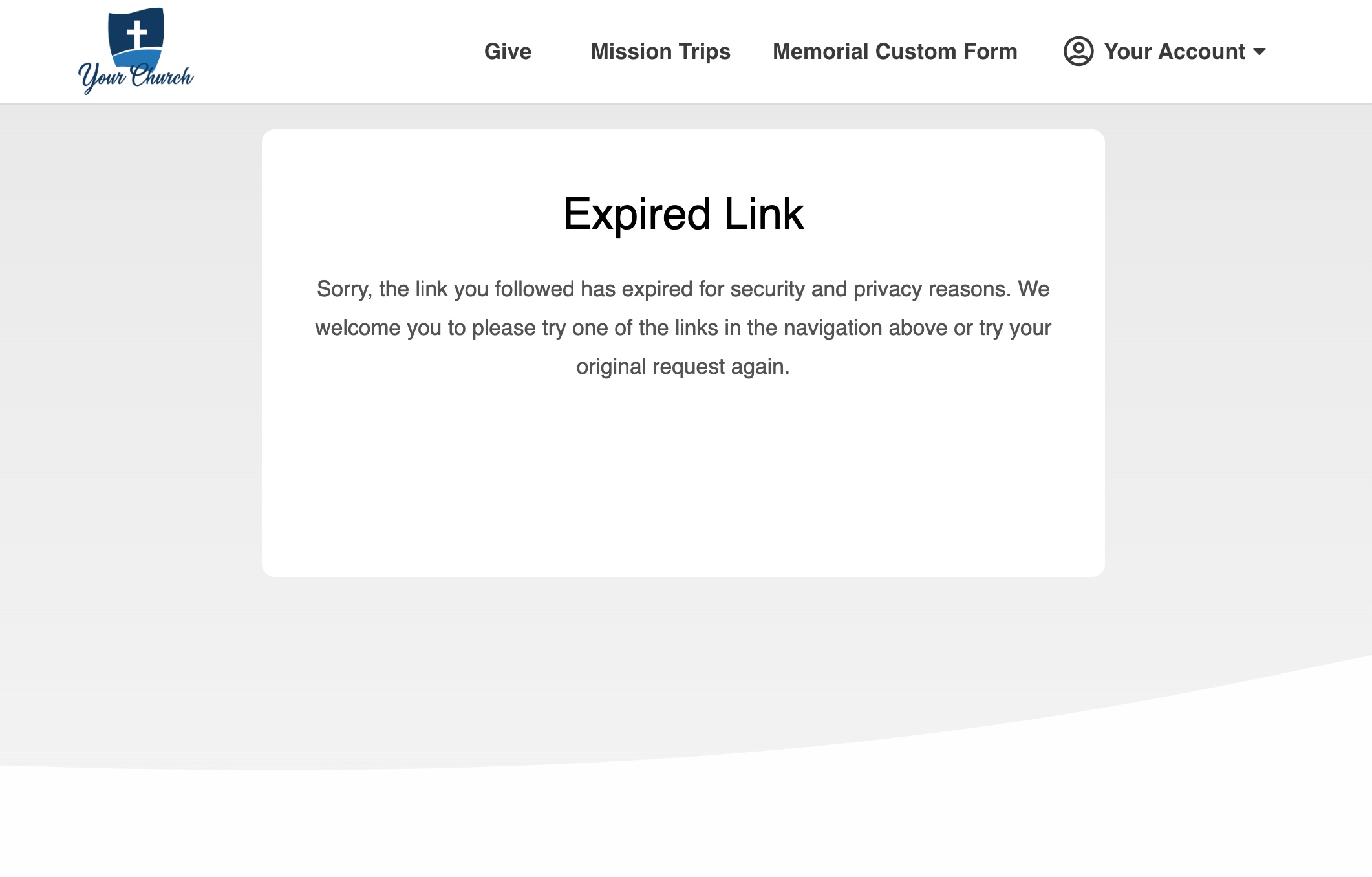
OnlineGiving.org Expired Link Message Page Now Displayed for Recently Expired Short Links
An update is now live that will display a church-themed "Expired Link" message for users who attempt to use a recently expired shortened link. Currently, OnlineGiving.org defines a recently expired shortened link as a link that has expired within the last two days. The goal of the update is to allow a landing page for recently expired links so that the user may choose another option from the navigation menu and/or be informed to try their original request again. For short code recycling purposes, expired short URLs are purged (currently) after 2 days of expiration.
Example of a Church-Themed Expired Link Page
OnlineGiving.org > Control Panel > Recurring Schedules > Filter by "Active" status Now Hides Completed Schedules
An update is now live that changes the OnlineGiving.org Control Panel > Recurring Schedules > Filter by "Active" status to only display active schedules that either have no end date or have not expired. Any completed schedule is a schedule that finished a fixed number of payments or exceeded the end-date (expiration). Church administrators may still filter by completed by using the "Completed" keyword in the status filter.
OnlineGiving.org > Mobile App for MinistryPlatform > My Groups > Cancel & Delete Group Meeting Options for Group Leaders
We're pleased to report an update is now live to the OnlineGiving.org mobile app for MinistryPlatform churches to add the ability to update a group meeting as canceled or deleted (see below for a preview). When reviewing a group meeting, group leaders may now click the "Cancel Group Meeting" button to update the group meeting with ***CANCELLED*** in the group meeting (event) title. Additionally, group leaders may also click the "Delete Group Meeting" button to have the group meeting updated with ***CANCELLED (PENDING DELETION)*** in the group meeting (event) title. MP Churches may search for events with the "PENDING DELETION" title keyword for deletion or create an MP task to auto-delete such events as desired.
It's important to note that mobile app users may need to close the open app from the mobile device app switcher to view the latest changes. For iOS devices, swipe up and hold from the bottom of the screen to view the app switcher (tasks manager), then swipe up on the open app to close, then open the app again to view the latest changes. For older iOS devices, double-tap the home button to view the app switcher. For Android devices, tap the navigation button, swipe up on the open app to close, and then open the app to view the latest changes.
Preview of New Group Meeting Cancel and Delete Administrative Features
