Feature Updates 11/01/2022
Enhanced Phone Optout Handling for Shortcode Enabled OnlineGiving.org Churches
We're pleased to announce that an update is live that enhances the handling of phone number opt-outs for churches using a shortcode combined with a secondary phone number. It's important to note this update only applies to shortcode-enabled churches, as all 10-digit opt-out is handled by Twilio directly. Moving forward, for OnlineGiving.org opt-out handling, our system will track the opt-out in combination with the inbound number used when the inbound STOP keyword message was received.
The goal of the enhancement is to allow the opt-out handling for shortcode + 10-digit secondary to be specific to the number the user texted the STOP keyword into directly. Before the update, this handling was specific for churches using two 10-digit phone numbers. The additional benefit of the enhanced opt-out handling is that if the church ever changes a phone number, the new outbound number will have a clean slate and not block any managed opt-outs from the previous number. For example, if a church inadvertently burns a phone number causing many opt-outs, simply changing the number will allow for a clean slate.
It's important to note that the STOP keyword will continue to trigger an unsubscribe from scheduled outbound messages. Once a user is unsubscribed from an outbound schedule, they must opt back in using the original subscription keyword, etc. In other words, the upgrades above for the STOP keyword handling do not change the unsubscribe handling for text marketing lists. Thus honoring a user's choice to unsubscribe from a recurring text message schedule, etc.
Finally, it's important to note that as part of the deployment for the new shortcode opt-out handling, the existing STOP keyword opt-outs have been cleared out (excluding unsubscriptions).
OnlineGiving.org MinistryPlatform Mobile App > Events > View Event > Volunteer for Event Now Smartly Displayed
An update is now live to the OnlineGiving.org mobile app for MinistryPlatform churches that will automatically hide the "Volunteer for Event" button when no MP Opportunities are present. Moving forward, the "Volunteer for Event" button displayed on the OnlineGiving.org mobile app MP view event screen will only display when one or more MP Opportunities are found matching the MP Event ID under the MP Opportunities "Add to Event" field value. The goal is user convenience in only displaying the button when a volunteer opportunity is available. Before the event, the button was always displayed, and then the user would be displayed the results.
It's important to note that mobile app users may need to close the open app from the mobile device app switcher to view the latest changes. For iOS devices, swipe up and hold from the bottom of the screen to view the app switcher (tasks manager), then swipe up on the open app to close, then open the app again to view the latest changes. For older iOS devices, double-tap the home button to view the app switcher. For Android devices, tap the navigation button, swipe up on the open app to close, and then open the app to view the latest changes.
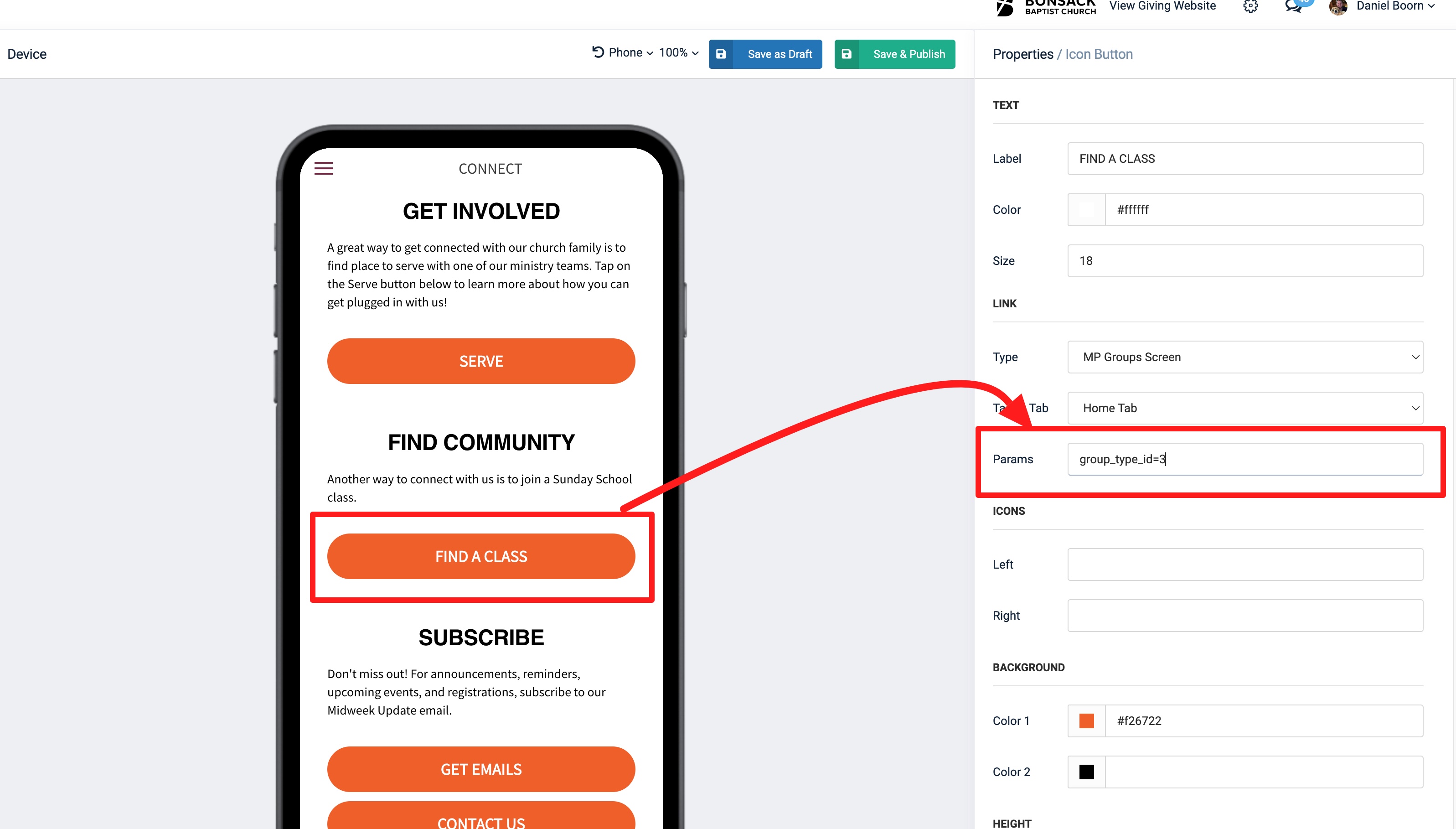
OnlineGiving.org MinistryPlatform Mobile App > App Designer > MP Groups Screen > Optional Params > Support for Filtering by Group Type ID
An update is now live that enhances the OnlineGiving.org App Designer for MinistryPlatform churches to allow the church administrator to optionally prefilter groups by one or more MP Group Type IDs. Moving forward, church administrators may optionally add a new parameter into the "MP Groups Screen" to list a comma-separated list of MP Group IDs that should be prefiltered.
It's important to note that mobile app users may need to close the open app from the mobile device app switcher to view the latest changes. For iOS devices, swipe up and hold from the bottom of the screen to view the app switcher (tasks manager), then swipe up on the open app to close, then open the app again to view the latest changes. For older iOS devices, double-tap the home button to view the app switcher. For Android devices, tap the navigation button, swipe up on the open app to close, and then open the app to view the latest changes.
Example from App Designer of Filtering by Single MP Group Type ID